MP4 (MPEG-4) is a container video format that can store multimedia data, usually audio and video. It is compatible with a wide range of devices and operating systems, using a codec to compress file size, resulting in a file that is easy to manage and store. It is also a popular video format for streaming over the Internet, such as on YouTube.
MP4 files open in the operating system's default video player. Simply double-clicking the file opens it. There is no need for third-party software. On Windows, it opens in Windows Media Player. On some devices, particularly mobile, opening this file type can be problematic. MP4 is a container that contains various kinds of data, so when there is a problem opening the file, it usually means that data in the container (an audio or video codec) is not compatible with the device’s OS.
To quickly convert a MOV file that uses the H.264 codec, you can simply change the filename extension of the MOV file to MP4. To adjust the resolution or size of the file, or to convert a file that uses a codec other than H.264, use iMovie to convert the file.
In the Finder, locate the MOV file that you want to convert. Select the file, then choose File > Get Info. In the More Info section, make sure that one of the Codecs is H.264. The filetype changes, but the resolution of the video and size of the MP4 file will be the same as the original MOV file. If you want to make the video file smaller or change the resolution or quality of the video, use iMovie to convert the video.
In iMovie on your Mac, click Create New in Projects view, then choose Movie. If you’re already working on a movie, click Projects to open the Projects view. Click the Import button at the top of the iMovie window, then locate the MOV file you want to convert. Select the MOV file, then click Import Selected. The MOV file is added to the iMovie project browser. Select the MOV file in the browser, then choose Edit > Add to Movie (or press the E key).
Click the Share button, then choose Export File. If you want to reduce the size of the converted file, click the Quality pop-up menu and choose Medium or Low. You can also reduce the size of the file by changing the resolution to a lower setting. For the highest level of control when converting and exporting video files, use Compressor, which is available from the Mac App Store.
Save your precious time converting MOV to MP4 files using complex software. In just a few clicks, you can convert MOV videos to MP4 format using Adobe Express MOV to MP4 converter. And you never have to worry about sacrificing video quality like when you change MOV to GIF. Want to trim your new videos or add new audio? No problem. Quickly crop your MOV videos using the Trimming Tool when changing them to MP4. Select the Mute Option, and in minutes, you can add new audio that matches with clips.
MOV files work best on Apple devices, but that doesn’t mean you can’t view them on any device you want. Adobe Express MOV to MP4 converter helps you change MOV to MP4 files so you can view your videos on almost any device and media player. And, for free. Download the Adobe Express MOV to MP4 converter on your mobile or desktop and start converting your MOV files today. Want to convert a single file or multiple MOV media? Use the drag-and-drop function to upload your MOV files and change your MOV to MP4 in a flash. Adobe Express lets you make professional quality edits to your videos for free in seconds. Shoot, edit, and share videos from your device to share across all your channels.
Can I get Adobe Express for free? Yes, we have a free plan available for anyone. Enjoy everything you need to stand out, including thousands of templates, hundreds of Adobe Stock images, photo editing and effects, and much more. High-quality videos with low effort traditional video conversion methods take a lot of work and multiple devices. Now, you can do everything-and more-with one platform. Canva’s .MOV to .MP4 converter works well on both desktop and mobile. No more switching between devices or buying expensive video editing software. Our converter is easy and completely free to use, giving you the same high-quality results for way less hassle and cost.
From photo gallery to the world wide web, have you ever been excited to post the perfect snippet, only to find out it’s too big or in the wrong format? With this nifty .MOV to .MP4 converter, you can turn any clip into the more platform-friendly .MP4 format. The converter gets rid of any unnecessary data that can inflate the file size and retains only what’s needed to keep the original resolution intact. From rough cut to final render, Canva has the added advantage of also being a video editor (opens in a new tab or window). You can essentially do the entire video editing process on the same platform, without the need for additional software or third-party resource providers. More importantly, you can upload multiple file formats, edit them all together, and download one final .MP4 video without needing to convert each clip individually.
How to convert MOV to MP4: step-by-step via iMovie
- Open iMovie on your Mac and create a new project, selecting Movie.
- Import the MOV file: click Import, locate the file, and Import Selected.
- Add the MOV file to the timeline by selecting it in the browser and choosing Edit > Add to Movie.
- Open the Share menu and choose Export File.
- Adjust quality or resolution as needed (Medium or Low to reduce size).
- Export and save as MP4 by choosing appropriate options; the resulting file will be MP4 if the original uses H.264.
Alternate tools and options
Compressor provides the highest level of control for converting and exporting video files on Mac. For quick conversions without sacrificing much quality, Canva’s MOV to MP4 converter offers both conversion and editing capabilities in one platform. CloudConvert is another online option that supports MP4, WEBM, and AVI, with controls for resolution, quality, and file size. Handbrake is a free alternative for pre-processing MOV files before importing into iMovie.
🎞️ How to Convert MOV to MP4 Online Free | No Software Installation Required
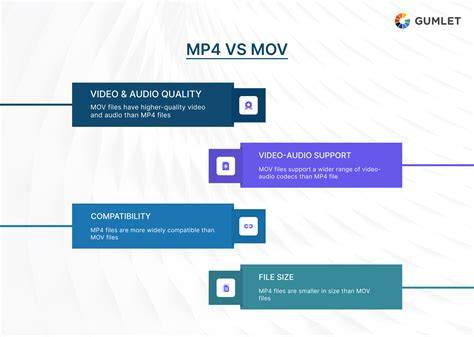
Note that MOV is a QuickTime-based format commonly associated with Apple, while MP4 is a broader, cross-platform container. Converting MOV to MP4 is generally straightforward with modern tools, and quality loss is typically minimal when using appropriate codecs and settings. If you encounter issues playing MP4s on certain devices, it may indicate codec or container compatibility problems, rather than a failure of the MP4 format itself.