HEIC is the default iPhone photo format since iOS 11, but Windows does not ship the codec to open it. The good news is that this is a codec problem, not a hardware problem, and there are multiple paths to make HEIC work on Windows depending on your situation.
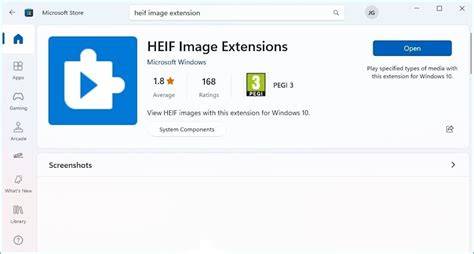
Path 1: Install Microsoft’s HEIF Image Extensions for Win10/11 (best for regular HEIC use)
The official path is to install Microsoft's HEIF Image Extensions from the Microsoft Store. This adds the HEIF photo decoder to the Windows imaging stack so the Photos app, File Explorer, and other system-image consumers can render .heic files inline. The extension itself is free; on most Windows 11 installs the HEVC video extension that ships separately is also already installed, so the photo path works out of the box once the HEIF extension is added.
Click Get and let it install. Right-click the .heic file - Open with - Photos. This fix is the right answer for any home-PC user who regularly receives photos from an iPhone friend and wants the Photos app and File Explorer thumbnails to "just work" from now on.
Path 2: Use IrfanView with the HEIF plugin (works when you cannot install Store extensions)
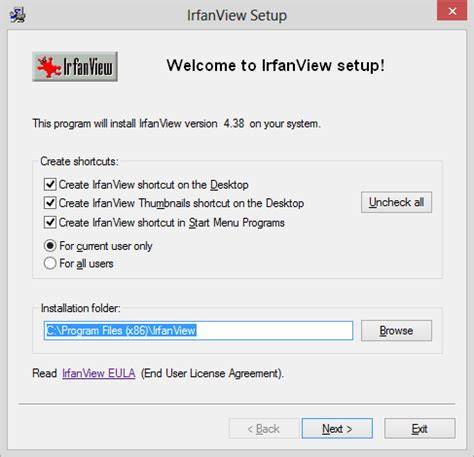
If you do not have admin rights or cannot install Store extensions on a managed work PC, use a portable third-party viewer like IrfanView with the HEIF plugin. IrfanView is a long-standing free Windows image viewer that supports a portable mode (no installer, runs from a USB stick or a folder in your home directory). Download IrfanView and the matching IrfanView plugin pack from the official irfanview.com site, drop them in a folder, and open .heic files via the IrfanView UI.
Trade-off: third-party viewers only fix HEIC display inside their own UI. The Windows Photos app, File Explorer thumbnails, Word, and PowerPoint will still see .heic as an unknown format unless you also install Path 1.
Path 3: One-off viewing or quick conversion without installation
If you only need to view ONE photo and you do not want to install anything, convert it online with HEIC to JPG - upload, download the JPG, done. The output JPG preserves EXIF metadata (capture date, camera model, GPS coordinates if present) by default. If you do not want to install anything at all, the fastest path is to convert the HEIC file to JPG once and then open the JPG with the Photos app, Paint, or any other Windows tool that has always handled JPG. The free HEIC to JPG tool runs the conversion server-side: you upload the .heic file, the conversion runs on the freetoolonline AWS service, and you download the JPG.
Is the HEIF Image Extensions package free on Windows 11? Yes - the photo extension itself is free in the Microsoft Store. Renaming .heic to .jpg will not work, as Windows cannot decode the file without the codec. Converting to JPG may involve a slight quality loss due to HEIC’s HEVC compression, but for viewing and casual sharing the loss is often negligible.
Practical considerations and troubleshooting
- Does the iPhone-side "Most Compatible" setting fix this at the source? Yes - Settings > Camera > Formats > Most Compatible switches new photos to JPG, but it does not fix HEICs already taken.
- Will converting to JPG lose quality? Yes, slightly. HEIC stores advanced compression; JPG is older, less efficient. A round-trip HEIC → JPG may show minor quality loss for some images.
- Will installing the HEIF extension enable all Windows apps to display HEIC? Yes, Photos, File Explorer thumbnails, Word, PowerPoint, Outlook attachments, and browser drag-and-drop will render HEIC with the proper codec.
- What if I cannot install anything or do not have admin rights? Use IrfanView with the HEIF plugin, or convert online for a one-off need.
Additional notes for IrfanView users
IrfanView remains a popular choice for viewing and converting HEIC files, especially in portable mode. To use IrfanView effectively with HEIC, download both IrfanView and the matching plugin pack, place them in a folder, and open .heic files via the IrfanView UI. If you encounter issues like icons or read-only INI warnings, these are usually independent of the HEIC codec and relate to file associations, permissions, or Windows system behavior.
For users who prefer to keep working within the Windows ecosystem, installing the HEIF Image Extensions provides the most seamless experience, enabling native handling across the Photos app, File Explorer, and other system tools.
How To Open HEIC Image In PC | How To Run HEVC Video | HEIC | HEIF | HEVC Video Extension
Frequently asked questions
- Will Windows open HEIC if I simply rename the extension to JPG? No - the content remains HEIC and requires the proper codec to decode.
- Can I keep both HEIC and JPG files? Yes. Keeping both allows preserving original quality while ensuring wide compatibility.
- Is there a Mac/Linux/Android cross-platform note? macOS opens HEIC natively; Linux usually requires libheif or similar, and Android 10+ supports HEIC by default.