Splitting audio files into shorter clips doesn’t have to be time-consuming or technical. Kapwing’s free tool lets users divide audio into shorter clips with a single click - just press “S” or use the right-click menu. With an intuitive visual timeline, drag and drop simplicity, and built-in shortcuts, anyone can accurately split audio clips and remove unwanted sections without editing experience.
And if you simply want to remove long pauses, use AI to auto-delete silences with a single click. Split audio online without needless downloads and keep your workflow clean and fast - no software installs, no cluttered files, and no tedious app updates. Kapwing provides immediate access to powerful splitting tools in your browser, allowing you to divide audio clips without ever leaving the page.
Core features: precision splitting and AI-driven enhancements
Built for solo creators producing content on a tight schedule and marketing teams working across projects, cloud-based editing, real-time edits, and shared project access simplifies collaboration. Start with common file types such as MP4, MP3, WAV, and MOV, or simply paste a URL from platforms like YouTube.
The AI-powered clip maker can batch split audio or video files up to 2 hours long into shorter clips that range from 15 seconds to 3 minutes. Just describe the type of clips you want, then fine-tune the results with preferences like aspect ratio, subtitles, and speaker focus. The tool automatically generates clips from your upload while you multitask from another browser tab.
Step by step, upload your audio file directly to Kapwing, or paste a URL to import content from the web. Add the file to the timeline and move the playhead to where you want to split. Press “S” or right-click and choose “Split.” For video files, detach the audio first by right-clicking and selecting “Detach Audio.” Make any edits then click “Export” in the top-right corner to download or share your finished audio online.
Use cases: from clipping to vocal separation
Split Vocals is designed for creators who need greater control over their audio. It separates vocals from instrumentals, making it easier to clean up recordings, isolate dialogue, or create custom soundtracks for podcasts, videos, and radio content. Add keyframes to pinpoint specific moments in your audio timeline, perfect for muting a section, adding fade-in and out transitions, or splitting songs on a certain beat.
Combined with tools like Remove Background Noise, Kapwing's advanced Audio Editing Studio gives complete control over projects. Start with thousands of templates and copyright-free media, and Repurpose content from the internet by pasting a link. Kapwing is completely free to start; just upload a video and start editing, then supercharge your editing workflow with powerful online tools.
Practical workflows for teams and individuals
Real teams creating on Kapwing highlight how intuitive the platform is - many marketers were able to get on the platform and use it right away with little to no instruction. No downloads or installations are required - it just works. For collaborative workflows, real-time comments in shared workspaces and a Brand Kit for easy asset access streamline feedback and asset management.
Kapwing’s cloud-based setup means your projects live wherever you are. The platform uses advanced AI models to power generative AI and one-click editing tools, enabling fast, consistent results across devices. Whether you’re a housewife starting a YouTube channel or a professional editor, Kapwing offers scalable capabilities from quick audio extractions to complex multi-layer edits.
Step-by-step guide to extract and refine audio
- Upload your audio or video file to Kapwing, or paste a URL.
- Add the media to the timeline and move the playhead to where you want to split.
- Press “S” or right-click and choose “Split.” For video, detach audio if needed.
- Use AI tools like Remove Background Noise or Smart Cut to refine the audio by removing silences or background noise.
- Export the project to download as MP3, WAV, or another supported format, or share the finished file directly.
Split Vocals lets you separate vocals from instrumental tracks in a single click, with AI-assisted maintenance of audio quality. Add keyframes for precise edits, apply fades, and adjust timing to fit your podcast, video, or music project.
Other Kapwing audio features worth knowing
Kapwing’s audio editor provides capabilities such as merging, clipping, removing noise, and cleaning audio. You can detach audio from video, isolate voices, and remix content with AI-powered tools. The platform supports mobile access, so you can edit on iPhone or Android in a browser, with no software installation required.
For those who need to convert formats, Kapwing can turn audio into video, or extract audio from video and export as MP3 or MP4. The maximum export duration and file size depend on your plan, with Pro accounts offering larger limits and watermark-free exports.
In addition to audio extraction, Kapwing offers a range of related tools, including AI-assisted speech transcription, speaker focus for multi-voice projects, and Teleprompter integration for smooth script delivery during recordings.
Related tools and comparisons
Other platforms also offer online audio extractors, but Kapwing emphasizes an all-in-one workflow: extract audio from video, edit the audio in-browser, and export in multiple formats without installing software. The combination of AI-powered enhancements, collaborative features, and a browser-based pipeline makes Kapwing a versatile choice for creators across disciplines.
Practical notes and frequently asked questions
Is the online Audio Splitter free? Yes, Kapwing’s online Audio Splitter is free for all users, though the free plan includes some limitations and may apply a small watermark to exports. Upgrading to Pro removes watermarks and unlocks more features.
Can I trim before extracting audio? Yes, trimming functionality is available in the toolset. You can also detach audio from video when needed. The extractor can handle common formats like MP4, MOV, and WebM, and supports MP3 exports.
How long does processing take? Most files process quickly, but longer recordings may take longer. Kapwing works in the browser across devices without software installation, enabling quick automation and collaboration.
Tables and data overview
Key capabilities at a glance:
| Feature | Benefit |
|---|---|
| Split by keyframes | Precise sectioning for targeted editing |
| AI silence removal | Faster edits by removing pauses |
| Detach audio from video | Independent audio editing |
| Format exports | MP3, WAV, MP4, and more |
| Collaboration | Real-time comments and shared workspaces |
These features are designed to help creators deliver polished audio content quickly, whether for podcasts, videos, tutorials, or social media clips.
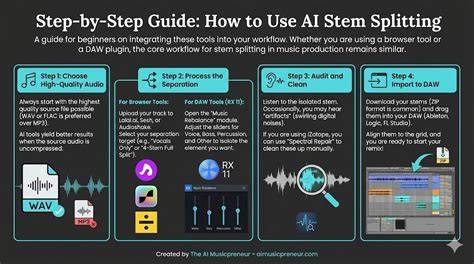
To enhance comprehension, an infographic showing the step-by-step workflow of splitting audio and removing silences can be a helpful visual aid when embedded alongside the text.
A concise video demonstration can guide new users through uploading, splitting, detaching, and exporting audio within Kapwing’s editor.