Onion skin is a fundamental feature for frame-by-frame animation in Krita, allowing animators to see previous and upcoming frames as translucent overlays. When onion skin stops appearing, it can halt progress and cause frustration, especially after updating to a newer version or starting to work with a new tablet. This article compiles common causes, step-by-step checks, and practical tips to restore onion skin visibility and usability in Krita.
Understanding the onion skin feature and its controls
In Krita, the onion skin system is organized around a docker that presents multiple columns corresponding to frames relative to the current frame. The central column (often labeled '0') represents the current frame, while adjacent columns show surrounding frames. The opacity and enable/disable state of these layers are controlled by sliders and toggles within the onion skins docker. Proper adjustment lets you modulate how prominently past and future frames appear without obscuring your current work.
Key points to know:
- The central black area under frame '0' corresponds to overall enablement and opacity for onion skins across all layers.
- Sliding the central control all the way down should reduce opacity to near zero and effectively turn off onion skins.
- Individual columns (-1, 1, -2, 2, etc.) carry their own opacity settings, typically lower as you move away from the center for a balanced reference.
Common causes for onion skin not showing and how to fix them
Issue 1: Onion skin docker is present but not displaying any reference frames.
Fixes:
- Check that onion skins are enabled. Ensure the central black area is not completely slid down to off - adjust it to around 50% to start.
- Verify that the frames you intend to reference exist in the timeline (there are past and future frames beyond the current frame).
- Confirm that the opacity values for surrounding frames (-1, 1, -2, 2, etc.) are set to sensible levels (e.g., around 70% for outer rings).
Issue 2: Onion skin appears as blue or grey instead of turning off when you slide to the bottom, or does not dim as expected.
Fixes:
- Try clicking in the middle of the black area under frame '0' to set the overall opacity to about 50%, then adjust gradually.
- Slide the central control up and down to find a comfortable balance between visibility and current drawing clarity.
- Make sure you are not in a mode where onion skins are disabled per layer; check the layer-specific visibility and lock states.
Issue 3: After updating Krita, onion skin behavior seems different or not functioning.
Fixes:
- Check the version-specific settings or known issues in Krita release notes; sometimes UI changes require minor workflow tweaks.
- Re-evaluate the docker arrangement: ensure the onion skins docker is docked and not hidden by other panels.
- Re-setup onion skins by opening the onion skins docker, ensuring the -1, 1, -2, 2 channels are enabled and have appropriate opacity.
Issue 4: Hardware-related problems with a tablet affecting onion skin display.
Fixes:
- Ensure Krita has proper tablet driver support for your device and that no conflicting software is intercepting tablet input.
- Test the tablet with other drawing software to confirm input works as expected; if not, update drivers or adjust tablet settings.
- In Krita, try a simple redraw with a new frame to verify onion skin responds to frame changes and opacity controls.
Step-by-step practical workflow to restore onion skin visibility
1) Open Krita and switch to your animation workspace. Ensure the onion skins docker is visible. If not, enable it from the Dockers menu.
2) In the onion skins docker, locate the central frame '0' area and click in the middle of the black zone to set about 50% opacity. This establishes a baseline visibility.
3) Adjust the surrounding frame columns (-1, 1, -2, 2, etc.) to about 70% opacity or your preferred balance. This provides context without overpowering the current frame.
4) Slide the central opacity control up and down to test different visibility levels. Find a setting where past and future frames are clearly visible but do not obscure your current work.
5) Scroll through frames to confirm onion skins update correctly as you move the current frame. If frames do not update, ensure you are in the correct animation mode and that the frames exist in the timeline.
6) Check per-layer settings: some layers may have onion skin disabled or have independent visibility toggles. Enable onion skin reference on each layer as needed.
7) Save the project and restart Krita if the issue persists after adjustments. Sometimes a clean restart resolves UI state inconsistencies after updates.
Tips for stable and productive onion skin usage
- Regularly save incremental versions of your animation to preserve reference frames and avoid data loss.
- Label key frames or important references to reduce confusion when previewing onion skins across many frames.
- Use neutral transitions between sections to maintain smooth visual context when editing around critical frames.
- Combine onion skin with a light tint or color coding to differentiate past and future frames more clearly.
- If you use a graphics tablet, tailor pressure sensitivity and stabilisation settings to ensure crisp frame references during onion skin overlay.
Additional resources and community guidance
Forums and tutorials often discuss critical nuances of onion skin behavior across Krita versions. When problems persist, sharing a screenshot of the onion skins docker and the exact settings around frame '0' can help others diagnose whether the issue is global or project-specific. Consider posting a direct share link to a screenshot in forums or community threads to gather targeted advice.
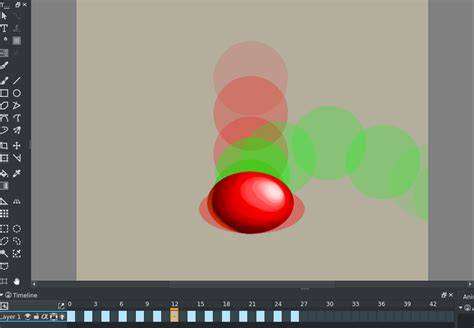
🔴 Animation in Krita. - How to use the Onion Skin
With careful adjustment of the central opacity control and surrounding frame settings, onion skins can be restored and tuned for effective frame-by-frame animation in Krita. The described workflow aligns with typical UI behavior observed across recent Krita versions and tablet configurations.