Lens flare brushes in Photoshop offer a versatile way to add photographic glow, star bursts, and dramatic light streaks to images. This guide explores a collection of 15 high-quality lens optical flares and stars brushes, each designed to reach 2500+ pixels in size, along with 20 Laser PS Brushes variations. These brushes provide a range of options for designers, photographers, and digital artists seeking realistic or stylized light effects.
What the brush pack includes and how it enhances workflow
The pack contains: 15 high quality lens optical flares and stars brushes with large dimensions, plus 20 Laser PS Brushes variations. These brushes are suitable for posters, portraits, sci‑fi scenes, and cinematic compositions. The large size ensures clean edges at high resolutions and flexibility for scaling without losing detail. Consistent naming like “Laser PS Brushes abr.” and “Laser Stage PS Brushes abr.” indicates curated sets focused on laser and stage lighting aesthetics, enabling a cohesive look across multiple elements in a composition.
Using these brushes can simplify the process of simulating lens artifacts that would otherwise require complex photometric grading or physical camera setups. Rather than manually composing every flare, you can stamp or paint light elements to achieve precise placement, intensity, and dispersion. The result is a more efficient workflow with repeatable results across multiple projects.
Practical tips for choosing and applying lens flare brushes
- Resolution and scale: Start with the largest brush size available (2500+ pixels) to preserve detail when used on high‑resolution canvases.
- Color and blend modes: Experiment with color variations and blend modes such as Screen, Overlay, or Linear Dodge (Add) to achieve different glows and tinting effects.
- Softness and intensity: Adjust opacity and brush hardness to control edge softness. For a subtle effect, use low opacity strokes or repeated passes.
- Placement logic: Place flares near bright light sources or reflections, considering relative depth and light scattering to maintain realism.
- Layer organization: Separate flares into a dedicated layer group to ease masking and future adjustments.
Workflow examples: creating dramatic compositions
Begin with a base image and identify strong light sources such as sunlight, reflections, or artificial lights. Select a flare brush with a circular or starburst shape and set the brush to a bright color close to white. Apply a soft glow by using a low opacity and a large, diffused brush stroke. Layer additional flares to simulate multiple light paths, then refine with color shifts to match the image’s mood.
For laser effects, choose the 20 Laser PS Brushes abr or the 20 Laser Stage PS Brushes abr variants. Create thin, elongated strokes across the scene, adjusting stroke width and length to mimic light beams. Add subtle glow and bloom with outer glow layer styles, then rasterize or convert to smart objects if you need to apply filters or distortions.
Infographics and resource ideas
To improve understanding, consider supplementing the article with an infographic showing: lens flare components (chromatic halo, starburst, ghost images), typical usage scenarios, and workflow steps from placement to final color grading. A schematic diagram illustrating how light paths interact with camera optics could also be informative for readers new to the technique.
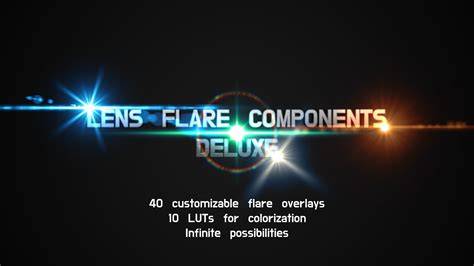
Additionally, a short comparison chart of different brush types (flares, stars, lasers) and their best use cases can help readers select the right brush for each project.
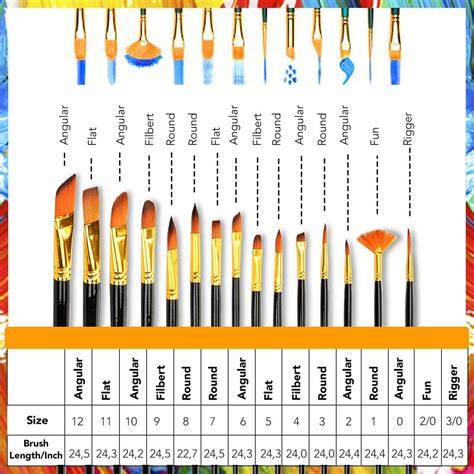
Table: recommended settings for common scenarios
| Scenario | Brush Type | Brush Size | Blend Mode | Opacity |
|---|---|---|---|---|
| Portrait with backlight | Lens flare | large | Screen | 30-60% |
| Sci‑fi poster | Laser PS Brush | medium | Linear Dodge | 60-80% |
| Night city composition | Stars/Flare | large | Lighten | 40-70% |
| Stage lighting concept | Stage Laser PS Brush | long | Screen | 50-70% |
Tips for non-destructive edits
- Convert flare layers to smart objects to apply non-destructive filters or warp effects without losing quality.
- Use masks to blend flares with the image edges and remove overlaps that feel unnatural.
- Group related flares by scene sections (background, midground, foreground) for easier adjustments.
Video tutorial suggestions
In addition to brushes, a short video tutorial demonstrating practical steps for applying lens flares and laser brushes can be helpful. The video could cover brush selection, color grading, and layering techniques to achieve cohesive lighting in a composition.
Create a Lens Flare Brush You Can Use Again and Again
By combining high‑quality lens flare and laser brush packs with careful layering, color matching, and non-destructive editing, you can create compelling, cinematic lighting effects across a wide range of projects.