In Adobe Photoshop, you can make temporary masks, called quick masks. Masks let you isolate and protect parts of an image. The dress is still only partly selected. The Quick Mask mode button in the toolbox switches you from Standard mode to Quick Mask mode, where a red overlay (rubylith) appears to protect areas outside the selection. Now we need to refine the selection of the dress by adding to or erasing parts of the masked area. We do this by using the brush tool to make changes to your quick mask.
The advantage of editing your selection as a mask is that you can use almost any tool or filter to modify the mask. In Quick Mask mode, Photoshop automatically defaults to Grayscale mode. The foreground colour defaults to black, and the background colour defaults to white. Start by painting with white to increase the selected area within the dress. In the tool options bar, make sure that the mode is Normal. Using the brush tool, begin painting over the red areas within the dress. As you paint with white, the red areas are erased. Don’t worry if you paint outside the outline of the dress. Continue painting with white to erase all of the mask (red) in the dress. Once you’ve erased all of the red areas within the dress, click the Standard mode icon again to view your quick mask as a selection. Don’t worry if the selection extends a bit beyond the dress. If necessary, zoom out so that you can see the entire image.
To make the foreground colour black, select the Switch Foreground and Background Colours icon, or press X on the keyboard. Make sure that the black colour box now appears on top. Choose a brush from the Brush pop-up palette. Now paint with black to restore the mask (the red overlay) to any of the background area that is still unprotected. Continue working until only the area inside the dress remains unmasked and you are completely satisfied with your mask selection. I love the quick mask because it allows you to create a very precise selection using familiar and easy to use tools such as the paint brush.
Masking in Photoshop is a skill that forms the basis of non-destructive editing. A quick mask is a temporary mask used for making or refining selections, while a layer mask is a permanent, non-destructive way to hide parts of layers. You can edit a quick mask by entering Quick Mask Mode (Q), painting with the brush, and exiting to view the final selection. You can change the color or opacity of the quick mask via the Quick Mask Options dialog. The quick mask is compatible with all other selection tools, and you can save quick mask selections as new channels for later use.
Can you save my quick mask selection? Yes. After making your selection in the Quick Mask Mode, go to the Select menu and choose Save Selection. This saves your selection as a new channel which you can load later when needed. If the quick mask isn’t working, check the mask color, opacity, or whether you are painting with the correct foreground color. To invert your quick mask selection, exit Quick Mask Mode (Q), then go to Select > Inverse. You can apply adjustments to the masked region only after making a selection with the quick mask.
How can I use the quick mask with other tools? The quick mask integrates with tools like Lasso, Marquee, and the Brush tool, enabling precise control over complex, irregular shapes. You can switch to normal mode to view the mask as a selection and refine further. For image adjustments, you can apply edits to the area defined by the quick mask without affecting the rest of the image. The quick mask supports painting with both white (to reveal) and black (to hide), and this workflow is particularly effective on detailed edges such as hair or fabric folds.
Beyond quick masks, Photoshop offers a range of masking techniques. Layer masks are grayscale stencils that hide or reveal parts of a layer. Clipping masks constrain visibility to a shape defined by another layer. Vector masks use vector paths for precise, scalable edges. A selection mask derives from an existing selection to mask areas. The Mask All Objects feature can automatically generate masks for multiple objects, useful for isolating several subjects.
Step-by-step masking workflow overview:
- Set up a new document or open your image.
- Choose a masking approach (Quick Mask for brush-based refinements, or a standard Layer Mask for non-destructive edits).
- Refine edges using brushes, Refine Edge, or Select Subject within Select and Mask for hair and small details.
- If needed, switch between Quick Mask and standard view to perfect the selection.
- Optionally save the mask as a channel or apply it to an adjustment layer for targeted edits.
Practical masking techniques and tips
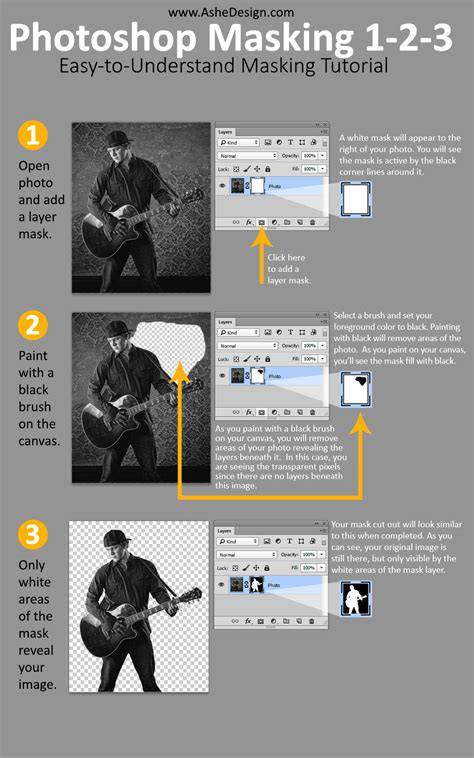
Layer masks are foundational: they reveal content in white and hide content in black, with grays representing partial visibility. Clipping masks allow a layer’s visibility to be defined by the content of a layer below. Vector masks provide precision for sharp-edged shapes. Select and Mask is a dedicated workspace that combines multiple tools to refine selections, especially for tricky edges like hair and fur. It includes Quick Selection Tool, Object Selection Tool, Lasso Tool, and a Brush Tool within a focused interface, plus controls such as Radius, Smart Radius, Refine Edge, and Decontaminate Colors to improve edge fidelity.
The Select and Mask workflow often involves viewing options like Overlay, On Layers, Black & White, and a range of view modes to evaluate edge quality. Adjusting parameters such as Radius, Smooth, and Shift Edge helps tailor the mask to the subject and background. Decontaminate Colors helps suppress color fringes around edges, though it may introduce artifacts in some images. Output options include New Layer with Layer Mask, New Document with Mask, or a direct Layer Mask on the current layer.
To work with optics or third-party masking tools, you can convert layers to Smart Objects and apply plugins like Optics for Mask ML or EZ Mask. These tools provide automatic or semi-automatic masking capabilities, including point-and-click generation, foreground/background strokes, and the ability to copy or move masks between layers. After applying such tools, you can render results and re-edit masks later if needed.
In practice, practice with a few benchmark images to understand how radial changes affect edge fidelity. Hair and fur often benefit from Refine Edge or Refine Hair adjustments, and you may test both Color Aware and Object Aware modes to determine which yields cleaner edges. You can compare results by toggling different view modes and zooming to 100% or higher to inspect fine details. When satisfied, finalize the mask by outputting to a new layer with a layer mask or by exporting the mask as a separate channel for reuse.
Digitizing Your Illustrations with the Quick Mask Mode: A Video Tutorial by Go Media's Arsenal
Whether you are isolating a dress, refining hair, or combining multiple objects, mastering quick masks alongside layer, clipping, and vector masks will significantly enhance your non-destructive editing toolkit. The key is to practice across diverse images, test various brush sizes and hardness levels, and use zoom and pan to inspect edges closely. With time, you’ll develop a fluent approach to selecting tricky subjects with precision and efficiency.