Struggling to change the aspect ratio of your image in Photoshop? This guide will provide simple steps to help you master this process.
Getting started and basic crop workflow
Step 1. Start by launching Photoshop on your computer. Navigate to the “File” menu, select “Open,” and choose the image you wish to edit.
Step 2. Locate the toolbar on the left side of your screen. The Crop Tool icon looks like two intersecting right angles.
Step 4. Once you’ve set the aspect ratio, a crop box will appear on your image.
Step 6. Take a moment to review your cropped image.
Step 7. If you’re not satisfied with the crop, you can undo it.
Step 8. Once you’re happy with the cropped image, go to “File” and then “Save As” to save the image.
Presets and precise control
Photoshop also offers preset aspect ratios.
In the crop tool options, you can change the option to W x H x Resolution to type in your desired aspect ratio or size. For example, you can enter 8 in x 10 in and force the scale to inches.
When you tell Photoshop you want to crop to a specific aspect ratio, maintaining that aspect ratio requires that both dimensions be cropped by the same amount.
Pixel aspect ratios vs. image aspect ratios
There might be some confusion here between the image aspect ratio and the pixel aspect ratio. The image aspect ratio is the ratio of width to height in pixels, while pixel aspect ratio concerns how pixels are displayed on the screen or timeline.
To set the Pixel Aspect Ratio to a standard square, you can choose View > Pixel Aspect Ratio > Square, which sets the Pixel Aspect Ratio to 1:1 and makes the image look less wide.
Resizing and resampling without changing crop composition
To resize an image without changing its composition, you can use Image Size or the Transform tool. If you keep the Resample checkbox checked, Photoshop will change the amount of pixel data inside the image.
To resize for web uses, 72 PPI is often sufficient. If you need to preserve quality while changing dimensions, you can resize with attention to resampling methods in the Image Size dialog.
Maintaining or changing aspect ratios during resizing
To resize while preserving the aspect ratio, use the chain link icon next to Width and Height to constrain proportions.
To resize proportionally via Transform, press Ctrl+T (Cmd+T on Mac) and drag a corner while holding Shift to maintain the original aspect ratio, or simply enter exact dimensions in the options bar.
Automation and batch processing
Yes, you can batch resize images in Photoshop using the "Image Processor" script. This script lets users process a series of images and specify the desired size for the output images. To use the Image Processor script, go to File > Scripts > Image Processor.
Practical tips for accurate crops
Recently while I was conducting a Photoshop seminar, I realized that a lot of people were tripping up with the simple crop tool. Let’s fix that right now. You will see the crop boundaries, which can be selected and dragged. In the tool options bar at the top, change the option to W x H x Resolution. You can now type in your desired aspect ratio, or size. If you don’t enter anything in the resolution field, it will just set an aspect ratio without any resolution. This is where people sometimes get confused.
Notes on printing and digital use
For print, it’s usually 300 ppi (DPI printed). For online, 72 is common. The higher the resolution, the more detail an image has, and the bigger an image file is because it’s denser with data. One way to shrink a file size is to lower the resolution, which doesn’t have to change the image dimensions.
Additional approaches and related tools
Lightroom works the same as Photoshop, but uses different controls. If you convert layers to a Smart Object, you can apply transforms non-destructively. The Photoshop on the Web Beta Blur allows you to easily scale your photos while preserving the existing crop ratio, with a valid Adobe Creative Cloud subscription.
To crop for composition while avoiding unnecessary loss, you can focus on a portion of the photo and remove distractions. And remember, cropping isn’t the only way to adjust composition-proportionate resizing and re-framing can achieve similar results without clipping edges.
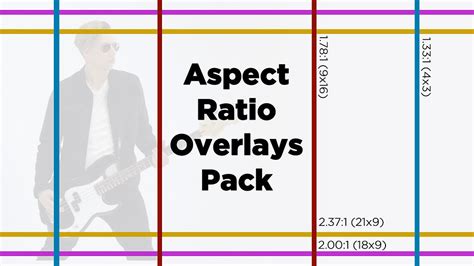
how to crop an image without changing the aspect ratio in Photoshop
| Task | Method | Notes |
|---|---|---|
| Open image | File → Open | Choose source image |
| Set aspect ratio | Crop Tool options → W x H x Resolution | Enter numeric values |
| Resize without distortion | Transform or Image Size | Use Shift for proportional scaling |
| Batch processing | Image Processor script | Process multiple images |