Be your own boss with Printify. Bring your design ideas to life. AI-generated visuals are transforming how creators, designers, and entrepreneurs bring ideas to life. From digital art to custom characters and product designs, Midjourney lets you turn words into striking, high-quality images. In this Midjourney prompts guide, you'll learn how to write effective image prompts and how to use the latest V6 and V7 features to produce stunning visuals and grow your creative business.
What Midjourney is and how it works
Midjourney is an AI-powered image generation tool that turns text prompts into detailed images, illustrations, and artwork. It uses machine learning and diffusion models to interpret written descriptions and render unique visuals based on the prompt. The platform is primarily accessed through Discord, where users enter commands like /imagine to generate images. Midjourney has also introduced a browser-based version, giving users more flexibility to create, edit, and manage their artwork online.
Unlike some free tools, Midjourney requires a paid subscription to generate images. Its strength lies in cinematic lighting, intricate details, and flexible customization, making it popular among designers, content creators, and also suitable for print-on-demand sellers looking for striking designs.
Midjourney versions and features
Midjourney V7 is the default model as of Q3, 2025. It brings sharper detail, faster generation, and improved realism, especially in hands, facial features, and lighting. New tools include Omni Reference (--oref) for consistent characters or objects, and improved Style Reference (--sref) to apply moodboards or aesthetic themes across prompts. V7 also introduces Draft Mode for faster, lower-cost test runs, and optional voice prompts when enabled.
Previously, V6 introduced Character Reference (--cref) for maintaining visual identity across images of the same subject, and V7 builds on that with more accurate results. The diffusion model Midjourney uses is a closed-source diffusion model similar to other AI tools like ChatGPT. It turns your text prompt into data, then generates an image by starting with random noise and gradually shaping it into a final, amazing image using that data. The quality of your image prompt-both the words and the parameters-directly impacts how good your final result looks.
How to structure a Midjourney prompt
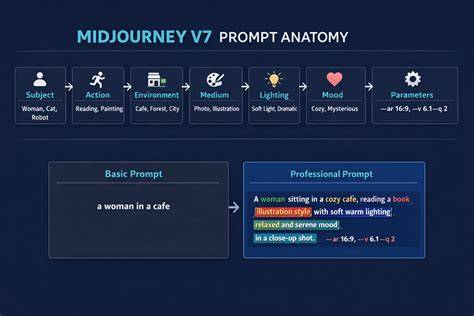
A Midjourney prompt is a command that tells the AI what image to create. Image URLs (optional) can help the result follow a specific style or look like other pictures, by adding one or more image links. Parameters (optional) fine-tune the result, like size, quality, or mood. Add a setting or mood by placing your subject in a specific scene or atmosphere. In V7, apply a consistent visual mood or design using --sref. Keep your wording focused: when creating text prompts, skip vague or overly long descriptions. Use parameters to fine-tune the result. Refine your results: use the U and V buttons in Discord to upscale or create variations. Turn on Remix Mode to adjust scenes or styles.
You’ll need a Discord account to use Midjourney. Go to Midjourney and click Join the Beta. All prompts generated in a direct chat with the bot are posted on Midjourney’s server. Depending on your subscription, you can set up the bot to create “private” results. Find the Midjourney bot by entering Midjourney’s server. Look to the right of the users’ list - the bot will appear there as a user. Then, depending on the selected version, choose the output image quality - Half, Base, or High Quality. Base quality is the standard option and fits most needs unless you require a very detailed illustration. Style is set to medium (med). Experiment with the setting to see how it affects the output style. You can also activate Conversational Mode, which enables voice prompts and natural language support for faster ideation when paired with --draft in V7.
Explore Midjourney commands and prompts
The most important commands are /imagine and /describe. To create a prompt, type /imagine. This opens a box where you type the prompt content. After you type the prompt, Midjourney returns four images. You can also animate the progression of your prompt with the new Midjourney Video feature, which creates a short video showing how the final image evolves from noise to clarity.
Buttons labeled U1-U4 upscale your preferred image; V1-V4 create variations or open Remix prompts for adjustments. If you like an image as a style reference for future use, you can download it and add it to the prompt or retrieve its seed number. Seed numbers help you reproduce or tweak specific results. If a person’s proportions are off, you can use Detailed Upscale Redo or Remaster, or the Remix icon, depending on the version.
/Describe can help when a prompt isn’t yielding the desired result. Upload an image, and Midjourney will return four prompt descriptions. The best-fitting description can guide your adjustments. In V7, you can apply a described image’s style using --sref or keep the subject consistent using --oref.
Understand Midjourney parameters
Parameters are optional commands that change the final image and appear at the end of the prompt. Major parameters include:
- Aspect ratio --ar: changes the final picture’s width-to-height proportion (default 1:1). Examples: --ar 1:1, --ar 3:2, --ar 7:4, --ar 5:4.
- Chaos --chaos <0-100>: increases variation and randomness.
- Image weight --iw: relative importance of an uploaded image; default 1, range 0.5-2.
- No --no: remove elements from the image, e.g., --no trees.
- Quality --quality <.25, .5, or 1> or -q: rendering time and final image quality. Default 1.6.
- Seed --seed
: reproduce or vary similar images. - Stop --stop <10-100>: stops rendering early for abstract results.
- Stylize --stylize <0-1000> or -s: how strongly Midjourney’s style is applied (default 100).
- Style Reference --sref: apply a mood or color palette from reference images; useful for branding.
- Omni Reference --oref: maintain consistency across prompts using an image URL (V7 only).
Additional notes: Draft Mode (--draft) enables faster, lower-cost test runs; Base quality is the default and fits most needs; you can adjust aspect ratios differently across versions.
Prompts and idea starters for Midjourney
Prompts can range from cinematic stills to surreal dreamscapes. Some popular directions include Surrealism, Cubism, Steampunk, Bauhaus, Art Deco, Cyberpunk, Retro gaming aesthetics, and Layered Paper textures. You can blend styles with multiple image URLs and use descriptive terms to guide lighting, composition, and mood. Below are broad categories and example prompts to get you started:
- Cubism: “A modern living room rendered in the fragmented style of Cubism, with geometric shapes and overlapping planes in vibrant colors.”
- Art Deco: “A glamorous Art Deco poster for a fictional Broadway show, featuring a flowing gown and geometric patterns.”
- Retro games: “A pixel art platformer game scene with a brave hero battling a dragon.”
- Cyberpunk: “A bustling cyberpunk street market illuminated by holographic ads and neon signs.”
- Surrealism: “A melting clock draped over a barren tree branch against a blue sky with a dreamlike butterfly.”
- Steampunk: “A magnificent steampunk airship powered by copper pistons soaring through clouds.”
- Layered paper: “A vibrant layered paper portrait with textured, offset layers.”
Experiment with prompts by starting simple and gradually layering details. Use short, precise words over long, vague phrases. Include camera-like terms when aiming for photographic realism, and add mood or light descriptors to guide the atmosphere.
Using prompts to build a business with Printify
Start a print-on-demand business by turning Midjourney-generated visuals into merchandise. Sign up for Printify, create an online store, and sell merch featuring unique AI-generated designs. Midjourney’s ability to produce cinematic lighting, intricate details, and cohesive branding makes it a strong tool for product mockups, marketing visuals, and social media content that drives sales.
Beyond prompts, consider workflows that combine Midjourney with other tools. For example, use a style reference library to maintain consistent branding across collections, or apply an Omni Reference seed to expand a character across multiple products. Pair Midjourney with external upscalers or inpainting tools to ensure print-ready quality for apparel, posters, and home goods.
Midjourney IMAGE PROMPTS | Blending, Textures, Poses & More | Complete Guide
Tips for maximizing results with prompts
- Officially explore Midjourney’s web version for easier prompting and inspiration.
- Visit the Explore page to study prompts used by others and remix successful ideas.
- Start simple and iterate: generate multiple concepts, then refine with Remix or seeds.
- Use Turbo mode for speed when testing ideas, then switch back for final renders.
- Incorporate cinematography terms to communicate shot type, lighting, and color grading.
- Always use the Repeat Prompt Code to control how many generations you produce.
- Consider the quality and external upscaling steps to maintain sharpness after motion or post-processing.
- Practice and patience: prompting is a skill that improves with repetition and experimentation.
- Leverage style references (--sref) for consistent aesthetics across scenes and collections.
- Use character references (--cref) to keep repeated subjects visually cohesive across prompts.
Practical prompt examples by style
To help you start crafting versatile prompts, here are concise templates you can adapt:
- Cubism portrait in bold colors with geometric fragmentation and sharp lines: “Cubist portrait of a woman, vibrant colors, geometric fragmentation, sharp lines.”
- Surreal dreamscape with melting elements: “Dreamlike surreal scene, melting clocks, barren landscape, vivid sky.”
- Cyberpunk cityscape at night: “Cyberpunk city street, neon signs, rainy reflections, high-detail foreground.”
- Steampunk inventor portrait: “Steampunk inventor portrait, brass goggles, copper textures, dramatic lighting.”
- Layered paper landscape: “Layered paper landscape, textured cutouts, warm shadows, depth through layering.”
Table: Quick reference for popular prompts and settings
| Category | Example Prompt | Key Parameter | Use Case |
|---|---|---|---|
| Cinematic Still | A cinematic still from a futuristic sci-fi movie, dramatic lighting, neutral color grading. | --ar 16:9, --stylize 300 | Social promo, hero shot |
| Surrealism | A melting clock over a barren landscape with a horizon butterfly. | --sref surreal, --stop 80 | Artistic poster concepts |
| Layered Paper | Layered paper butterfly portrait with depth and texture. | --iw 1.2 | Background textures, prints |
| Art Deco | Glamorous Art Deco poster with geometric motifs and gold accents. | --ar 3:2, --q 1 | Branding visuals, product mockups |
| Cyberpunk | Neon-lit cyberpunk street market with holograms. | --chaos 25, --ar 16:9 | Marketing visuals, book covers |
Conclusion and next steps
Midjourney prompts unlock a powerful creative canvas for artists, designers, and entrepreneurs. By mastering concise prompts, leveraging V7 features like --sref and --oref, and combining prompts with external tools, you can produce cinematic visuals that elevate your brand and accelerate your business growth with Printify.
tags: #midjourney #prompts #ideas