In Procreate, changing the color of text involves a sequence of steps that can vary depending on whether you want editable vector text or rasterized text. This guide consolidates practical methods to color text, fill with gradients or patterns, and manage text layers for flexible edits.
Selecting and editing text color
With the text layer selected, double-tap the text to bring up the text editing options. Select the new color for your text. With the color selected, tap on your text on the canvas. This applies the chosen color to the text in its current state.
Tap on the text layer’s thumbnail in the Layers panel to bring up the options menu and choose “Rasterize” if you want to fill the text with a specific color or even use a gradient or pattern. Rasterizing converts the text to pixels, allowing more advanced coloration techniques.
Filling text with color, gradients, or patterns
Use the Color Drop feature to fill the text with your chosen color. Simply drag the color from the top-right circle and drop it onto the text. This quick method is ideal for solid fills on rasterized text.
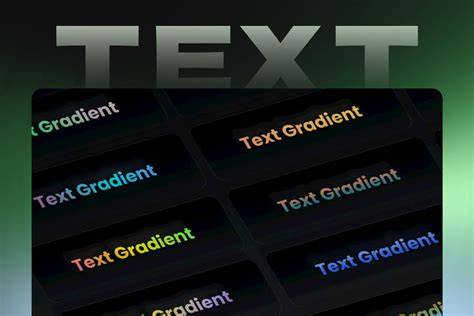
For more complex coloration like gradients or patterns, add a new layer above your text layer (or rasterized text layer), apply your color or pattern, and then set this new layer as a clipping mask by tapping the layer and selecting “Clipping Mask” from the menu. This technique preserves the crisp edges of your text while allowing creative fills from the top layer.
Working with vector text and editing capabilities
Add and edit text content in crisp vector format. A bounding box containing the word Text will appear on your canvas. When you add new Text to your canvas, the word Text is already highlighted and ready to type over.
To further adjust your text’s font, style, design, and attributes, tap the font name in the Text Entry Companion. This will invoke the Edit Style Panel. To move your Text, drag the active bounding box around the canvas. Resizing your Text box will only change the shape of the container. Keep your Text in crisp editable vector form for basic edits. Vector Text can resize up and down without loss of quality.
To use certain Procreate tools, you must rasterize your Text. In the Layers panel, you can identify vector Text by the ‘A’ visible in the Text layer thumbnail. You can override the automatic naming of a vector Text layer. To rasterize your text, tap the Text layer in the Layers palette.
Tips for advanced color effects
Plan your color workflow by considering whether you need editable vector text or pixel-based fills. If you anticipate frequent color changes, keep the text in vector form and apply color edits via the Text Entry Companion or by non-destructive clipping masks for complex fills. For final polished pieces, rasterize only after you confirm colors and styling because rasterized text loses vector scalability.
- Double-tap the text to edit and choose a color for basic changes.
- Rasterize when planning solid fills, gradients, or patterns beyond vector capabilities.
- Use a clipping mask to apply layered fills while preserving text edges.
- Keep a copy of the original vector text if you expect future edits.