The Pattern Stamp Tool allows you to clone from one part of an image to another part. It is typically used to remove unwanted objects. Before the recent addition of AI tools, including Generative Remove, it was a frequently used tool. The new AI tools, to remove objects, are very good, but they are not yet perfect.
You can create and save a Tool Preset for any tool, which will remember settings that you choose for that tool, so you can quickly and easily select different presets and settings for a particular tool. You can reset any tool back to its default settings by right clicking on the Tool Presets button and select Reset Tool. You can choose from many brush options. You can change brush size, hardness and spacing. A better method for changing brush size is to use the square brackets keys [ ]. [ reduces brush size. ] increases brush size. Mode allows you the option of choosing between 28 different Blend Modes. When you clone (how to clone is detailed below) this option determines at what opacity you will clone. If you clone at 50% opacity, only 50% of the cloning will be applied and through this 50% opacity, you will see the original. This is similar, but different to Opacity. In one brush stroke, no matter how many times you go over the same area, the ink applied will be limited by the Opacity.
If you have a non round brush, you can change the angle of the brush. Select patterns here. When Aligned it selected, the pattern will align with each stroke you make. If you have a pressure sensitive pen and tablet, you can turn on this option, so brush size is controlled by the pen pressure. Paint patterns onto your image. Select the Pattern Stamp Tool from the toolbar. Click on the button highlighted in green to open the Patterns drop-down. There are 3 categories of patterns; Trees, Grass and Water. In the screenshot I've expanded the Grass folder by clicking on the chevron next to the Grass folder.
If you paint directly onto the layer, the editing is destructive, i.e. it will make changes to the pixels on that layer. Add a new empty layer. Working on a separate layer is more flexible, but of course, if you wish, you can just paint directly on a layer. Paint on your image. If you have Aligned selected, the pattern will align each time you brush a stroke.
Open the image and use the Rectangular Marquee tool to draw a selection. From the menu: Edit > Define Pattern. You will see your new pattern added to the Patterns. Here is the image we'll use to add the ripple pattern to. I changed the Layer Blend Mode to Soft Light. This is the layer with the ripple pattern. If there is any part of this layer you don't like, or later want to change, it's easy to paint over it, or erase an unwanted part. The Soft Blend Layer Blend mode is highlighted in red. I have left opacity 100%, so the effect is clear to view on all devices.
The Pattern Stamp tool allows you to paint patterns in your image. This can have value in general image editing, provided you are careful with the chosen pattern or layer with a pattern that you choose from the pattern libraries. You can create your own patterns from pages, and you can save patterns to reuse in multiple images. A Rectangular selection is used to define a pattern, and the pattern picker shows various options. The tool options bar sets the brush tip, brush thumbnail, brush size, opacity, and the pattern repeat behavior. Repeats the pattern as a contiguous, uniform design. When a pattern is aligned, it stays consistent from stroke to stroke. You can stop and resume painting with a clean workflow on a new layer if needed.
In practice, Pattern Stamp can be a powerful painterly approach. This week I tried out the Pattern Stamp Tool, one I do not remember using. Since I have been getting back into painting some of my images using both Photoshop regular/mixer brushes and Corel Painter, I did not think I would like the results since it is a “painting” tool that has been with the program for a very long time. Well, if used correctly, it does a surprisingly good job. The Lion image above is one I downloaded a long time ago from Unsplash and is by Jakob Puff. So what brought this on? This week Adobe Create came out with a link called Free Photoshop Brushes: Impressionist Set by Creators Couture. Needless to say I had to check this out. Jessica Johnson did a short video and gives you five Pattern Stamp brushes to try out this technique.
What is so interesting is that you are not carefully painting each section with your brushes, you are basically just dragging around to lay down the strokes. The image itself has been turned into a Pattern which the brushes use as guidelines to follow. They look like strokes because each brush has a different makeup. Jessica’s brushes are really nice and they were the only ones used in the lion image. Her technique follows a pretty standard painting workflow with an Underpainting layer, Base layer, Detail layer, and then some additional layers to finish up the image. Each type of layer has a brush associated with it to create the effect. A duplicate copy of the image was placed on top and turned off while painting. A solid brown layer was used to build the painted effect up on - basically follow her simple steps to get a pretty decent result.
For the above, once done with the Pattern Stamp layers and brushes, a New Layer was added to paint in the white whiskers a little. A black layer mask was placed on the duplicate copy on top and the areas that needed a little more emphasis and detail were painted back lightly - mainly the eyes, nose and whisker areas and it was set to 43% layer opacity. If actually using the pattern to paint over the image, be sure that Aligned is checked in the Options Bar. What I did learn is that it is not that hard to create your own Pattern Stamp brushes. First find a brush that you think might look good for painting - there are a lot that will not work well so it takes a little experimentation here. Now select the Pattern Stamp Tool (which is stacked with the Clone Stamp Tool) and then select the new preset. These steps also work on any brushes you want to change over to a different type, like changing a regular brush to an Eraser, Clone Stamp or even a Mixer.
I did a lot of research before writing this blog to see if anyone else has a better way of using this Tool or better brushes - I could not find a lot. The great PS Guru Jack Davis had demonstrated this technique in his wonderful Creative Live Class called Painting with Photoshop where he used very different brushes (from 2002 but they still work) and an action, which are provided, but my first results were not good. What I liked about his brushes are that they represent Chalk, Dry Brush, Oil and Watercolor mediums. The Pattern Stamp tool is a Photoshop brush tool that lets you clone patterns from one part of an image to another. It’s a tool that doesn’t receive the love and recognition of some of our more popular Photoshop utilities. I wanted to make something that was grungy and vintage. First, I’m going to add some texture to the gloves. I use the soft light filter, so I have a better sense of its appearance once completed. I thought it would be fun to create a more patriotic mood, so I repeated the flag-painting on her goggles. In conclusion, the Pattern Clone Tool in Photoshop is a powerful tool that can help you create unique and stunning designs. Photoshop Elements’ Filter Gallery does an OK job of making a photo look like a painting- but if you really want to turn a photo into a hand-painted piece of art, look no further than the Pattern Stamp Tool.
STEP 1: We’ll start by setting up the pattern. Open your photo (in this example, we’ll use a red pepper, courtesy of PhotoSpin.com). Go to Edit > Define Pattern…, and name the new pattern “red pepper”. (By creating a pattern this way, the new pattern will be the exact same size as the document- very important when we start to paint with the Pattern Stamp tool.)
STEP 2: Select the Pattern Stamp tool. If it’s hidden under the Clone Stamp tool, click and hold on the Clone Stamp, and slide down to select the Pattern Stamp. Choose a 21 pixel soft-edged brush, and turn on Aligned and Impressionist in the options bar. If you’re using a Wacom tablet, you’ll see that the stroke profile is telling you the brush will react to pressure with size. Firm pressure gives you a large stroke, light pressure a small one.
STEP 3: Now that the pattern’s set, we’ll get the layers ready to draw on. Start by adding a new layer by clicking on the More button on the Layers palette and clicking on New Layer. Name the new layer “Black”, and turn the opacity to 80%. STEP 4: Go to Edit > Fill layer, and fill the layer with black. The 80% opacity you set the layer for in the last step makes the Black layer like a piece of tracing paper, letting you see the red pepper underneath the Black layer. STEP 5: Add another layer on top of the Black layer, and name this layer “Art”. Keep the opacity for the Art layer at 100%. STEP 6: Now we’re ready to paint. Paint in the red pepper with the Pattern Stamp tool, using long strokes to outline the pepper, and shorter strokes to fill in.
This tool supports a wide range of creative outcomes, from subtle texture overlays to bold painterly effects. When you plan a project, consider layering, alignment, and brush choices to achieve the desired result. The Pattern Stamp Tool remains a versatile ally for cloning patterns, painting with patterned guidance, and building complex, textured compositions that can complement AI-assisted workflows or stand on their own.
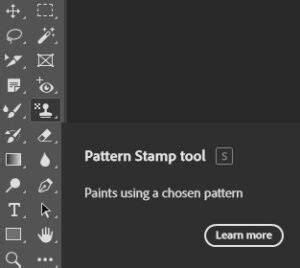
Pattern Stamp Tool for Beginners - Painting your Background
- Define a pattern from a chosen image area using Edit > Define Pattern.
- Choose Pattern Stamp Tool and select a pattern category (Trees, Grass, Water).
- Work on a new layer to keep edits non-destructive.
- Use Aligned, Impressionist presets, and brush pressure for varied results.
- Experiment with blend modes and opacity to control the effect.
| Step | Action | Notes |
|---|---|---|
| 1 | Create pattern | Edit > Define Pattern |
| 2 | Select tool | Pattern Stamp Tool (often with Clone Stamp) |
| 3 | Prepare layers | New Layer; optional Black and Art layers |
| 4 | Paint | Use long strokes; adjust Align and Opacity as needed |