Adobe Photoshop is the leading image editing software, popular for its versatility and powerful tools. Photoshop provides all the tools you need to satisfy your creative needs, whether you are a pro designer, hobbyist, or photographer. It offers many image-editing features for pixel-based images, vector graphics, and raster graphics. Photoshop is part of the Adobe Creative Cloud, providing seamless integration with other Adobe apps like Photoshop Lightroom, Illustrator, and Dreamweaver.
What is Adobe Photoshop used for?
Photoshop is the leading app for image and photo editing. It can be used to remove unwanted background elements or flaws, adjust the color, brightness, and contrast of your images, combine many images, and add filters and effects to images. Photoshop is mainly used for image manipulation but can be used for other things, including generating digital illustrations and design assets. Using pens, brushes, and shapes, you can create images and work with masks and layers for advanced compositing. It doesn’t stop with images; it can also be used to edit videos. Photoshop is a versatile and powerful tool with many features and use cases. It is available for creating print-ready images for flyers, posters, packaging, or web content.
Photoshop interface explained
When you download Adobe Photoshop for Mac, the first thing you need to familiarize yourself with is the interface. This is where all the magic happens and where you will find your menus, panels, and tools. The canvas occupies the center of the interface, where you will edit your images. The menu bar is the first section, located at the top of the screen. It contains menu items such as File, Edit, Layer, Image, and Help. These menu items include a list of commands and options that allow you to perform various actions within the app. You can access additional features and tools and customize your preferences and settings.
The toolbar is also located at the top of the interface. It hosts the most commonly used tools, including Magic Wand, Lasso, Crop, Marquee, and Brush. The toolbar gives you quick access to these tools, which can also be accessed through the menu bar by selecting Window and then Tools.
Panels are located on the right side of the interface and provide access to more advanced tools and options. Features like Layers, Color, and Character each have a panel, and you can customize the layout of panels by dragging and dropping them. You can also achieve the same customization by choosing Window and then Workspace from the menu bar.
Key features
- Layers and masks: Users can manipulate multiple layers to organize, stack, and combine different elements. Additionally, masks allow you to conceal or show specific areas of a layer, allowing for non-destructive editing. This method preserves the original image by keeping it unchanged, with all adjustments stored separately, making it simple to restore the original file if necessary.
- Selection tools include the Magic Wand, Lasso, and Quick Selection. These tools allow you to select different objects or areas in an image and edit them with precision.
- Retouching tools include the Clone Stamp, Content Aware Fill, and Healing Brush. These tools can be used to remove flaws and unwanted elements from an image.
- Filters and adjustments: Image manipulation is all about making adjustments, and this feature lets you sharpen, blur, and distort images in Photoshop. You can also adjust brightness, contrast, and color to enhance image quality.
- Brushes and painting tools: This feature lets you paint with different brush styles to generate artistic effects and incorporate unique details into your image. Custom brushes are also supported in Photoshop.
- Text and shapes: In Photoshop, you can add text and shapes and apply layer styles and effects.
- Pen tool: The pen tool is for anyone who wants to draw freehand using Photoshop. It allows you to design your shapes.
- Hue and saturation: This feature allows you to adjust the depth and vibrancy of colors in your images.
- Slice tool: The slice tool allows you to split large images into smaller slices that can be shared separately.
- Export and share: The export and share feature allows you to save and share your project in various formats, including JPEG, PNG, PSD, and GIF.
Minimum system requirements
Adobe Photoshop for Mac is available for macOS X and later versions, and your Mac must meet the following system requirements to run it: Processor: Multicore Intel or Apple Silicon; Memory: 8GB RAM; Storage: 10GB available; Display: 1024 x 768 or higher; GPU: 1.5GB of VRAM; PC must support Metal.
Security and licensing: why official products matter
Using pirated Adobe software may seem like a way to save money-often distributed as a free download-but it carries serious risks. Unauthorized versions usually rely on illegal serial numbers and cracks, which bypass important security features, leaving systems open to malware and cyber-attacks. Without official updates or technical support, there’s a greater chance of data loss. Pirated software also violates copyright laws, which can result in legal consequences. In contrast, licensed Adobe software offers updates, support, and security, making it a more reliable choice for individuals and businesses.
Advanced AI-powered editing tools
Adobe Photoshop continues to evolve with cutting-edge AI enhancements powered by Adobe Firefly and partner AI models, making image editing faster and more intuitive. Recent updates introduce improved Generative Fill and Remove tools that can automatically remove unwanted elements like wires, people, and distractions with seamless background reconstruction. Additionally, the Generative Workspace (beta) offers assisted creative workflows that help you ideate and iterate with speed. You can even choose from multiple AI models-including Google’s Gemini-based Nano Banana and FLUX.1 Kontext-to generate stylized visuals, realistic lighting, or detailed backgrounds directly within Photoshop’s interface.
Projects, cloud collaboration, and platform expansion
A new Projects (beta) feature has been introduced to help you organize, manage, and collaborate on creative work more efficiently. With Projects, you can bring all your assets together in a shared workspace, reducing the need for scattered local folders and manual file sharing. This tool is especially useful for teams working on complex campaigns or multiple deliverables, ensuring files and versions stay organized and synchronized via Adobe Cloud.
Expanded 32-bit and color workflow support: Desktop Photoshop now includes advanced support for 32-bit workflows and OpenColorIO (OCIO) configurations, which are particularly valuable for film-grade color management and high-dynamic-range (HDR) projects. These improvements allow artists to maintain higher fidelity and color accuracy without converting images down to lower bit depths, providing more control when adjusting tools like Dodge, Burn, and Healing Brush in professional workflows.
Photoshop on web and mobile platforms
Photoshop has extended beyond the desktop with a fully redesigned mobile and web version that brings powerful editing tools to new platforms. This includes Photoshop on iPhone and the web, featuring precision tools like Magic Wand, Object Select, advanced color corrections, and Firefly-powered generative capabilities such as Generate Similar and Reference Image. These versions sync seamlessly with desktop projects through Creative Cloud, enabling a flexible, cross-device workflow that lets you start a project anywhere and finish it on your Mac.
Creative cloud ecosystem and app integration
Adobe Photoshop works seamlessly within the Adobe Creative Cloud ecosystem, enabling direct file syncing, shared libraries, and cloud documents across devices. Integration with apps like Adobe Illustrator and Adobe Lightroom allows creators to move assets between vector, photo, and layout workflows without format conflicts. This interconnected system supports smoother multi-app production pipelines for professionals.
Apple Silicon optimization and neural enhancements
Recent versions of Photoshop are fully optimized for Apple Silicon chips, including M1, M2, and newer Mac processors. Native performance support improves launch times, filter rendering, and AI-assisted tools, resulting in smoother multitasking and reduced lag during large compositing projects. This optimization ensures better energy efficiency and stability on modern Mac devices. Photoshop’s Neural Filters continue to expand, offering AI-driven features such as portrait relighting, skin smoothing, and color transfer. Powered by Adobe’s machine learning framework, these tools simplify complex edits that previously required multiple manual adjustments. The growing AI toolkit reinforces Photoshop’s shift toward assisted creativity while preserving detailed manual control for advanced users.
Cloud documents, version history, and content credentials
Cloud Documents now include automatic version history tracking, allowing users to revert to earlier stages of their work without manually saving multiple files. This feature enhances collaborative editing and reduces the risk of overwriting critical changes. It also supports flexible workflows for teams managing evolving creative assets across different devices. Photoshop now supports Content Credentials, a transparency feature that records edit history and AI usage metadata within exported files. This initiative helps promote digital authenticity by allowing viewers to see how content was created or modified. As AI-generated imagery becomes more common, this feature strengthens trust and accountability in professional publishing workflows.
Your all-in-one creative toolbox
Download Adobe Photoshop for Mac, a powerful and versatile image editor that offers a variety of features and tools for professionals and hobbyists. I have Monteray and am in the process of updating to 12.7.1. I'm a big user of photoshop but now photoshop tells me I must have the version of 13.something or later in order to use it. My Mac Mini 2012 cannot run any OS higher than High Sierra 10.13.6. I want to run Photoshop. I have 8g RAM, 1Tb SSD, compatable graphics & display, etc. Which is the latest version of Photoshop I can run on High Sierra? I have a 2012 Mac Mini with OS Sierra 10.12.6 which is working perfectly, except for Photoshop which suddenly became incompatible. The older version of Photoshop is not available either. Is there a way to upgrade my Mac Mini? I don't want to buy a new one. I have Adobe Photoshop CS6 on my iMac, High Sierra (ver. computer. If I were to upgrade my Mac software to Mojave 10.14. Photoshop may have "told" you that, but that's not true. Cas1717JWT wrote:Thank you, Martin. It looks as if it's 25.3.1 (?)That's the latest version. Just released last month. You're up to date. And it's still compatible with Big Sur, Monterey & Ventura ... (Ventura 13.5 is Adobe's current recommended version of macOS).
Summary created by Smart Answers AI: In summary, Macworld explains how Mac users can access Adobe Photoshop through various subscription plans, free trials, and alternative options for different budgets and needs. Photoshop subscriptions start at $19.99 monthly for the Photography Plan, while students get 70% discounts and free alternatives like GIMP exist. The guide covers pricing tiers, cancellation policies, and recommends considering Adobe Express or Photoshop Elements for casual users. If you want to add some quick edits to a photo or video, Apple’s free Mac apps-Photos and Preview-can do a good job, but for anything more advanced you’ll need a dedicated image editing app like Adobe’s Photoshop. Here’s how to get a copy of Photoshop on your Mac, or, failing that, the next best thing. As Photoshop is professional-grade software, you won’t be able to get the full version for free aside from the 7-day trial that we’ll cover below. However, Adobe does offer a stripped down version that covers a lot of the same ground if your demands aren’t too high. Adobe Express is a free, online web app that offers a range of editing tools, such as the ability to crop, reshape, flip, and recolor images. You can also add text (there are plenty of templates and fonts to choose from), make the background of an image transparent, quickly put together collages, and generally improve the style and form of your photos and videos. If you want more advanced features, including Generative AI for instantly creating images, removing backgrounds in video, one-click resizing, a much larger selection of stock images, not to mention 100GB of storage, then you can sign up to Adobe Express Premium for $9.99/£9.98 p/m, with the option to cancel at any time. If you’re happy to work online rather than with a dedicated app, and you’re not after the high-end editing features, either Adobe Express or Adobe Express Premium are probably the ones to go for, plus you have those trials to ensure whether the tools you need for your particular workflows are included. Trial: The first option is a Photoshop trial. While Adobe advertises the free 7-day trial, you can actually get 14 days free, because you can cancel within 14 days of your initial order and get fully refunded. In fact, you could, theoretically, get 21 days free if you had the trial and then canceled your subscription after 13 days. Don’t forget though, as you’re then liable to pay 50% of the entire 1yr contract if you miss the deadline. Monthly subscription: The second option is signing up for a subscription on a monthly rather than an annual basis. This won’t give you Photoshop for free, but the option will allow you to access all the features of the software on a shorter-term basis, then cancel when you no longer need it. Adobe doesn’t list these options on the site, instead you have to click the Buy Now button then you can select from the three options: Annual - Billed monthly, Monthly, and Annual - Billed upfront. Adobe explains the legal terms of the various contracts here. This is a slightly better scenario than if you were paying annually-in that case, your contract will continue to the end of the term. This is why the best option, in this case, is to sign up for a month-to-month contract. If these options aren’t quite what you’re after, you can always look for alternatives to Photoshop, as there are some excellent apps currently available. There is one option though: you can buy Photoshop Elements. Photoshop Elements is designed for amateur rather than pro photographers, but it does offer a number of photo editing features that might be sufficient for your needs. One very important thing to note though is that Adobe has changed how Elements works, so that when you make your purchase you’re only getting a 3-year licence. That means, once the three years are up, the app will stop working, although you’ll still be able to access all of the work you created. (Buy Photoshop Elements from Adobe).
The benefit of Photoshop Elements is that you can buy it outright and install it on your Mac. If you’re a creative professional though, or are used to the full-blown version of Photoshop, then you may find too many tools missing from the box. If you don’t care about how up-to-date your software is you might be interested in buying a secondhand copy of Photoshop, or an old Mac with Photoshop installed. You’ll also need to confirm that the software license hasn’t already been used, as usually these are non-transferable. If a subscription to Photoshop isn’t for you, and Photoshop Elements isn’t enough, we recommend you look at alternatives to Photoshop, many of which have comparable features with the benefit of being available to buy outright. The best options include Apple’s own PixelMator Pro, Affinity Photo and others. If you are in education then you may qualify for a discount. However, you can’t sign up for a reduced price on the Photoshop-only tier, you have to get the entire Creative Cloud collection, which includes Photoshop and a large collection of other Adobe apps. Eligible students of 13+ and teachers can purchase an annual membership to Adobe Creative Cloud for a reduced price of US$239.88/£193.82 per year for the first year. If you have accepted that you need to pay for a subscription to Photoshop you will want to know how much it costs. Photoshop: If you just want the single Photoshop app you can have that for $22.99/£21.98 a month if you sign up for a year, or $34.49/£30.34 a month if you just pay on a monthly basis. Photography Plan: However, the Photography Plan is actually the best deal. It includes Photoshop, Lightroom (for web and mobile), and Lightroom Classic (for desktop), plus 1TB of storage. The bundle costs $19.99/£19.98 a month on a contract for a year. Adobe has now included a monthly option for $29.99/£28.99 a month that you can cancel at any time. Business: If you are a business user you ought to sign up for the Business option where you can get a single Photoshop license for $37.99/£27.99 ex VAT a month per license. It’s worth noting that all the Adobe CC apps, including Photoshop, Illustrator, InDesign, Premiere Pro, and Acrobat, cost $99.99/£73.33 (ex VAT) per license a month. It also means that you only need to pay for Photoshop for as long as you need it. There is plenty of great photo and image editing software available on macOS, many of which come with lower price tags than Adobe products. Another popular choice is GIMP (GNU Image Manipulation Program), which is completely free and comes with an incredible range of tools and features. The interface can take a little getting used to, which is not uncommon with open-source software, but once you get to know your way around, you’ll be amazed at what you can achieve.
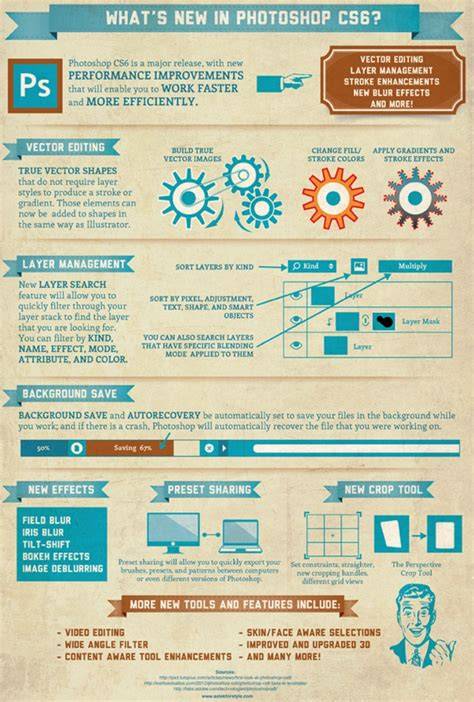
ADOBE PHOTOSHOP CS5 Mac OS Walkthrough Part 3 - Navigating and Working with Files
Note: This article compiles and reorganizes information from the provided draft to offer a thorough overview of Photoshop for macOS, covering use cases, interface, features, system requirements, licensing, AI features, cloud workflows, platform expansions, and alternatives.