There is a little nostalgia in this tutorial for me. This is one of the first tutorials I ever wrote and it was the effect that inspired me to start writing tutorials. In a few quick clicks, you can bring life to any design with a stunning metal effect in Photoshop.
First, run Photoshop and create a new document. For this tutorial my document size is 800x480px. You can follow along with the same settings or adjust to your needs. Set the Background Contents option to White for now, even though we'll be changing it in the next step.
Step 1: Gradient Background
Pick the Gradient Tool (G) in your toolbox and create a 5 point gradient. Use the following colors: #a4a2a3 for the dark color and #d2d2d2 for the highlights. Next, fill horizontally the background.
Press the letter D on your keyboard to quickly reset Photoshop's Foreground and Background colors to their defaults if needed; this will set your Foreground color to black. When the Color Picker opens, choose a light gray and click OK to exit.
Step 2: Metallic Texture
Create a new layer (Shift+Ctrl+N) and fill it with #d2d2d2 color using the Paint Bucket Tool (G). Go to Filter > Noise > Add Noise and increase the amount to 400%, set Distribution to Uniform and check the Monochromatic option. Then go to Filter > Blur > Motion Blur and set the Angle to 0 and Distance to 40 pixels. Press OK to confirm the filter.
With the texture layer active, go to Layer > Layer Mask > Reveal All to add a layer mask. Change the Foreground color to black (#000000) and pick a large soft brush using the Brush Tool (B). Lower the brush opacity to 65-70% and draw over the mask in the left and right corners. Set the Layer Blending Mode to Overlay and Opacity to 60%.
Step 3: Add Noise
Create another layer and fill it again with #d2d2d2 color. Go to Filter > Noise > Add Noise to add noise with 10% Amount, Gaussian Distribution, and Monochromatic effect. Change the layer blending mode to Linear Burn and opacity to 10%.
Step 4: Curves
To make the image more intense and appealing go to Layer > New Adjustment Layer > Curves. Move the shadows to the right and the highlights to the left. If the Curves tab is not visible, double-click the Curves layer icon on the Layers panel to access it. This step deepens the metal look and adds dimensionality.
Step 5: Text and Metal Textures
In a separate detailed sequence, you can create metal text by assembling a few additional steps. For best results with this effect, use a font with thick letters. Place the text above a gray texture layer, then apply a Layer Style with Bevel & Emboss (Chisel Hard, around 7 px) and a Gradient Overlay. Set the Blend Mode to Overlay and reduce Opacity to around 70%. Create a clipping mask from a new Overlay-blended layer to add highlights and shadows via Clouds and additional filtering.
Next, add a new blank layer named "Layer 2" set to Overlay above the texture. Use a clipping mask to apply random highlights and shadows. Blur the clouds to soften them and use Multiply with a white fill to emphasize highlight/shadow contrasts. Apply Noise again to grain the surface. The Median filter helps reduce excessive noise, leaving deliberate clumps for dirt and scratches.
Step 6: Final Adjustments
If the dirt and scratches look too dark, lower the layer opacity. The text remains fully editable, so you can change the font later if needed. You can also crop away unwanted edges that appear due to Motion Blur when working with a larger-than-necessary document size.
Tips for Better Cutouts and Finishing
Here are concise tips to instantly improve cutouts and maintain a convincing steel finish:
- Use a thick-ink style font for better beveling and depth in the metal text.
- Balance Noise and Blur to create realistic metal grain without overpowering the edges.
- Utilize layer masks to selectively reveal texture in corners and along edges for dimensionality.
In a few quick clicks, you can bring life to any design with a stunning metal effect in Photoshop. The approach blends several tools-gradient backgrounds, Noise filters, Motion Blur, Curves adjustments, Layer Styles, and clipping masks-to build a believable steel texture that remains flexible for text and other elements.
Additional Notes
Estimated Completion Time: 5-10 minutes. Video tutorials can illustrate the flow from background setup to final texture; feel free to watch to reinforce the steps described above.
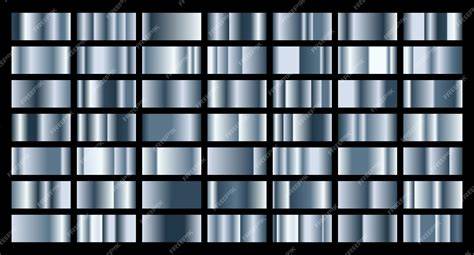
Step by Step Guide to Creating Metal Texture with Pencil
| Tool | Shortcut | Purpose |
|---|---|---|
| Gradient Tool | G | Create gradient background |
| Noise | Filter > Noise | Add grain for texture |
| Motion Blur | Filter > Blur > Motion Blur | Stretch texture for metal look |
| Curves | Layer > New Adjustment Layer > Curves | Enhance contrast and depth |