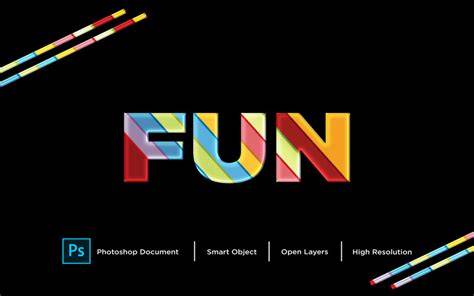
From our experience, fonts and text styles are the most used resources among designers. With this in mind, we are continually upgrading our library, so there are fonts to all tastes and text effects for various purposes. The glitter effects of this Photoshop text styles pack shine brighter than the sun! Whether you are crafting horror designs or want to decorate your print projects, this free Glowing Fluid effect will be a great choice!
Make your texts look like polished glass! We created 5 glossy 3D text layer effects with much love and care, so now you can enjoy an easy work process due to the Smart Objects. All you need to do is put your desired text inside them via Photoshop. Add your image some steampunk vibe with our forged steel text effect! It is a great choice for retro designs, so don't miss it. Get yourself an iridescent chrome effect that is ideal to give your design a posh look. Plus, with the Smart Objects included you will be able to do it with just one click putting your text inside. Adding this chrome effect to your headlines will surely make them even more catchy.
Exploring a Rich Palette of Effects
The Blurred Spray Stencils effect is perfect for logos, posters and plain text you want to stand out. A pack of 12 galactic chrome text styles is something you will resort to using. The reason is simple - there are so many projects they suit ideally! We made this cyber glitching effect to help you bring your designs to a whole new level! Account thumbnails, titles, social media posts - there is nothing the tool won't pull off. Although breaking glass may make you upset, this smashed glass effect won't disappoint you!
If you like adding sketches to your works but it takes too much time, this effect will come in handy for you! What about adding some gold to your projects? With this glitter effect you'll be able to do it in seconds and get the recognition of the clients you deserve. Here comes a great item for artists working on kid cartoons and book illustrations! The Vivid Toon 3D effect will make your texts attractive to children. Add a bit of metal gloss to your logos, branding projects or book covers! This steel effect looks posh and expensive so you can be sure your designs won't pass unnoticed.
Neon, Glass, and Chrome: Modern Text Aesthetics
No matter what is the weather outside, your designs will make it cold! The ice neon logo mockup is here to become an integral part of your artworks. Let's immerse into the virtual reality that surrounds us on a daily basis with this PSD text effect of high resolution! Are you looking for a way to make a movie title eye-catching? Here comes the Xerox Stretch effect, which we made to help you create aesthetically pleasing texts. Funky t-shirt designs or bright packaging - this retro effect will easily become a part of any project. The Alien Glow effect will come in handy for graphic designers who like mysterious, foggy vibes. It comes in PSD format and is fully compatible with Adobe Photoshop.
When you are tired of edgy designs, try turning to nice and sweet text effects! Create a vivid, juicy design for your logos, posters, banners or social media with a Yellow Light text effect! Reminiscent of the good old days with a free retro film text effect! It gives a cozy and nostalgic vibe to your works, so be ready to get much heart-warming feedback. Shout out to all noir movie fans, here is the ideal effect for you! Are you craving a personal touch in your artworks? To fulfill your creative needs, we created Aquarelle text & logo mockup. A combo of neon lights with the matte surface of the letters creates a truly stunning result. The neon backlight effect will help you to give your typography some shine, all you have to do is choose among 5 neon light colors.
Workflow and Practical Tips
Though we don't know who broke the letters of this effect, one thing we can say for sure is it will look great in your branding designs and packaging. The distorted lights of the Glowing Ghost effect won't leave you indifferent. It is just itching to become a part of your design projects! When you are craving something unique, it is the right time to check out the Page Flip text effect. It will turn any boring work into a memorable piece of art. Creating a horror-themed art project requires many tools, and text effects are one of them. Some artworks need a bit of anarchy in them, and the Bad Print Photoshop text effect will prove to you it is a great choice for this purpose.
Deciding on the best color for a design is always a big deal. I got something useful for those going through this process: meet a Photoshop text effect with 4 color scheme gradients! Having artistic freedom is vital for designers, and the Neon Sigh Photoshop text effect provides it to you! Whether you are racking your brain over new logos or packaging, the 5 silver text effects of this pack will surely satisfy your artistic needs!
Old Movie text effects are the tools we can't get enough of. That's why we want to share with you this set of text effects PSD files in exceptional quality! Your texts with the Underwater effect will look magnetizing, so don't be surprised by the amount of love they will get! The play of colors of this Photoshop text effect is stunning! It completely changes your artwork and makes it even more attractive, so be sure to try it. It goes without saying that Foil Balloon text effects are ideal for party invitations, greeting cards and any design related to holidays. There is no doubt retro designs are still trendy. For such concepts you can use classic text effects!
Adventure Film text effects are made to be part of movie or book titles, as they make you excited the moment you see them! The Magic Movie text effects will become a real-life Felix Felicis of your toolbox. All the projects you will add it to are set up for success! Plunge yourself into romantic nostalgia with 2 special text effects! Any fans of Stan Lee's comics here? We created this set of text effects just for you! Become a superhero of the design world with these 2 text effects imitating comics fonts! Bold letters, edgy style - everything that we love so much is here. The best of the 80's design heritage was mixed to become these text effects! Neon lights, video games, disco - they will make your design projects memorable.
Here comes the set of free styles for those missing old-school trends. Headlines, greeting cards, and ads will transform into real pieces of art via these tools! The only thing that these 2 vibrant & juicy text effects lack is your involvement! The 3 text effects with Smart Layers of this set will help you film a movie, create an eye-catching title and a mysterious postcard. There is no such thing as too many glitch text effects. Recreating the atmosphere of nights spent in jazz clubs, this neon Photoshop effect with Smart Layers will help you create bright bar signage in a few clicks!
Retro Ink text effects will come in handy for all graphic designers who lose their minds over vintage art. It works well with vector shapes. Inspired by Hollywood typography, American Vintage PSD text effects are perfect to be a part of calm retro designs. These 2 text effects are a must for those longing to get the 80's aesthetic back. The holidays are coming, meaning you will need many tools to create all the bright designs! 24 effects in a single AI file are here to refresh your toolbox and make your texts memorable!
No more boring designs, the pack of 12 Ink Layer styles for Photoshop comes your way! Open up a whole new dimension by adding worn-out letters. Bring all your craziest design ideas to life with these 3 precisely crafted Photoshop text styles! They will give your art an expensive, shiny look. If you feel a boost of inspiration listening to the 70's music, these free retro text effects are made for you. Your old-school projects will shine even more with these free vintage text effects! See the magic happening once you add these free Wood Retro effects to your artworks!
Introducing 3 beautiful vintage layer styles suiting any retro project you are currently working on. Do you want to spice up your favorite font a little? In such case you need to download Inksplash free text effects. Inspired by classic movies of the past, these 6 PSD text effects will make your artwork stand out. We created this Neon Sign Photoshop effect inspired by vivid signages and now you can easily recreate them! Written by Alina Yakovleva A graphic design blogger passionate about good product design and typography. Download Photoshop text effects for an impressive result. We welcome you to check out Text Effects - the newest category here on elegantflyer.com!
If you would like to download free Photoshop text effects, you came to the right place. On this page you will find a great spectrum of text effects PSD samples crafted by our skilled and daring designers. Following the latest trends, they keep working hard to broaden this list with the new incredible additions that can help you turn any line into a mind-blowing piece of art! Here at Elegantflyer we believe that having one, or better several top quality text effects ready at hand brings you nothing but benefits.
Representing different styles, being diverse at shapes and palettes, text effects in PSD format can level up the look of any web page or printed products you are working on. So, don’t miss a chance to download professionally crafted customizable effects from Elegantflyer for free! Fantastic text effects for Photoshop: free and easy to customize. Using PSD text effects in your projects is a sure way to draw the customers’ and followers’ attention, and show everyone that you are keen on the latest design trends. Luckily, you don’t even have to be a professional artist to apply a cool text style to the wording. Thanks to Smart Objects, an effect can modify any text in a just a couple of clicks. We’re certain that the intuitive use will spur you towards experimenting and enjoying the process.
And now, an even better piece of news for you: the majority of the text effects for Photoshop here at Elegantflyer are available for free! This means that your new creations can have a jaw-dropping effect on the audience without making you spend an extra dime. All you need is Adobe Photoshop installed on your device, and some basic skills of using it. In this Photoshop text effects tutorial, we're going to learn how to use Photoshop's Layer Styles to easily make text look as if it's made out of plastic.
Easy Photoshop Trick
The first thing we need to do is open a new document, so let's do that quickly using the keyboard shortcut, Ctrl+N (Win) / Command+N (Mac). This brings up Photoshop's New Document dialog box. Choose whichever size you like. Press the letter D on your keyboard to reset your Foreground and Background colors, so black becomes your Foreground color and white becomes your Background color. Then, with the Type tool selected, go up to the Options Bar at the top of the screen and select your font. I'm going to use Helvetica Rounded Black for mine. You can choose whichever font you like from the ones you have installed on your system. Press the letter X on your keyboard to swap your Foreground and Background colors, so white becomes your Foreground color. We're going to choose a better color for our text using Layer Styles, but for now, white will do just fine.
Then, with your font chosen and white as your Foreground color, click inside your document and add your text. Resize your text as needed using Photoshop's Free Transform command by pressing Ctrl+T (Win) / Comand+T (Mac), which brings up the Free Transform box and handles around your text. Hold down Shift to constrain your text's proportions and drag any of the corner handles to resize the text. Hold down Alt (Win) / Option (Mac) as well as you drag to force the text to resize from its center point. Now that we have our text added to the document, we're going to start creating our "plastic" effect, and the first thing we're going to do is choose a better color for it. This brings up the Layer Style dialog box set to the "Color Overlay" options in the middle column. This brings up Photoshop's Color Picker. I'm going to choose a light blue for my text color. Click OK when you've chosen your color to exit out of the Color Picker. I should note that we haven't really changed the color of the text here, even though it's now appearing in a different color. Technically, the text is still white. We've simply overlayed a new color onto it using the Color Overlay layer style.
Next, we're going to give our text more of a three-dimensional look by adding an inner shadow. Now, there is an actual "Inner Shadow" layer style, but we're not going to use it because it's limited to giving us a directional shadow. To do that, click on the words Inner Glow in the list of Layer Styles on the left of the Layer Style dialog box. Make sure you click directly on the words. Don't simply click inside the checkbox because all that will do is turn on the effect. In order to change the "inner glow" to an "inner shadow", all we need to do is change the Blend Mode at the top. Click on the down-pointing arrow to the right of the word "Screen" and change the blend mode to Multiply. Our glow is now a shadow, or at least it will be a shadow once we select a darker color for it. The default yellow won't work very well as a shadow, so click on the color swatch directly below the word "Noise", which will bring Photoshop's Color Picker back up, and choose a much darker version of the color you chose for the text. I chose light blue for my text, so I'll choose a dark blue for the shadow. Lower the Opacity of the shadow to around 50% so it's not as intense.
Next, we're going to add a "Bevel and Emboss" effect to our text, so click directly on the words Bevel and Emboss in the list of Layer Styles on the left of the Layer Style dialog box. The middle column of the Layer Style dialog box will change to the Bevel and Emboss options. Photoshop will ask you if you want to replace the original contours with these new ones or simply add the new ones to the bottom of the list. You'll see the new contours added to the bottom of the originals. These are the settings I used for my text. You may need to change them slightly depending on the font you're using and the size of your text. Starting from the top and working our way down, increase the Depth to around 131% and the Size to around 18 pixels. In the "Shading" options, set the Angle to 120° if it isn't already, and set the Altitude to 60°. Make sure Anti-aliased is checked beside the contour preview thumbnail.
Click on the word Contour on the left of the Layer Style dialog box. The middle column of the Layer Style dialog box will change to the Contour options. We're going to use another contour from the ones we loaded in a moment ago. This time, scroll down the list until you come to the one named Shallow Slope-Valley. You can fine-tune the "shiny" effect to your liking by dragging the Range slider left or right until you're happy with the results. The Layer Style dialog box pops back up, with the Stroke options in the middle column. Photoshop's Color Picker pops back up. Rather than choosing a color directly in the Color Picker, move your mouse over the text. You'll see your mouse cursor change into the Eyedropper icon. The Layer Style dialog box will change to show the Bevel and Emboss options once again in the middle column. We're almost done. Go back down to the "Gloss Contour" option and once again click on the down-pointing arrow to the right of the contour preview thumbnail. This time, scroll down the list until you come to the one named Shallow Slope-Valley. Finally, go back up to the top and lower the Depth value to about 41%, then increase the Size by dragging the slider bar to the right until you can see the letter strokes merging together. I've increased mine to 24 pixels. Click OK when you're happy with the results to exit out of the Layer Style dialog box, and, you're done!
And there we have it! Typography is one of the most important elements in designing. Text effects or layer styles are usually applied to logos or titles of small or big designs so that the titles will look more interesting and eye-catching. One of the popular styles that became a trend was the style that was used in the logo of the Stranger Things series. They are all designed with high quality. Some of these text effects are for free and the others are Premium. Browse this page and check out these text effects. These effects will not only work on texts. There are different types of Text Effects available depending on the usage and designing style. Text Effects are widely used in designing. If the designer wants to design these effects it will take a lot of time. The set of different settings of blending options in Photoshop is called Layer Styles. Some styles are very complicated compared to others. Thousands of different layers will be put on each other and create a Text Effect. Those Text Effects that are created from multiple layers cannot be exported in ASL due to different blending options in different layers.
Text Effects can be used in two different ways. If the style that you are going to is an ASL, you only need to double click on it and import it to Photoshop. Then use File > New > Create a new document. Use the Toolbar on the left side of the Photoshop and select Type Tool. Click on your document. A text layer will be created. Go to Windows Menu and click on Styles. The Styles panel will appear. At the end of the list, you will see all the different styles that you have imported in Photoshop. Using more professional text styles is a bit different. These text styles are a PSD file. To use them you just need to open the file in Photoshop. Right-click on this layer and select “Edit Contents”. A new window will be opened. Type your text. Instead of text, you can also use your logo. All you need to do is to import your logo in this document and erase the text layers. For the style to be applied a few minutes is needed. After a Process bar appears you need to go back to the previous window and you will see that your effect is simply applied. If you like to use these Text Effects in your different designs, you should drag the “3D EFFECTS” folder from the Layer Panel to a new document or design.