Animation in Photoshop has evolved significantly with the Timeline panel, video layers, and keyframe animation. While it may not match the cinematic capabilities of After Effects, Photoshop offers powerful techniques for creating complex animations, especially when combining adjustment layers, filters, and smart objects. This article dives into the Timeline panel, the properties that can be animated, and practical workflows to build sophisticated motion graphics.
Overview Of Timeline Panel
Opening the Timeline panel (Window → Timeline) allows you to select between two types of timelines: video and frame. The frame timeline is for frame-by-frame animation and can be very limiting. It generally works by converting the layers in your Layers panel to individual frames. I won’t go into any more detail on this timeline; I want to focus on the video timeline.
Photoshop has two timelines for you to choose from. The video timeline allows for keyframe animation - which is an animation process in which you define key points of animation along a timeline and Photoshop will interpret the in-between frames to create a cohesive animation.
The video timeline panel shows a layer with layer properties, the current time indicator, and existing keyframes. Each layer in the timeline has a dropdown panel that exposes the layer properties (these are the properties that can be animated). To animate a layer property, simply click the stopwatch icon, which enables keyframe animation. A keyframe is automatically placed at the current time indicator. Moving the current time indicator and repositioning the layer adds another keyframe automatically.
Playing back the animation demonstrates the object moving from one position to the next, with Photoshop generating the in-between frames. Layer types, properties, and the interactions between them determine the final motion.
Layer Types
Understanding which layer types you can animate is essential because different layer types expose different properties. The standard (pixel) layer is the most common, containing pixel information. Layer properties include: position, opacity, and styles. Adding a layer mask or vector mask introduces additional properties specific to that mask. Shape layers contain vector information, so their vector mask position and enabling properties appear alongside standard properties. Text layers contain editable text; if rasterized, they become standard pixel layers. The properties exposed vary by layer type.
A smart object can contain any one or a combination of the above layer types. A smart object acts as a wrapper for any layer, preserving the original layer while using a new set of properties, including transform, opacity, and styles. However, smart objects preserve quality only up to the size of the original content; scaling beyond that can reduce quality.
Two other layer types - video layers and 3D layers - are unique from the others. The video layer is a layer group with its own set of properties, while 3D layers involve an environment separate from the other layers. For the rest of this article, focus remains on traditional layer types, excluding video and 3D (though the timeline can represent them).
Layer Properties
Key animated properties include: Position, Opacity, Style, Layer Mask/Vector Mask Position, Text Warp (for text layers), Transform (which encompasses Scale and Rotation), and more. The Position property enables movement along the X- and Y-axes; Opacity allows fading; Style lets you keyframe layer styles (Bevel & Emboss, Color Overlay, Drop Shadow, etc.). The mask positions can be keyframed when masks are present. Text Warp effects can be animated via the Text Warp property. The Transform property (Free Transform) enables comprehensive transformation including Rotate and Scale.
Smart Objects expand animation possibilities by enabling the embedding of multiple layers and preserving quality through non-destructive transforms. When used with animation, Smart Objects can contain multiple keyframed layers and even animated filters, adding depth to motion work.
Advanced Techniques: Smart Objects And Animation
Using Template Layers With Smart Object Animations: Because smart objects can contain multiple layers, you can create temporary template layers to simplify complex animations. For example, a red dot moving in a circle can be animated as a single smart object, where a Transform keyframe rotates the object, creating a full rotation with minimal keyframes. To set this up, convert the involved layers to a Smart Object, then animate the Transform property. If needed, edit the smart object to remove template shapes and save to return to the main document.
Embedding Animations In Smart Objects: Smart objects can hold animated content, enabling complex movements. A bouncing dot, for instance, can be achieved by adding a new set of keyframes to a smart object and then transforming the smart object to achieve perspective or distortion. This approach lets you nest animations, with each smart object containing its own animation timeline.
Animating Filters: You can apply filters to a smart object that already contains animation. The filter effect applies to the smart object as a whole, allowing dynamic, evolving visuals as the animation plays. This technique opens routes to unique looks by combining motion with filter-driven distortion or color effects.
Adding Layer Styles To Smart Object Animations: Layer styles can be animated on smart objects in a way similar to regular layers. If the smart object’s background or edges interfere with the desired style, you can use Blend If options in the Layer Styles panel to isolate or remove background elements, enabling targeted styling. Editing the smart object to reveal or hide certain components can help achieve clean, stylized motion without compromising the overall composition.
Practical Workflows: Keyframes And Video Timeline
To begin animating, open the Video Timeline and ensure the necessary layers are organized. For each property you want to animate (Transform, Opacity, Style), enable keyframes by clicking the stopwatch icon. Move the playhead to a new time, adjust the property, and Photoshop will insert another keyframe automatically. Dragging keyframes along the timeline alters timing, while adding more keyframes refines motion curves.
Transforming layers in a timeline-based workflow is powerful. You can rotate, scale, skew, and position elements with non-destructive edits via Smart Objects. When you need to animate a group of elements as a single unit, a smart object can simplify the process by treating multiple layers as one layer in the timeline.
Trimming and splitting: In the Timeline panel, you can trim a layer’s duration or split a layer at the playhead, enabling complex sequencing of multiple motion segments. Transitions such as cross-fades can be added to overlapping segments to create smooth transitions between clips or layers.
Animations in Photoshop aren’t only about motion; you can also choreograph stylistic changes over time. For example, you can animate layer styles (such as Drop Shadow or Bevel & Emboss), or reveal content by animating layer or mask visibility. Text layers offer Warp effects that can be animated to create dynamic typography movements.
Tips For Efficient Animation
Convert layers to Smart Objects before applying transforms, especially when you plan to scale or rotate content. This preserves image quality and enables non-destructive editing throughout the timeline.
When working with video, understand playback options and resolution settings in the Timeline panel to balance performance and accuracy. For heavy animations, reducing display resolution or using playback options can help you preview more smoothly. You can also adjust timecode displays to frame numbers for precise timing.
If you’re combining text and images, use masks and layered groups to create reveals and transitions that feel cohesive. Retaining a clean structure in the Layers panel (and the Timeline) will help you manage complex animations more efficiently.
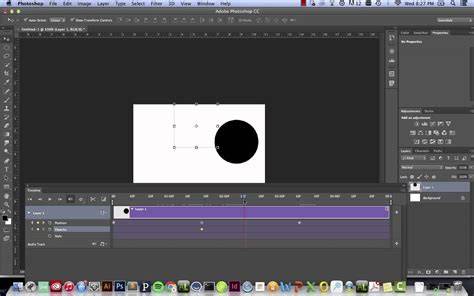
Table: Layer Types And Their Animatable Properties
| Layer Type | Animatable Properties |
|---|---|
| Pixel/Standard Layer | Position, Opacity, Styles |
| Shape Layer | Position, Opacity, Styles, Vector Mask Position |
| Text Layer | Transform, Opacity, Warp |
| Smart Object | Transform, Opacity, Styles; nested animated content |
| Video Layer | Transform, Opacity, Style; can contain a layer group |
For advanced experimentation, you can embed animated content in smart objects, apply filters to the smart object, and animate layer styles as the object plays through the timeline. This creates rich, layered animations that leverage Photoshop’s robust editing features without leaving the host environment.
The Basics of Animation & Keyframes in Blender (Complete Beginner Tutorial)
Shortcuts And Navigation In Timeline
Stop-and-start control: Tap the Spacebar to play or pause at the current time indicator. Use the Up/Down arrows to move to In/Out points. The Left/Right arrows navigate frames, while Home/End jump to the start or end of the timeline. Shift plus Home/End moves to the Work Area boundaries. To move multiple clips, select the layers and drag them together in the Timeline.
These navigational aids help you quickly scrub through your animation, adjust timing, and refine motion with confidence.