Layers are organized in the Layers panel. The Layers panel lists all layers in an image, from the top layer to the Background layer at the bottom. The active layer, or the layer that you are working on, is highlighted for easy identification. You can create new, blank layers or turn selections into layers, convert a background into a regular layer or vice versa, and paste selections into the image. The Layers panel is an important source of information as you edit photos. Ordinary layers are pixel-based (image) layers, while adjustment layers let you create vector-based text and shapes and apply non-destructive edits.
Getting Started: What Is a Layer?
Layers allow you to work on one part of an image without affecting the others. Think of layers as sheets of acetate stacked one on top of the other; where there is no image on a layer, you can see through to the layers below. The image below has a grey background and 3 layers above it containing a mixture of text and images. Layers are displayed in the Layers Palette, which is usually at the bottom right of your Photoshop work area.
Photoshop will automatically create a new layer when you drag and drop a picture onto your page or use the text tool. You can rearrange the Layer order by selecting and dragging layers up and down in the Layer’s palette. The top-layer object is at the top of the project, and the bottom layer stays in the back. If you need to keep your project organized, you can create a new group to prevent clutter and color-code layers and groups to identify related elements more quickly.
Ways to Create a New Layer
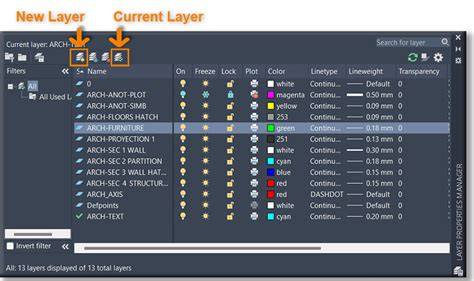
- The “Create A New Layer” icon: Click the icon to add a new layer with transparency above the currently selected layer. You can then drag it to another position in the stack to define its order.
- From the Layers menu: Layers > New > Layer. A dialog appears where you can rename the layer, set color, blend mode, and opacity, then click OK to create with transparency.
- Keyboard shortcuts: Ctrl/Command+Shift+N on Windows/macOS opens a dialog to create a new layer with customizable options; or Ctrl/Command+J to duplicate a selected layer into a new one (useful for isolating a subject).
- Dragging and dropping selections: You can copy a selection to a new layer via Copy to copy the selection into a new layer, or Cut to move it into a new layer.
Note: In Photoshop Elements, the Layers panel may differ slightly, and Photoshop Elements may not support layer groups in some cases. However, you can still create, rename, hide, and organize layers effectively.
Layer Types and Their Uses
- Basic layers: Pixel-based content such as photos and artwork.
- Shape layers and text layers: Create vector-based shapes and text that remain crisp at any size.
- Adjustment layers: Apply non-destructive edits (such as brightness/contrast, curves, etc.) to all layers below them or to a clipped layer below.
- Fill layers: Solid color, gradient, or pattern fills.
- Smart Object layers: Preserve original quality when scaling or transforming, allowing non-destructive edits.
Managing Layers for Maximum Control
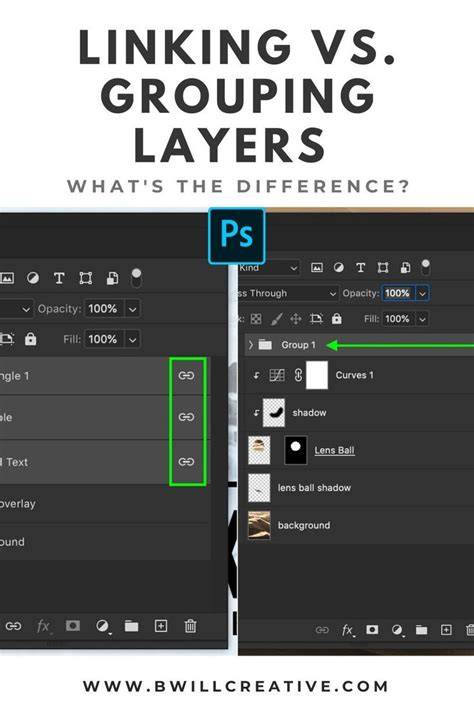
Using the icons in the Layers panel, you can accomplish many tasks-creating, hiding, linking, locking, and deleting layers. You can link layers so they move as a unit, helping you manage complex compositions. The active layer should always be checked to ensure adjustments affect the correct element. You can reveal or hide a layer by clicking the eye icon; when hidden, the eye icon appears with a strike-through in some interfaces. The image contained in the document may include layer groups, which Photoshop Elements may display in a collapsed state or not support fully; compensate by using separate layers and groups to stay organized.
Layer Styles and Masks: Non-Destructive Editing
Layer Styles add effects to layers, such as Bevel and Emboss or Drop Shadow. To apply a layer style, double-click the blank area of the layer in the Layers panel or right-click the layer and choose Blending Options. Layer styles are non-destructive and can be hidden or edited later. Each effect appears under the layer and can be toggled with the eye icon next to the effect name.
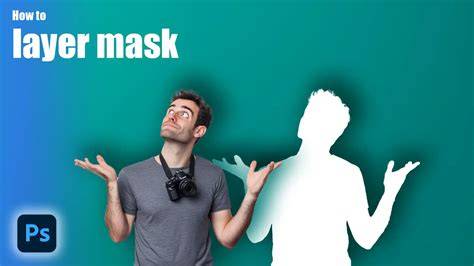
Layer Masks allow non-destructive visibility control. Add a Layer Mask to a selected layer and paint with black to hide areas, white to reveal. The Brush tool is commonly used on layer masks; Opacity controls the transparency of paint, and Flow controls the rate of paint application.
Adjustment Layers: Non-Destructive Global Edits
Adjustment layers apply effects to all layers below them, either globally or clipped to a single layer. They come with a mask similar to standard layer masks. Adding an Adjustment Layer is done via the bottom of the Layers Panel. Examples include Curves, which lets you boost shadows and highlights for a smooth midtone transition. Adjustment layers do not alter the original image until you merge or flatten, and they can be adapted or deleted any time while keeping the PSD intact.
The 19 Adjustment Layers in Photoshop Explained
Practical Tips for Working with Layers
To keep your project organized, rename new layers rather than leaving the default names, and consider grouping related layers for clarity. When working with many layers, color-coding layers and groups helps identify related elements quickly. Remember: you can merge layers you’ve finished editing to reduce file size, but only do so when you’re sure you no longer need separate layers for further edits. You can convert between Background and regular layers depending on your editing needs to maximize flexibility.
Shortcuts and Common Scenarios
- Create new layer above the current one with transparency by clicking the New Layer button or using the appropriate shortcut.
- Duplicate a layer to preserve an original while experimenting with edits.
- Convert a background into a regular layer to allow full editing capabilities.
- Link layers to move them together when repositioning elements in a composition.
Examples of Layer Workflows
In a typical workflow, you might start with a Background layer, add a new blank layer for adjustments or painting, add more layers for text, shapes, and image adjustments, then apply an adjustment layer to refine the overall look. You may then group related layers to keep the panel tidy and merge layers only after finalizing edits to optimize file size.
FAQ: Quick Reference
- How many types of layers are there in Photoshop? Basic, Adjustment, Fill, Shape, Text, Smart Object, and more depending on tools used.
- How do you create different layers? Use the Create New Layer icon, the Layers menu, or keyboard shortcuts such as Ctrl/Command+Shift+N; copy, paste, and duplicate as needed.
- How can you manage layers effectively? Use the Layers panel to rename, group, color-code, hide/show, link, lock, and merge layers; ensure the correct layer is active before editing.