We love color and are obsessed with images and profiles that have a unique, eye-catching aesthetic. If you’re not sure where to start with making a custom color palette, we have a cool creative hack for you. The easiest way to create a cohesive aesthetic across all of your photos is to create a color palette from an image you like. Want to create a color palette for yourself? You can easily create a color palette that pulls from the primary or secondary colors in your image using Picsart. Creating a color palette from an image is a cool and easy way to ensure a consistent look and feel for your online brand presence, social media accounts, moodboards, and so much more!
Ready to create your custom color palette? Step 2) Scroll across the bottom toolbar and tap on the Draw icon. While in the Draw Tool, tap on the Shape icon in the bottom toolbar (it looks like an overlapping square and circle). Step 3) Tap on the rainbow Color Chooser in the bottom left corner of the toolbar. Step 4) Now use your finger to draw a shape in that color over any part of the photo. You’ll see the shape and color you selected popular. Drag to position and size it as you like. Step 5) Want to get a little fancy? Tap on the Shape Tool again, select the Stroke option, and slide to adjust the thickness of the outline. Tap on the color chooser and select the color white.
There are two color wheels to help you harmonize colors: the RGB and the RYB wheels. The color wheel is exactly what it sounds like, guiding which colors work well together. Primary colors are the basic colors that cannot be created by mixing other colors, while secondary colors are made by mixing two primary colors. Tertiary colors result from mixing primary and secondary colors. Complementary colors are opposite on the wheel and create high-contrast combinations, such as yellow with purple or red with green. Monochromatic colors are variations of a single hue, whereas analogous colors sit side by side on the wheel for a cohesive look. Triadic and tetradic schemes offer evenly spaced color sets for bold palettes.
Quicktools by Picsart offers a free color palette generator that’s fast and fun to use. Simply type in the RGB color code and it’ll generate a unique color palette with additional colors that pair well with the shade you added in. There are endless possibilities when it comes to creating custom color palettes and color combinations. You can start by picking colors from an image you love, drawing inspiration from nature, or observing what color patterns catch your eye in your social feed. Pastels, deep-sea tones, and pop-star vibes are popular starting points, while seasonal palettes can spark fresh ideas (fall-inspired, hot summer shades, etc.).
Picsart is a photo and video editing platform and creative community. It ranks as a top 20 worldwide app with over 150 million monthly active users. Its AI-powered tools enable creators to design, edit, draw, and share content anywhere. The platform hosts one of the largest open-source content collections in the world, including photos, stickers, backgrounds, templates, and more. Users include consumers, marketers, content creators, and businesses, and Picsart has collaborated with major artists and brands like BLACKPINK, Taylor Swift, Lizzo, Ariana Grande, and Warner Bros.
If you’ve been wondering how you would look with a different eye color, PicsArt lets you use its tools to find out. Changing eye color is straightforward with the right tools, and the Prism effect adds depth, clarity, and a touch of glitter to eyes. The eyedropper tool in Picsart makes color sampling easy for precise matching, and you can blend colors with careful brushwork. In addition to color editing, you can produce striking double-exposure effects, background replacements, and a variety of overlays and textures to elevate your images. The Crop and Straighten tools help frame your subject, and adjustments to Light, Contrast, Saturation, Temperature, and Clarity shape the mood and style of your photo.
As you explore, you’ll discover a range of effects from the Artistic and Distort collections, with Paper and Warhol-inspired options offering different aesthetic flavors. The Canvas and Sketch effects let you blend photography with artistic brushstrokes. The key to professional-looking Instagram and beyond is experimentation and consistent practice with these intuitive tools. Once you’ve learned the basics, you’ll find the rest to be a breeze. Picsart remains a powerful editing tool for creating elaborate designs quickly and easily.
Methods for enhancing color coordination extend beyond single images. You can use eye color adjustments and color palettes to maintain a cohesive look across profiles, moodboards, and branding elements. The Eye Dropper tool, Shape tool with stroke, and color wheel concepts all play into this process, ensuring your visuals share a unified color language. With Picsart’s broader ecosystem of AI features, background removal, object removal, and AI-assisted generation, you can craft polished visuals that align with your chosen palette and aesthetic.
What would you try first-the eye color enhancements, a color palette drawn from a favorite image, or a new blend of complementary hues? Share your experiments and tag the creator community in your designs!
Note: Some excerpts reference tutorial steps and tool names as described in the Picsart workflow, adapted here to present a cohesive guide without reproducing original text verbatim.
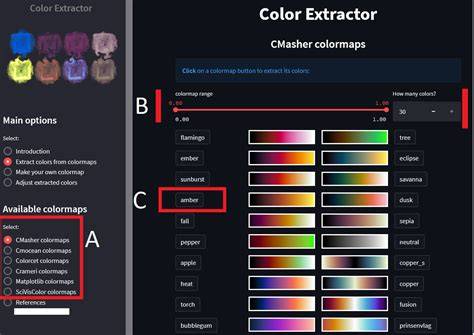
Create Color Palette from Image in Photoshop - Quick Photoshop Tutorial
Create Color Palette from Image in Photoshop - Quick Photoshop Tutorial
| Feature | Purpose | Notes |
|---|---|---|
| Draw tool | Access shape and color | Used to place color shapes over image |
| Shape tool | Draw shapes and add strokes | Stroke thickness adjustable; white outline option |
| Color chooser | Select base color | Bottom left corner in toolbar |
| RGB vs RYB wheels | Color harmony guidance | Different applications: digital vs traditional art |