Turtle graphics is a popular tool for teaching Python fundamentals through visual feedback, making it easy to explore loops, functions, and conditionals by drawing shapes and patterns on the screen. The module is part of the standard Python library, so no extra installation is required, and it provides a friendly entry point for beginners to learn programming concepts while creating artistic outputs.
Understanding the Turtle Library and Its Foundations
The turtle module lets you control a virtual pen (the "turtle") as it moves around a window, leaving trails that form lines, shapes, and patterns. The turtle can be customized as an object with attributes and methods, enabling practical demonstrations of programming paradigms such as object-oriented programming (OOP). As you grow more confident, Turtle graphics grows with you, allowing you to tackle increasingly complex projects-from simple squares to intricate spirals and fractals.
Key concepts include:
- The turtle can move forward and backward, turn left or right, and change its pen state (up or down) to control drawing.
- The screen provides a coordinate system where you specify locations for shapes.
- Loops, functions, and conditionals power repetitive drawing, shape variety, and interactive behavior.
Building a Simple Painting-Like Program with Shapes
In the explored project, a screen called "Drawing Adventure" enables painting with shapes such as circles, squares/rectangles, triangles, and stars. The user determines the shape, color, and position, and the program renders the requested figure accordingly. This approach demonstrates how basic shapes can combine to form more complex images, including trees and recognizable scenes.
Coding Process: Key Steps and Structure
- Import the turtle module and create the turtle object (often named turt) and the screen (wn).
- Set the turtle’s appearance and the screen’s properties, such as size and title. For example, use turt.shape("blank") and wn.title("Drawing Adventure").
- Enter a loop that prompts the user to select a figure from a predefined list (e.g., circle, square/rectangular, triangle, star).
- For each figure, request color, location (x, y), and size via turtle.textinput prompts, convert inputs to the appropriate numeric types, then draw the shape at the specified coordinates.
- Implement shape-specific drawing routines: circle uses turt.circle(size); quadrilateral uses a loop to draw two pairs of sides; triangle uses a 3-step loop; star uses a 5-point for-loop with appropriate turning angles.
- Repeat until the program ends, allowing the user to add multiple figures in sequence. The sample code concludes with wn.exitonclick() to close the window gracefully.
The core idea is to leverage simple geometric primitives to build more elaborate drawings. A circle’s drawing is straightforward, while quadrilaterals may involve two distinct edges (short and long) or a square with equal edges. Triangles and stars rely on loops and precise turning angles to achieve their shapes. The approach emphasizes user-driven composition: you decide where to place each shape and what colors to use, and the program renders it accordingly.
Extending the Concept: From Shapes to Creative Projects
Beyond basic shapes, Turtle graphics supports more advanced designs by combining loops, recursion, and color variation. Artists and educators use Turtle to illustrate concepts such as fractals (for example, the Sierpiński triangle), mandalas, and systematic pattern exploration. By controlling pen size, speed, and color, you can craft mandalas, spirals, and other intricate designs, gradually increasing complexity as you gain confidence.
Interactive features can further enhance learning. You can control the turtle with keyboard or mouse input to create digital Etch-A-Sketch-like experiences, or design small games and interactive demos that visualize sorting algorithms or other computational processes. The visual feedback from drawing helps learners connect algorithmic ideas with tangible outcomes.
Practical Tips for Beginners
- Start with simple shapes like a square and a circle to understand movement and turning angles.
- Use loops to repeat drawing commands efficiently, and store parameters (colors, sizes, positions) in variables or lists for flexibility.
- Experiment with exterior angles: for a polygon with n sides, the exterior angle is 360/n degrees, which guides the turning logic inside a loop.
- Leverage functions to encapsulate shape-drawing logic, making your code reusable for multiple figures and colors.
- Explore the standard library documentation to discover additional features such as stamps, speed controls, and more advanced drawing techniques.
From Tutorial to Exploration: Why Turtle Remains a Strong Starting Point
Because Turtle graphics is built into Python, it remains one of the most accessible tools for learning programming visually. It offers an intuitive interface to manipulate shapes and patterns while reinforcing essential concepts like loops, functions, and conditionals. As you progress, Turtle provides a natural pathway to more creative programming-designing art, animations, and interactive projects that merge math, logic, and aesthetics.
Ultimately, Turtle graphics proves that coding can be both educational and fun. Whether you’re drawing a simple circle or constructing a multi-shape scene, the act of issuing commands to a turtle to produce visible results helps learners see the immediate impact of their code, building confidence and curiosity along the way.
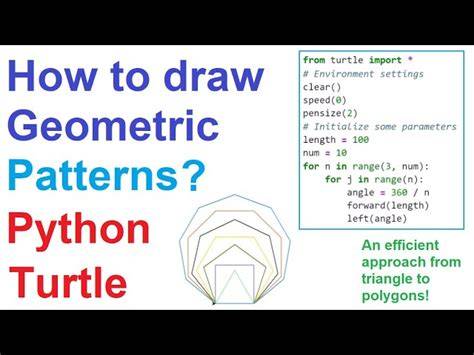
Python Turtle Graphics Tutorial #1 - Introduction
tags: #python #programming #drawing