DaVinci Resolve has become one of the most popular video editing platforms in the world, used by both beginners and Hollywood professionals. Its powerful editing, color grading, audio, and visual effects tools make it a complete post-production solution. But one question many newcomers ask is: Is DaVinci Resolve hard to learn for beginners? The answer depends on your editing background, learning approach, and goals. In this article, we’ll break down how beginner-friendly DaVinci Resolve is, what challenges you might face, and the best strategies to make learning smoother.
Why DaVinci Resolve Feels Intimidating at First
When you first open DaVinci Resolve, you’re greeted with a professional-grade interface filled with panels, timelines, and buttons you may not recognize. Unlike some beginner-friendly tools such as iMovie or CapCut, Resolve offers a multi-workspace environment (Edit, Cut, Fusion, Fairlight, and Color pages) that can seem overwhelming.
Key reasons it can feel challenging: steep learning curve for advanced tools like Fusion (VFX) and Color Grading; different workflow compared to other editors like Premiere Pro or Final Cut; many professional settings that beginners may not need right away.
Why Beginners Shouldn’t Be Afraid
Despite the initial complexity, DaVinci Resolve is beginner-friendly if you approach it strategically. Blackmagic Design, the company behind Resolve, has created multiple learning resources including free tutorials, PDF manuals, and training projects.
Beginner advantages: free version available with 90% of the features of the Studio version; Cut Page for beginners, offering a simplified editing interface; one software for all stages of post-production (editing, audio, color, effects).
Learning Timeline: How Long Does It Take?
Your learning speed depends on prior editing experience, consistency, and learning resources. On average: basic editing skills - 1 to 2 weeks; comfort with color grading & audio - 1 to 2 months; full professional workflow mastery - 3 to 6 months.
If you want a clearer idea of the actual timeline based on real editing workflows, read our guide on how long it takes to learn DaVinci Resolve as a freelancer to understand what skills matter most and how fast you can reach pro level.
Tips to Learn DaVinci Resolve Faster
- Start With the Cut Page - use the Cut Page to learn quick trims, transitions, and basic edits without feeling overwhelmed.
- Learn One Module at a Time - break learning into Editing → Color → Audio → Effects. Don’t try to master everything at once.
- Use Free Projects - practice with short projects (1-2 minutes) to keep focus.
- Follow a Structured Course - a step-by-step course guides a logical learning path more effectively than random YouTube tutorials.
- Learn Keyboard Shortcuts Early - shortcuts like B (Blade Tool) and A (Selection Tool) speed up workflow instantly.
Common Mistakes Beginners Make
- Overcomplicating the workflow by jumping into advanced features too early.
- Ignoring color management, which can lead to dull or incorrect visuals.
- Not organizing media before editing, making projects messy.
- Skipping Fairlight audio cleanup, resulting in poor sound quality.
Is DaVinci Resolve Hard to Learn in Practice?
DaVinci Resolve isn’t inherently hard to learn - it’s just powerful. Beginners can quickly master the basics if they start simple, stay consistent, and use the right resources. The free version is a substantial starting point, and the Cut Page offers a gentle onboarding path into a full feature set.
To accelerate progress, you can follow a structured course and practice on short projects, then gradually explore color, audio, and effects. Resolve’s all-in-one workflow is designed to consolidate editing, color, audio, and effects in one software, which can feel smoother over time as you gain familiarity with the interface.
What You Can Learn Quickly and What Takes Time
Quick wins for beginners include basic editing, trimming, transitions, and creating simple titles. More time-consuming skills include advanced color grading workflows, Fairlight audio mastery, and Fusion-based visual effects, which require practice and patience to master.
What’s New in Recent Versions
Recent updates introduce AI-assisted features, enhanced collaboration, and a broader set of export formats. Version 20 adds AI tools like AI IntelliScript, AI Animated Subtitles, AI Audio Assistant, AI Beat Detection, and more, plus collaboration features such as auto-syncing and remote editing via Blackmagic Cloud. These tools can speed up routine tasks and streamline teamwork, especially for larger projects.
Who Should Use DaVinci Resolve?
- You need professional video editing tools on a budget.
- You’re editing YouTube videos, social media content, music videos, or film projects with growing complexity.
- You want an all-in-one solution for editing, color, audio, and effects.
But if you’re seeking a very simple, consumer-oriented editing experience with minimal setup and learning, other apps may feel more approachable initially. Resolve shines as a long-term investment into a powerful, scalable workflow.
Practical Workflow Overview
The program is multi-platform (Windows, macOS, Linux), and uses seven Pages: Media, Cut, Edit, Fusion, Color, Fairlight, Deliver. The Media page handles ingest and organization; Cut and Edit provide editing interfaces; Fusion handles advanced effects with a node-based workflow; Color covers color correction; Fairlight handles audio; Deliver exports the final project. A disk-based project management system stores timelines centrally, enabling collaboration and cloud sharing features through Blackmagic Cloud and Frame.io integration.
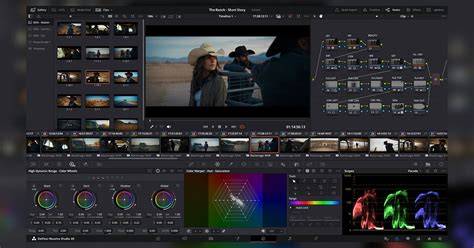
For beginners, a practical starting path is:
- Open Cut Page and import media on the Media page.
- Set in/out points with I and O, then drag to the timeline.
- Experiment with transitions from the Effects Library and adjust in the Inspector.
- Add music and basic color corrections on the Color page.
- Export via Deliver with a suitable preset and render queue.
Numbers, Resources, and Pricing
DaVinci Resolve is available in a completely free version with most professional features. Studio adds higher-end tools and upscaling capabilities for a one-time fee of $295. The free version limits include editing up to 60fps and Ultra HD resolution; Studio removes these limits and adds neural engine AI features, advanced HDR tools, and more. There are optional hardware accessories like keyboards and panels for power users. Compared to subscription-based editors, Resolve’s one-time price and free tier make it a compelling option for many creators.
How It Compares to Other Editors
Compared to Premiere Pro, Resolve offers a similar professional feature set in an all-in-one package, but some find Resolve’s initial learning curve steeper. Over time, Resolve’s integrated workflow can feel more streamlined for projects that require editing, color, and audio in one place. The very fact that Resolve runs well on a range of hardware and supports multiple platforms adds to its versatility for beginner to advanced users alike.
Bottom Line
DaVinci Resolve isn’t innately hard to learn; it’s a powerful, all-in-one post-production tool that rewards a steady, structured learning approach. Start small with the Cut Page, work through modules one by one, and gradually explore color, audio, and effects. With the right resources and consistent practice, beginners can reach professional-level proficiency without immediately jumping into the most complex features.