Press enter or click to view image in full size. A collection of HD AI art images created super quickly with Turbo SDXL models. This post covers some of the latest models for Stable Diffusion that have the ability to quickly create quality AI art images. I list out some of the early models you can download to try this out and insights and ideas getting the most out of these models. Sometimes I do a high-step AI image run overnight. I’ll set up a wildcard prompt and choose Euler A for 150 steps. The last time I did this, using Automatic1111 and the DreamShaperXL SDXL model, it took me around 25 minutes per image (so, I’m not rocking the latest desktop and have a mid-range 8GB graphics card). And, yeah, they look good. 25 minutes good?
Press enter or click to view image in full size. 150 step AI art images via Stable Diffusion XL, 25 minutes each. But what about fast and… eh… good-enough? How fast? Like fifteen seconds vs. 25 minutes. Let me do my math here… bee-boop-beep… that’s a hundred times faster. Like these:
Press enter or click to view image in full size. Minimal step AI art images created 10-30 seconds each. Okay, this is a big “wow” moment for me. I’ve been quickly generating hundreds of images over the past few days and some are just plain awesome.
Welcome to SDXL Turbo! SDXL Turbo is a new distilled base model from Stability AI. You can now generate images with a very small number of steps. Like five. Five steps and you get a fine quality image. Now, I have not used the base SDXL Turbo model directly but I have used models built upon it, like the following from CivitAI: SDXL TURBO PLUS - RED TEAM MODEL ❤️🦌🎅 - v1.0 | Stable Diffusion Checkpoint | Civitai TurboVisionXL - Super Fast XL based on new SDXL Turbo - 3-5 step quality output at high resolutions! - TVXL-V2.0-BakedVAE | Stable Diffusion Checkpoint | Civitai Tertium - SDXL Turbo - v1.0 | Stable Diffusion Checkpoint | Civitai ⊣ Realities Edge XL ⊢ ⋅ LCM+SDXLTurbo! - 🚀🚀 TURBO XL | Stable Diffusion Checkpoint | Civitai … and more are popping up everyday, in addition to the current ones getting rapid updates. I haven’t found an easy way to find them… e.g., the base model should be SDXL Turbo 1.0 but not all are listed that way. So sometimes searching for “Turbo” helps.
Suggestion: as you download a model, go through the example images on each model’s page and examine the prompt, the CFG setting, the sampler, and the number of steps used. Each model has its own sweet point. So download a model (or two or three) and let’s get going! So wow, fast! What’s the downside? Well, that 150 step image is going to have a lot more subtle quality. For Turbo, image coherence appears to be not great. Also, your prompt may not be adhered to as much as you’d like. You’re going to get images guided somewhat by your prompt but more heavily by the basic training of the model you’re selecting. So, if you’re looking for something specific, you might have to generate a boatload of images to find an image that matches what you’re looking for. Well, it’s fast, so as long as you have a big boat you can load it up. And who knows, you might end up with a random surprise.
Basic Settings and How to Use SDXL Turbo
CFG: Classifier Free Guidance - how close to follow your prompt. Your CFG needs to be low. Like in the 1-3 range. I usually run around 2 or 2.5. Get above that and things get interesting and extreme (which has its own appeal sometimes).
Steps: iterations from pure noise to your final image. Single digit to maybe 20. Depends on the model. You’re probably interested in the Turbo model because you want fast generation, so the lower tolerable steps the better. I usually shoot for 10 steps, sometimes 15, and willing to test 20 and see what I get.
Sampler: model for the process to reduce the initial diffused noise back to an image. This is where either you want to do some work or look to see if someone (like CivitAI user glitter_fart [ahem]) has already posted a matrix plot with samplers on one of the axis. For instance, I’ll show below matrix plots I did of samplers vs. CFG or steps. You’ll find some samplers work really well and some just produce noise.
These images are too big for Medium to handle, so I’m providing some direct links to CivitAI where I have a public collection. You should be able to right click -> Save As each image to view zoomed in.
(1) For instance, here’s a big comparison plot I did looking at SDXL Turbo Plus (best for you to click on it and save the image for viewing where you can zoom in and easily scroll around). It shows Sampler vs. CFG Scale at 10 steps. First you can see Samplers that just don’t work (DPM++ 2M SDE) and also what happens when you increase the CFG. For instance, for Euler A it starts out as a nice almost photo-realistic image at CFG 2.0. As it increases, so does the more painted nature, going to an almost gouache kind of rendering. SDXL Turbo Plus CivitAI: Image posted by rufustheruse (civitai.com)
(2) I have two for Turbo Vision XL, again plotting Sampler vs. CFG. The first is for 6 steps and the second for 9. Turbo Vision XL CivitAI - 6 steps: Image posted by rufustheruse (civitai.com) Turbo Vision XL CivitAI - 9 steps: Image posted by rufustheruse (civitai.com)
(3) Lastly, a matrix for Realities Edge XL - I had made two but it was for less steps. This model needs more steps. This is for 10 steps. Realities Edge XL CivitAI: Image posted by rufustheruse (civitai.com)
What did I learn? For SDXL Turbo Plus, I liked the following samplers best: Euler a, DPM++ 2S a Karras, DPM++ SDE Karras, DPM++ SDE All the samplers that didn’t produce noise: DPM++ SDE Karras, DPM++ SDE Karras, DPM++ 2M SDE Exponential, DPM++ 2M SDE Karras, Euler a, Euler, DPM2, DPM2 a, DPM++ 2S a, DPM++ SDE, DPM++ 2M SDE Heun Karras, DPM++ 2M SDE Heun Exponential, DPM++ 3M SDE, DPM++ 3M SDE Exponential, DPM adaptive, LMS Karras, DPM2 Karras, DPM2 a Karras, DPM++ 2S a Karras, DDIM, UniPCI can use this to create a large batch run of images, using all the samplers I like, and then at different # of steps or different CFGs (or both!).
Turbo Time and Practical Trade-offs
Okay, you know enough to go and download those big models and start experimenting. The rest of this post is some shared how-to and advice and insights. So let’s say I want to produce, in Automatic1111, a big run of images. Here’s what I’d do: Enter your prompt and negative prompt. If you’re like me, you’re using the Dynamic Prompt extension and putting a bunch of wildcard files into that extensions directory. Read previous posts for more information on that. Decide if you’re going to experiment with different CFGs or Steps. Let’s experiment with steps and set the CFG to 2 or 2.5. Set your preferred resolution (for width & height I’ve done 1024 x 1024, 1344 x 768, 896 x 1152, and 1152 x 896). Select X/Y/Z Plot from the Script drop-down. Below, select both “Keep -1 for seeds” and “Use text inputs instead of dropdowns.” For the X axis, choose “Sampler” and paste in the samplers you want to use (like that best list above). If you like, you can just hit the yellow button next to the field to get all the samplers pasted in and remove the ones you don’t want to try. For the Y axis, choose “Steps” and enter something low, like 3,6,9 (I’m going to use a model that takes more steps, so I’m entering 10,15,20). Note: if you want to do CFG instead of steps, select that for your Y axis and enter something like 1.5,1.75,2,2.25,2.5 or such. Double check your batch count setting to ensure it’s at a multiplier you want. Maybe just one for your first run. In my case, I have four samplers and three steps, so 12 images are going to be produced. If I want, I can do a batch of nine for each sampler / step pair-up, and get 108 images as the result.
Here’s a screen snap of my setup before selecting “generate” for my prompt:
Here’s the grid output of what I generated (generated in parallel with each individual image):
Plot grid of some samplers vs. # of steps. Now, I have to tell you that I like images that appear to be illustrations from fantasy or science-fiction tales. I lean towards those models. I’m not too keen on overly realistic images and I’m not looking for images of people just posing there all looking dramatic. Out of 100 images, maybe 5 are keepers. Anyway, my bias is reflected in my ranked list of current Turbo models, noted above.
LoRA Compatibility and Post-Processing
LoRA Friendly? Some of the models are more LoRA friendly than others, meaning that the LoRA actually has visible impact on the generated image. So if you’ve got a fantastic LoRA or two that you like and you want to create a whole bunch of images quickly using that LoRA, let ’er rip.
Pretty Good… But Rough. So if the results are good but kind of rough, remember that you have img2img to play with. You can put the image through Stable Diffusion to smooth it out, using it as a starting place. E.g., I had an image I liked but found the colors and lines to be rough. Just resizing it larger and iterating on it again can help a lot. Also, consider switching the sampler for the resize. I did the following: Went to PNG Info in Automatic1111. Dropped the image into the drop spot so that the image’s metadata and info could be read. Selected “Send to img2img.” Went to img2img. “Just resize” and switch to “Resize by” and I select a scale of 1.75. Denoising strength I set to 0.2 or 0.25 or 3.0, unless I really want some new conjuring here. Usually it wasn’t generated with Euler A, so I select Euler A as the sampler. This results in a smoother look.
Consider if you want to switch to a different model. It will start with your rough image as a basis and do its thing from there. Generate. Some examples of before / reworked: Original left, reworked to be larger and smoothed out, right.
What is Stable Diffusion 3 and What’s New
Stable Diffusion 3, released on April 17, 2024, features innovations such as rectified flow and the Multimodal Diffusion Transformer architecture, improving integration of visual and textual data and enhancing image quality. The model uses advanced text encoders like CLIP G14, CLIP L14, and T5 XXL, trained on COCO 2014 and ImageNet with de-duplication techniques for high-quality training examples. Open-source ethos and scalability continue to be emphasized through community collaboration and ongoing improvements.
SDXL Turbo: Key Features, Benefits, and Real-World Use
SDXL Turbo introduces Adversarial Diffusion Distillation (ADD), enabling real-time, single-step image synthesis while preserving high sampling fidelity. It delivers high clarity and detail, leveraging GAN-like advantages to reduce artifacts. Real-time generation makes it suitable for video games, virtual reality, and instant content creation, with 512x512 outputs commonly used as a balanced target. Under a non-commercial license, it remains accessible for education, research, and hobbyist exploration.
On capable GPUs, SDXL Turbo can achieve impressive speeds (for example, 1 step can be sufficient on some configurations, with modest trade-offs in final image precision). The technology represents a significant shift from traditional multi-step diffusion, though some users note reduced coarse control over nuanced prompts. The ecosystem includes DreamShaperXL Turbo and other fine-tuned variants like DreamShaper Turbo XL, extending Turbo capabilities to higher resolutions near 1024x1024.
- Understand the ADD-based architecture and its one-step inference advantage.
- Experiment with samplers, CFG, and steps to locate sweet points for your prompts.
- Leverage low CFG and small step counts for rapid batch generation, then refine with img2img as needed.
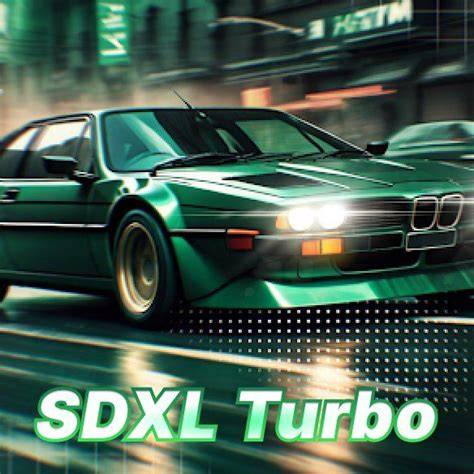
To summarize, SDXL Turbo Young represents a family of fast, efficient, high-contrast AI image generators built on the SDXL Turbo foundation. It empowers artists and researchers to prototype ideas quickly, test a wide range of prompts, and iterate at scale, while acknowledging trade-offs in fine-grained prompt adherence and edge-case detail.