Symmetry Bar Procreate offers a powerful set of tools that allow artists to create balanced, intricate designs with ease. By enabling Guides and adjusting the grid, you can explore multiple symmetry modes-from mirror reflections to rotational transformations-and apply them to your drawings in real time. This article consolidates the key functions and practical setups described in the draft to help you maximize your workflow.
Setting Up the Symmetry Guide
To set up a Symmetry Guide go to Modify > Actions > Guides and tap Symmetry. To edit your grid tap Guide Settings. Your Symmetry Guide appears as thin lines that overlay your artwork. This mode puts a vertical guideline down the middle of your canvas. This mode puts a horizontal guideline across the middle of your canvas. This mode divides your canvas into quadrants using a horizontal and vertical guideline. This mode splits your canvas into eight segments using horizontal, vertical, and diagonal guides.
By default, a new Symmetry Guide will use Mirror Symmetry. In Rotational Symmetry mode, your stroke reflects and rotates. Experiment to see the difference in effect.
These options provide a flexible framework for creating symmetrical art, whether you’re designing patterns, mandalas, or complex character studies. The step-by-step toggles allow for quick experimentation, letting you compare outcomes with minimal setup.
Symmetry Modes: What They Do
Mirror Symmetry creates a reflection along a central axis, so every stroke on one side of the guide is mirrored on the other. This is ideal for clean bilateral designs, wings, faces, and ornamental patterns that require exact halves.
Vertical/Horizontal Guides place a single axis in the middle of the canvas. Strokes are mirrored across that axis, enabling quick creation of balanced compositions without manual alignment.
Quadrant Guides add both a vertical and a horizontal line, dividing the canvas into four equal sections. This mode helps with composing balanced elements in each quadrant and ensuring consistent spacing between sections.
Eight-Segment Guides introduce horizontal, vertical, and diagonal lines to create eight equal segments. This mode is particularly useful for radial patterns, starburst designs, and complex tessellations where angle-based symmetry matters.
Rotational Symmetry uses a combination of reflection and rotation. Your strokes are mirrored and rotated around the center, enabling intricate circular motifs and repeating patterns that maintain rotational balance across the artwork.
Practical Tips for Using Symmetry Pro effectively
- Test each mode on simple shapes before committing to a detailed piece to understand how lines propagate across the canvas.
- Use Guides Settings to customize the exact placement and number of symmetry axes, then save presets for different project types.
- Toggle off symmetry temporarily to add freehand details that can later be aligned with the guide for consistent integration.
- Combine multiple symmetry modes by starting with a foundational mirror or rotational axis and then refining with additional guides for texture and detail.
- Keep your strokes light during initial passes; heavier strokes can be refined later without breaking the symmetry balance.
Workflow Recommendations
Plan your composition by selecting the symmetry mode that best fits the desired outcome. For mandala-like designs, eight-segment or rotational modes produce intricate radial patterns quickly. For character studies or logos that require precise halves, mirror and quadrant guides help ensure perfect balance. Use the Guides Settings to experiment with different axis placements and save your preferred configurations as presets for future projects.
Table: Quick Reference of Symmetry Modes
| Mode | Best For | Notes |
|---|---|---|
| Mirror Symmetry | Bilaterally balanced designs | Reflects across a central axis |
| Vertical/Horizontal Guides | Centered axis symmetry | Single axis in the middle |
| Quadrant Guides | Balanced compositions in four sections | Two axes intersecting at center |
| Eight-Segment Guides | Radial patterns and tessellations | Three axes plus diagonals |
| Rotational Symmetry | Rotating and reflecting strokes | Creates repeating circular motifs |
Визуальные средства для улучшения восприятия
Infographics can help visualize how each symmetry mode affects the canvas. A diagram showing axis placement and the resulting mirrored paths can guide beginners through the setup process. A comparative chart illustrating stroke behavior across modes may accelerate proficiency for new users.
How To Turn on Symmetry in Procreate | Procreate Quick Tips for Beginners
Применение на практике: примеры
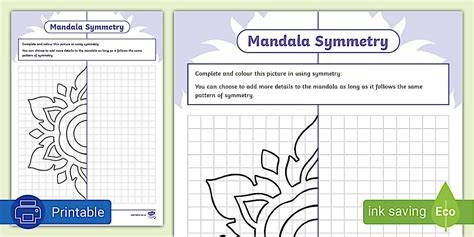
Start with a central point and apply Mirror Symmetry to sketch the basic silhouette of a flower or mandala. Switch to Eight-Segment Guides to add decorative petals around the center, ensuring even spacing. Move to Rotational Symmetry to introduce repeating motifs that rotate around the core, enhancing complexity while maintaining harmony. During refinement, temporarily disable symmetry to add subtle shading and texture that unifies the piece once symmetry is re-enabled.
Релевантные сведения и дополнительные настройки
Experiment with Grid density and axis placement to adapt symmetry to canvas size and artistic intent. Saving symmetry presets accelerates repetitive tasks, especially for series with a consistent visual language. Remember to adjust brush settings in tandem with symmetry to control stroke propagation across mirrored segments.