Tweening in DaVinci Resolve is a powerful technique that creates smooth, motion-compensated in-between frames by interpolating between two images, warping via optical flow, and respecting depth cues. This article synthesizes the key concepts, controls, and practical tips from the provided draft to deliver a comprehensive guide for editors seeking polished transitions, retiming fixes, and fluid motion without manual keyframing.
Overview: What Tween Does and Why It Matters
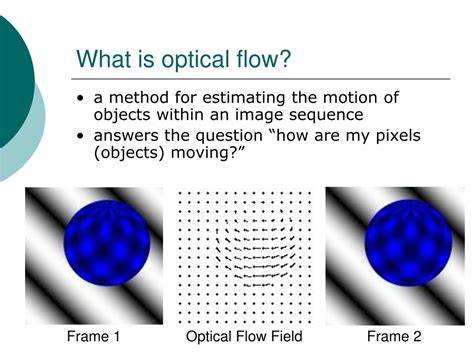
Tween reconstructs a missing frame by interpolating between two neighboring frames using the optical flow. It is nearly identical in functionality to Time Speed and Time Stretcher, with the major difference being that Tween works on two images that are not serial members of a sequence. The result is a single, smoothly interpolated frame that can bridge gaps or create dynamic transitions where a simple dissolve would produce obvious double exposure.
Mental Model: How to Picture the Process
Think of Image0 and Image1 as the endpoints of a tiny time interval. Tween estimates motion between them and moves pixels toward the requested interpolation position. Want to add smooth, animated motion to your transitions? Tween provides motion-compensated results that feel professional and polished, eliminating tedious keyframing in many scenarios.
Inputs and Outputs: What You Feed Tween and What You Get
- Input 0 (orange): The previous frame to the one you are generating.
- Input 1 (green): The next frame after the one you are generating.
- Effect Mask (blue): A mask shape from polylines, basic primitives, paint strokes, or bitmaps that limits where the Tween operates.
Tween outputs the interpolated frame (and a sequence if connected in a chain). The two input frames drive the motion estimation and the final in-between result.
Key Controls: Interpolation, Depth, and Edges
The Controls tab in Tween mirrors the Optical Flow controls found in the Optical Flow node, providing a robust set of parameters to tune motion and warping.
Interpolation Parameter
This option determines where the interpolated frame lies relative to the two source frames A and B. An Interpolation Parameter of 0.0 yields frame A, 1.0 yields frame B, and 0.5 yields a frame halfway between A and B. This directly influences the perceived timing of the in-between frame.
Depth Ordering
The Depth Ordering setting decides which parts of the image render on top, using either Fastest On Top or Slowest On Top. For example, in a shot where a car moves through a static background, the car’s vectors are larger and the background’s are smaller, so Fastest On Top is often appropriate. Conversely, in a camera pan where the background vectors are fast and the car’s motion is relatively slower, Slowest On Top may better preserve occlusions and depth cues.
Clamp Edges and Edge Softness
Clamp Edges can remove transparent gaps at the edges but may introduce stretching artifacts near edges, especially with moving objects or camera motion. Use Clamp Edges for small edge gaps. When enabled, Edge Softness helps reduce stretching artifacts; keep softness modest (around 0.01 to 0.03) depending on the scene complexity and edge activity.
Source Frame and Warp Direction
These checkboxes let you choose which frames and vectors are blended into the in-between frame. Options include Prev Forward, Next Forward, Prev Backward, and Next Backward, with each mode using the corresponding motion vectors to interpolate. Combining multiple modes can increase complexity and may lead to more pronounced artifacts, so adjust according to the shot dynamics.
Optical Flow Options
Tween’s optical flow settings tweak the analysis itself. These are aligned with the parameters you would find in the Optical Flow node, and they govern how the motion is inferred between frames. Tuning these can significantly affect the smoothness and accuracy of the interpolation, especially in scenes with noise, motion blur, or complex textures.
Workflow: How to Use Tween Effectively
- Place Tween between two neighboring frames from which you want to generate an in-between frame.
- Connect an Effect Mask if you need to constrain the interpolation to specific areas of the frame.
- Set the Interpolation Parameter to position the in-between frame in time (0.0 for the first frame, 1.0 for the second, 0.5 for halfway).
- Choose Depth Ordering based on the scene’s depth relationships and occlusions.
- Enable Clamp Edges if edge gaps appear, and adjust Edge Softness to minimize stretching artifacts.
- Tune the Source Frame and Warp Direction options to blend in the most natural motion vectors for your shot.
- Fine-tune Optical Flow Options to balance accuracy and performance, using real-time previews to assess changes.
Practical Tips: Getting the Most Out of Tween
- Color-correct input frames before interpolation to improve optical flow accuracy, since flow relies on color consistency to track motion.
- If you’re dealing with noisy footage, apply noise reduction beforehand to improve flow stability and reduce artifacts in the in-between frame.
- Be mindful that Tween destroys input aux channels; if you rely on side-channel data, plan to re-create or store essential information elsewhere.
- Consider masking with the Effect Mask to constrain motion to areas where interpolation would be most visually convincing, such as foreground subjects while background remains blurred or static.
- Test different Interpolation Parameters to match the desired timing, especially when creating transitions between clips or between title graphics and video.
Examples and Practical Scenarios
Tween excels in motion-compensated in-between frames, short retiming repairs, and transitions where a simple dissolve would create obvious double exposure. For titles and graphics, Tween can generate fluid motion between elements without manual keyframes, lending a professional polish to corporate videos, presentations, or creative projects.
Common Mistakes and How to Avoid Them
- Not color-matching inputs before interpolation can degrade optical flow accuracy and create unnatural motion blur. Always pre-color correct if color discrepancies exist.
- Overusing multiple Source Frame options can introduce excessive warping and artifacts. Start with one mode and add others cautiously.
- Relying on Tween for complex, non-linear motion without masking can cause unintended motion bleed into unwanted areas. Use Effect Masks to confine effects to desired regions.
- Neglecting edge handling in footage with camera movement can yield gaps or stretching. Use Clamp Edges judiciously and adjust Edge Softness accordingly.
Table: Quick Reference for Tween Parameters
| Parameter | What it controls | Tips |
|---|---|---|
| Interpolation Parameter | Position of in-between frame relative to A and B | 0.0 = A, 1.0 = B, 0.5 = halfway |
| Depth Ordering | Which vectors render on top | Choose Fastest On Top for moving foregrounds; Slowest On Top for camera pans with background motion |
| Clamp Edges | Edge gap handling | Use for small gaps; watch for edge stretching artifacts |
| Edge Softness | Softness of edge adjustments | Keep around 0.01-0.03 depending on scene |
| Source Frame & Warp Direction | Which frames and vectors contribute to in-between | Test Prev/Next Forward/Backward modes separately |
| Optical Flow Options | Flow analysis settings | Tune for scene complexity and motion blur |
Video and Image Aids
Incorporating motion-tween examples, schematic diagrams of optical flow, and before/after frame comparisons can help you visually understand how Tween distributes motion across pixels. The following media are suggested placements for informative context.
Interpolation Types for Tweening
Notes on Compatibility and Rationale
Tween is designed to operate without requiring a prior Optical Flow node, as it generates its own motion estimates. The generated optical flow is not stored back into output frames. Since optical flow is color-based, pre-emptive color correction improves results. Tween also resets input aux channels, so plan data handling accordingly.
Practical Insight: Real-World Use Case
For a seminar video transitioning from a talking head to B-roll, Tween can interpolate a believable mid-frame that preserves gaze direction and motion continuity, reducing the jarring feel of a plain cut or a basic dissolve. By adjusting Interpolation Parameter and Depth Ordering, the transition can feel natural and cinematic without manual frame-by-frame keyframes.