Vector edit mode lets you select, adjust, and change the properties of vector layers, including basic shapes and custom vector networks drawn with the Pen, Brush, or Pencil tools. Enter vector edit mode by selecting one or more vector layers and pressing Enter. While in vector edit mode, you’ll be able to see and interact with the existing points and paths of the vector layer.
Entering and navigating vector edit mode
Enter vector edit mode by selecting one or more vector layers and pressing Enter. To move an existing point, select the Move tool in the secondary toolbar or press V. The Pen tool is used to add new points, press P to switch to it in the toolbar. The Move tool enables precise repositioning of vertices, while the Pen tool adds fresh points to extend or reshape your network.
Adding and adjusting points
To add additional points, select the Pen tool in the toolbar or press P. The Variable width tool cannot be used on vector networks with branching paths. Click to add a new width point, then use the handles to expand or contract the stroke or enter a new value in the field. You can hover your cursor along a vector path to locate and place a width point directly on a vector point, in the middle of two vector points or in the middle of two width points. Click and drag the width point to reposition it along the stroke’s path. Hold Shift and click to select multiple width points at once. Tip: If Snap to pixel grid is enabled, you can hold Control while adjusting the handle to temporarily ignore the pixel grid.
Note: You can also use pre-configured width profiles to convert uniform strokes into lines with smoothly tapered ends and varying thicknesses. Learn more about width profiles.
Cutting vector paths
The Cut tool lets you divide vector objects exactly where you want. Note: To move both handles in the same direction, press Shift and select each handle, then click and drag one handle to adjust its position. Click and drag to draw a shape around the points and paths you want to select. Reposition while resizing or rotating: Hold Space while in the middle of another action to move the points.
Filling and shaping vector networks
Add fills to closed regions: You can add fills to any closed regions of a vector network. Hover over the region of the vector network you want to add a fill to. Figma uses a grey fill by default. You can change the fill using the settings in the Fill section of the right sidebar. Learn more about fill properties.
Round the corners of a shape: You can round individual corners of a vector network using the Corner radius setting in the right sidebar. If the vector network is an open path, you can use caps to round endpoints. Vector networks are shape layers consisting of vector paths. Many vector tools only allow you to draw vector paths in a single direction, often ending at the original starting point. Vector networks are unique in that they don’t require a specific direction. They can have multiple paths that branch out in various directions without the need for creating and combining separate paths. Use vector networks to create your own unique shapes, detailed icons, and even intricate illustrations.
Creating and editing with the Pen tool
The Pen tool allows you to precisely create your own vector networks from scratch. Or you can use vector edit mode to modify any vector layer, including basic shapes and vector paths drawn with the Brush or Pencil tools, to create a vector network. Note: This video uses Figma’s old interface. Continue repositioning the Pen tool and clicking to add additional points and paths. To add curves to the path, click and drag your cursor to determine the length and slope of the curve. To close the path, position the Pen tool over another point in the vector network. A small circle appears next to the cursor, indicating that the path will be closed at that point. Once created, you can use vector edit mode to continue to refine and modify the vector network.
You can add styling to the end point of any open paths. Figma will display cap properties in the right sidebar if a vector path with only two endpoints is selected. You cannot edit end caps independently when the entire vector path is selected. None adds no cap, Line arrow adds two 45-degree lines, and Triangle arrow adds a triangle arrowhead to both end points.
Vector networks: flexible and branching
Vector networks are shape layers consisting of vector paths. Many vector tools only allow you to draw vector paths in a single direction, often ending at the original starting point. Vector networks are unique in that they don’t require a specific direction. They can have multiple paths that branch out in various directions without the need for creating and combining separate paths. Use vector networks to create your own unique shapes, detailed icons, and even intricate illustrations. The Pen tool allows you to precisely create your own vector networks from scratch. Or you can use vector edit mode to modify any vector layer, including basic shapes and vector paths drawn with the Brush or Pencil tools, to create a vector network.
To close the path, position the Pen tool over another point in the vector network. A small circle appears next to the cursor, indicating that the path will be closed at that point. Once created, you can use vector edit mode to continue to refine and modify the vector network.
Practical tips and workflows
Sometimes, the best design ideas don’t start in a file-they begin with a sketch or a visual reference that you riff on and refine until it’s ready for the world. But for a quick scamp in a notebook, a texture snapped on your phone, or a raster-based drawing to become an adaptable part of your design, it has to make the leap into vector form. Translating raw, expressive beginnings into clean, scalable designs often means tool hopping or recreating work from scratch, which can sand down the very character that made your idea special in the first place.
Vectorize, our AI image editing tool in Figma Design and Figma Draw, streamlines that process. In one click, you can bring an image straight into the Figma canvas and convert it into an editable vector-ready to adapt and evolve-without breaking your workflow or compromising on creative control. Here, we’re sharing three of our favorite ways to use Vectorize: turning raster drawings into vectors, making hand-drawn lettering editable, and creating reusable texture overlays.
Turning raster drawings into vectors: Turn an emotive pencil sketch or rasterized drawing into a flexible, dynamic vector illustration that you can then tweak and reuse in Figma. Simply drag and drop a file into Figma Design or Draw, select Vectorize, and fine-tune everything from size and shape to overall composition. Use color variables to update your color palette for brand or collateral consistency. From there, your sketch becomes a living asset you can continue to iterate on and evolve across your designs.
Start with something physical-like a hand-drawn illustration-and bring it to the Figma canvas. Making hand-drawn lettering editable: Bring the real world onto the Figma canvas by turning hand-drawn typography into a modifiable logo. Start with something physical-a photo of calligraphy, a word sketched on paper, or lettering assembled from a collage. Insert the image into Figma, then convert it into a vector with Vectorize to make every curve and stroke customizable. Once it’s on the canvas, keep shaping your creation with the Figma tools you already use. Remove the background, use bounding boxes to refine and reposition individual letters, then experiment with color until the form feels right. What began as ink on paper becomes a flexible digital artifact-ready to scale, change, and live in a larger context, whether that’s cover art, an interface, or a brand moment that needs a little more differentiation.
How to Convert Images to Vector in Figma (Best Method)
Creating reusable texture overlays: Vectorize brings back the subtle imperfections that make work feel more human and distinct. Bring a captured grain or noise texture into Figma, convert it into a vector, and refine it into a reusable overlay that adds depth wherever it’s needed-from layered UI moments to bold landing pages. Across all design work, Vectorize makes it easier to bring real-world inspiration into your workflow without unnecessary detours. It lets you build more expressively-adding grit where it’s needed, giving layouts more depth and personality, and transforming all of those elements into reusable components.
Capture a texture-like a painted brushstroke-and bring it into Figma as a simple image file. Vectorize is also available in Slides and Buzz (beta), so you can refine and scale assets across formats. Available on Dev, Collab, and View seats (Buzz only). We want to make it easier to bring craft, capability, and style to everything you create in Figma-so you can spend less time wrestling with tools and more time designing. Vectorize is now available in Figma Design and Figma Draw for Full-seat users on Professional, Organization, and Enterprise plans with AI enabled. If you’re interested in learning more, check out this step-by-step guide for using Vectorize, including smart do’s and don’ts for working with AI image tools. As a quick heads-up, AI actions use credits. Traditionally, one had to use software like Photoshop to edit these images. And until a few years ago, one had to invest a significant amount of time manually recreating images in a vector format.
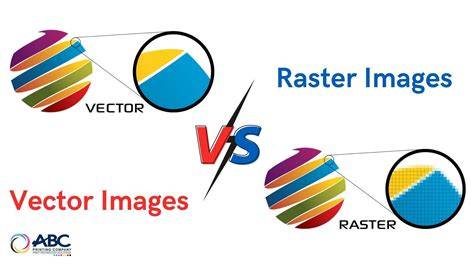
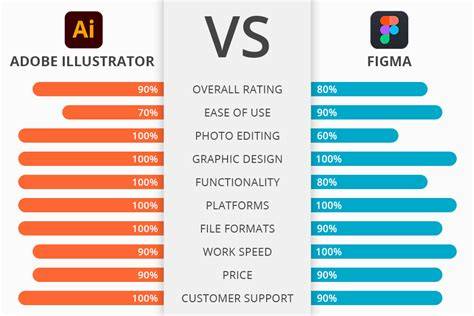
Vectorizing an image is about converting a pixel-based image into a vector layer. Say you have a PNG logo that you want to scale up to a bigger size. If you were to scale up the PNG object as it is, your image would look pixelated. The process of vectorizing an image is simple and does not take much time. When converting a complex shape into a vector, the computer may struggle to convert the shape as is. Illustrator has been on the market for many years for illustrations. The main difference between the two is that Illustrator focuses more on digital graphics, and Figma is more about mobile apps and web designs. The complexity of the vector - If you’re working on a complex illustration (one with many more details), Adobe Illustrator will be a more accurate tool for this task because of its advanced precision tools and extensive range of vector manipulation features.
For example, Illustrator’s Pathfinder tool includes advanced options for cutting shapes. Print versus digital mode - If your vector design needs to be printed, Illustrator is your pick because it has more features that support print designs, like better color control management. Most plugins use the same workflow to make this process, which includes selecting the image you want to vectorize and then clicking the vectorize button. I use the Vectorizer plugin to vectorize the icon. With Vectorizer, I first choose the image, open the plugin, click the Vectorize it! After vectorizing the image, review the result vector in detail. For example, as you can see in the video below, I have an image with people and objects, but I want to vectorize only the women in the center. Convert the image to a vector. Figma houses many plugins for vectorizing images. They all mainly offer vectorizing images, but some also offer advanced options.
- 1. Vectorizer.AI offers advanced features to enhance vectorization, including image preview before tracing and a choice of export formats (SVG, EPS, PDF, DXF, PNG).
- 2. Tracer allows you to choose ‘simple’ tracing for a single layer or a ‘detailed’ one for two layers, which is perfect for coloring.
- 3. PicWise.ai offers a simple single option to vectorize your images.
- 4. There are online tools besides Figma that you can use to vectorize images.
Converting images into vectors improves image quality at any scale. Miggi presents the new vector point box transform controls, letting you resize selections of vector points as a box instead of nudging each point manually. This makes symmetry tweaks and proportional adjustments much faster and fills a gap in Figma’s otherwise excellent vector tooling. Rogie King introduces Vectorize, a new AI-powered action in Figma Design and Draw that converts any raster image into fully editable vectors in one click. Another cool Figma Draw technique from Miggi that I wasn’t aware of. The Shape Builder is a newer vector tool added to Figma Design from Draw. First, Miggi shows how to use it to easily cut up a shape with a path. Just draw the path you want to use to “Cut.” Just select your object and path and press "M," and click your regions. Really well-made video tutorial explaining masks in Figma: We answer questions such as: What is a mask? How does it work? How do you use it in Figma?