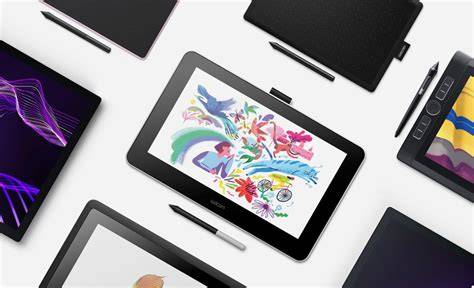
Wacom tablets are most commonly used by graphic designers for digital illustration, photo editing, and animation. These tablets are used with a pressure-sensitive stylus that provides a much more natural and intuitive drawing experience compared to a mouse, allowing for higher precision and control in creative tasks. Wacom offers a selection of products that make it easy for designers to create digital works of art.
Overview of Wacom product lineup
Wacom’s Pen Computers are powerful devices that come with a pen that allows designers to draw and design directly on the screen. Wacom’s Pen Displays are large pen screens that offer high-resolution and the ability to draw directly on the screen. Wacom’s Pen Tablets provide the same benefits, but with a smaller size, making it ideal for designers who need portability. Wacom Pen Displays are interactive display monitors that give users the ability to draw, paint, and design directly on the screen. They are used by designers to quickly and accurately create digital artwork, illustrations, and animations or edit photos using the pressure-sensitive pen.
The pressure sensitivity of the displays allows for fine control over the thickness of lines and strokes, so designers can create detailed graphic design with great precision. This Wacom tablet is lightweight and portable, has a 13.3-inch screen, so it is an ideal choice for on-the-go digital creatives. It’s compatible with Windows and macOS, and can connect to your computer via USB.
With the Wacom One, designers can easily draw, sketch, and write digitally, but with a pen and paper feel. It is easy to hold and use, and the battery life allows for long hours without needing to recharge. Overall, the Wacom One is a great option for artists looking for an affordable and accessible entry into the world of digital drawing.
The Wacom Cintiq is a great choice for any graphic designer who wants to take their skills to the next level. It is a digital pen display that allows you to draw directly on the screen, giving a much more natural feel than traditional drawing tablets. It features a pressure-sensitive pen with a variety of customizable buttons, so you can easily adjust the settings to match your workflow. The Cintiq also has a display that is large enough to comfortably draw on, and the color accuracy is high enough for professional results.
The Wacom Cintiq Pro is Wacom’s high-end digital drawing tablet with an integrated display screen. It’s a level up from the Cintiq in terms of hardware and display specs, so it is a premium choice for designers who need the best performance and highest image quality. The Cintiq Pro comes in larger sizes than the Cintiq, and has higher resolution displays, faster graphics cards and more powerful processors than the standard Cintiq. The other features are also slightly more advanced, like color-accurate displays and built-in hardware buttons. The Wacom Cintiq Pro 17 has a 17.3-inch 4K display with up to 8192 levels of pressure sensitive pen input and 1.07 billion colors, making it ideal for digital drawing, painting, and photo editing. Used with Wacom’s Pro Pen 3, it provides an accurate digital drawing experience with virtually no lag. The display can also be easily adjusted for color accuracy. The Wacom Cintiq Pro 22 and 27 are the two larger sized Pro options, coming at 21.5-inch or 27-inch size, respectively. Either of these would be a solid choice for artists working in photography, animation, 3d sculpting, or Video VFX. Both models provide the same high-end features and performance, making it difficult to choose between them.
Intuos and One: entry points and mid-range options
There are many options for one’s artistic passions in the line of Wacom creative pen tablets. For drawing, sketching, and photography projects in particular, the Intuos range is a terrific place to start. For artists looking for an affordable, accessible way to jump into the digital art world, the Wacom One is an excellent choice. This is Wacom’s pen tablet that features a 13.3-inch display and the same pressure sensitive stylus that all Wacom tablets use. The key feature of the Wacom One is its compact size and lightweight design. The Wacom One is also compatible with most creative software, and connects to a PC or Mac via USB. It’s affordable, user-friendly and simple to get started with.
The Wacom Intuos is the larger version of the pen tablet, as compared to the Wacom One. This tablet is great for hobbyists and artists alike. This tablet has a 4K pressure-sensitive pen, designed to suit both left- and right-handed users. The tablet features an ergonomic design and is available in S, small (7.9″ × 6.3″), or M, medium (10.4″ × 7.8″). There are three color choices: black, pistachio green or berry to foster even more inspiration. The Wacom Intuos Pro is the company’s standard tablet for professionals. This tablet uses the Pro Pen 2 which is highly accurate, pressure-sensitive, and offers tilt-response and virtually lag free tracking. The Pro has multi-touch capabilities, for easy navigation of tools and menus, as well as zooming in and out of images. The Intuos Pro is compatible with both Windows and macOS and features customizable shortcut keys, a wireless Bluetooth connection, and eight programmable ExpressKeys. The Medium and Large sizes of the Intuos Pro offer the option of the Paper Edition, as an accessory or a bundle.
Compatibility and setup considerations
With a wide range of tablet types, prices, and features, finding the right one can be daunting. One thing you can be sure of is that no matter which tablet you select, they all are fully compatible with Amadine for Mac. Both pen computers and pen displays will function as display options, where you can work with every Amadine drawing tool, including the Pen tool, Draw tool and Width tool. You can even adjust pressure for the Amadine Draw tool to choose the perfect range capacity for your needs.
Pen tablets and monitor tablets are essential tools for creating digital illustrations with a PC. Your best strategy is to try out all the tablets you are interested in in-store and see which one is easiest to draw on for your style. Once you find your perfect tablet, let’s learn how to use it and which drawing apps to use with it. First thing's first: the drawing surface of the Wacom One is incredible. Not only is it far and away superior to something like the iPad, but it also feels as good or better than my Intuos' surface. The matte surface is smooth and very paper-like, offering enough resistance to make your strokes more precise without being exhausting to draw on. The screen is pretty great, too! Sure it's not the most accurate when it comes to color representation, but for the most part, it gets the job done. Plus, you can't deny the convenience of being able to draw directly on a screen.
The Wacom One pen is exceptionally lightweight, easy to use, and doesn’t need recharging. The Wacom One pen also doesn’t need charging. There are a whole plethora of pens you can use with the Wacom One, including Staedtler's Noris Digital, Lamy's AL-star black EMR, and Samsung's Galaxy Note and Tab S Pen. The drawing experience on the Wacom One is excellent and the 13-inch footprint is fantastic for small desks. It fits well on a small desk where other tablets might not and leaves plenty of room on a large workspace for additional tools. However, there are downsides: no hotkey buttons or areas on the Wacom One, and the display angle may not suit everyone for long sessions. For an additional $99, users can get a Wacom ExpressKey Remote to regain quick-access shortcuts.
Practical tips and workflow guidance
Pen pressure levels enable nuanced line work: 4,096 levels is a good baseline, with higher levels offering finer control. The Pro Pen 3 in some models provides no-battery operation and precise tracking for smooth workflows. If you work on the go, wireless Bluetooth connectivity helps keep your workspace uncluttered. For those who value color accuracy and comfort during long sessions, the larger Cintiq Pro models provide more generous drawing areas and more powerful hardware. When choosing, consider whether you need a display on the tablet itself or whether mirroring to an external monitor works best for your setup.
In addition to Wacom, other brands such as Huion, XPPEN, and GAOMON offer competitive options with varying pressure levels, tilt support, and price points. For beginners, entry-level options like the Wacom One or Intuos provide solid value, while professionals may prefer the Intuos Pro or Cintiq Pro lines for higher color accuracy, larger displays, and customizable ExpressKeys. Testing in-store can help identify the most natural drawing position and ergonomics for your posture and workflow.
Whether you’re transitioning from a traditional drawing method or upgrading a current setup, the goal is to find a tablet that feels intuitive and integrates smoothly with your software. If you’re a seasoned pro or a beginner, the right Wacom tablet-paired with a compatible pen and software-can significantly elevate your digital art practice.