Lightroom’s color space topic can be confusing for new users, especially when questions arise about exporting and how colors are handled across devices and print labs.
In Lightroom, the working color space during processing is ProPhoto RGB, and most color management is taken care of behind the scenes. When you export, you are not forced to stay in ProPhoto RGB; you can choose a target color space for the exported file depending on the destination and use. The decision you make at export time does not alter the in-program processing space, but it determines how the final file represents colors on other devices or prints.
What happens during export: conversion vs assignment
Lightroom renders RAW files in a wide gamut (ProPhoto RGB) during development, keeping maximum latitude for adjustments. When exporting a JPEG or other format, Lightroom “converts” colors to the selected export color space, if you choose to export in a color space different from ProPhoto RGB. If you export in the same color space as the processing space (e.g., ProPhoto RGB), there is effectively no change in how colors are represented by Lightroom itself, but the final file will still carry the chosen profile for compatibility with downstream applications and printers.
If you choose sRGB, Adobe RGB (1998), ProPhoto RGB, or any ICC profile during export, Lightroom maps the colors from the working space into the target space. This mapping can produce perceptible differences on different screens and printers, especially when devices or labs expect a specific profile. Embedding the profile with the exported file is essential so that other programs know how to display the colors correctly.
Practical guidance for common export scenarios
For online viewing and broad compatibility, export JPEGs in sRGB with a high quality setting. This is the most reliable choice for web browsers and many social platforms.
For printing at color-managed labs, export in Adobe RGB (1998) or ProPhoto RGB only if your lab supports those spaces and you’re exporting at appropriate bit depth and file type. If your lab provides a specific ICC profile, you can export to a custom ICC profile by choosing Other in the color space pop-up and selecting the required profile.
ProPhoto RGB is the largest gamut and is ideal for editing in Lightroom or transferring to Photoshop, but it is not display-ready on average consumer displays or printers without proper soft-proofing and color management. Keep ProPhoto RGB when you plan to continue editing in other color-managed software, and switch to a more restricted space when finalizing for print or web, ensuring you embed the chosen profile.
Common workflow recommendations
Keep Lightroom’s working color space as ProPhoto RGB during editing for maximum latitude. When exporting, plan according to the final destination:
- Web and social: export JPEG, color space sRGB, quality high (around 80-100), 300 DPI is not necessary for screen work but can be kept for consistency.
- Printing: export in the color space required by the lab (often Adobe RGB or the lab’s ICC profile), and consider higher bit depth if supported, or export TIFF or 16-bit TIFF when editing further or for archival quality.
- Archival/Photoshop work: export as 16-bit TIFF or PSD in ProPhoto RGB or another suitable large-gamut space if the next step is color-managed editing in Photoshop.
Always embed the color profile with the exported image to prevent the program from guessing how to render the colors. If you don’t embed a profile, displaying software may interpret colors incorrectly.
Notes on monitoring and printing
A properly calibrated and wide-gamut monitor helps you see colors more accurately, but even with good calibration, a monitor cannot display the full ProPhoto RGB gamut. Soft-proofing in Lightroom can help you anticipate how colors will look when printed with a specific ICC profile and paper type. When printing, select the same ICC profile you used in soft-proofing to ensure the printer’s rendering aligns with your on-screen adjustments.
Practical export settings to try
In the Export dialog, consider these approaches, depending on destination:
- For web/gallery delivery: File Format JPEG, Color Space sRGB, Quality 90-100, Resize to Fit (optional), 300 PPI not necessary for screen.
- For professional printing: File Format TIFF or JPEG, Color Space Adobe RGB (1998) or the lab’s ICC profile, Resolution 300 PPI, Output Sharpening appropriate for print.
- For collaboration with Photoshop: Export a Copy with Lightroom Adjustments, Color Space ProPhoto RGB, then edit in Photoshop; or export 16-bit TIFF for broader color integrity.
Export presets can streamline the process. Save a preset named for client delivery or printing workflows to apply consistent color space decisions across sessions.
Working with ICC profiles and labs
Some labs request a specific ICC profile. In Lightroom Classic, you can access additional ICC profiles via Other in the Color Space pop-up to match the lab’s requirements. Soft-proof to anticipate color shifts before final export, and select the same ICC profile in the print or soft-proofing workflow to ensure consistency between on-screen edits and printed results.
Summary of key ideas
- Lightroom processes RAW in ProPhoto RGB, but you export to a target color space as needed.
- Export converts colors to the chosen color space; embedding the profile matters for accurate rendering.
- For web, use sRGB; for printing, use the lab’s recommended profile (often Adobe RGB or a specific ICC).
- Soft-proofing helps you anticipate printer-specific color shifts before printing.
- Monitor calibration and color-managed workflows are essential for reliable results across devices and labs.
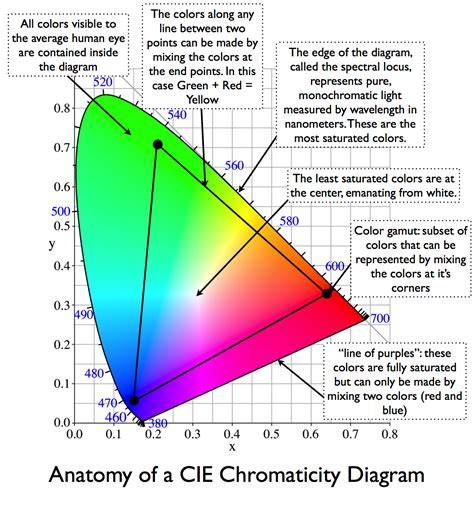
In practice, many photographers rely on ProPhoto RGB for editing, switch to sRGB for final web exports, and use Adobe RGB or a lab ICC for print. The critical step is embedding the profile and choosing the appropriate destination color space for the final output. If you’re unsure, consult your printing lab about their preferred workflow and profiles, then create Lightroom export presets to enforce those choices consistently.