As long as you’re using a compatible Apple device, iMovie is one of the most user-friendly editing software for content creators. We’ll cover: How to add music to iMovie on Mac; How to add music to iMovie on iPhone or iPad; What music can I legally use in iMovie; Does iMovie have free music; Is music in iMovie royalty-free; Why can’t I use a song in iMovie; How do you get music for iMovie; How to add music to iMovie: Step by step.
How to add music to iMovie on Mac
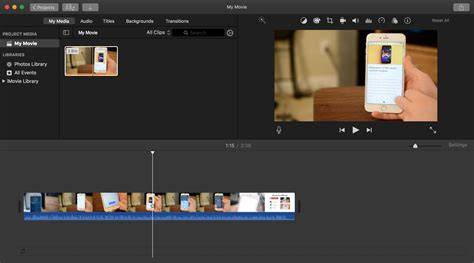
With your project open in the iMovie timeline, click Audio at the top of the window to access the Music tab, which contains all your local music files. Double-click the track to preview it, and if it’s suitable, drag and drop it onto your project timeline. If you want the song to start in sync with a specific clip, drag it right under the start of that clip; a connecting bar will appear to show the link between the song and the clip. You can also attach a song or sound effects to a specific video clip by dragging it under the video clip so the bar connects the clips. For background or theme music, drag songs to the music well at the bottom of the timeline. You can trim the song to a desired range by selecting a range in the waveform and dragging it to the timeline; you can also use longer audio files and treat them as songs in your project.
To import music from other locations, you can drag audio files like M4A, MP4, MP3, WAV, and AIFF from the Finder into the timeline. If you want to use a song you purchased from the iTunes Store, you must be the copyright holder or have express permission from the copyright holder. The iMovie media browser can also be used to import songs from your music library: open your project, click Audio, then Music in the Libraries list, browse selections, preview, and drag the chosen track to the timeline. If a song is dimmed or unavailable, it may be protected by rights holders who restrict third-party use.
How to add music to iMovie on iPhone or iPad
With your project open in the iMovie app, tap the Add Media button, then tap Audio, and choose My Music to see your songs in the Music app. Tap a song to preview it, and if that’s the one you want, tap Add Audio to insert it into your timeline. If you want to start the audio in sync with a specific clip, you can drag the audio to line up with the clip’s start. You can also add multiple songs to a single project and adjust their lengths, including selecting a specific range of a song to use. If you’re using a track longer than a minute, it will behave like a song in the timeline, and you can position, trim, and edit it independently from video clips.
iMovie on iOS supports importing from iCloud Drive or other locations via the Add Media button and Files option. You can also use the built-in Sound Effects tab to access Apple-provided jingles and sound effects. For music files in your device’s Music app, you can access them through the My Music tab and add them to your project. If a particular song isn’t available, it might be unavailable due to rights restrictions or DRM protection tempering access.
What music can I legally use in iMovie?
If you’re posting a soundtracked video on a public platform, you need to ensure you hold the rights to the tracks you use. iMovie provides royalty-free stock music and sound effects that you can use within the app under Apple’s license. The stock music in iMovie is available on a royalty-free basis, meaning you can feature it in your content without paying royalties to anyone. However, rights holders may still impose restrictions, and you may face copyright issues if you upload to some platforms.
Does iMovie have free music?
Yes, iMovie has free-to-use music. On Mac, you can access a limited selection of jingles and sound effects provided by Apple by clicking the Sound Effects tab within the Audio section. The music library in iMovie is designed to be royalty-free for use within your projects.
Is music in iMovie royalty-free?
The stock music in iMovie is royalty-free, meaning you can feature it in your content without paying royalties to anyone. Nevertheless, you should still be mindful of platform-specific copyright policies when uploading public videos, as some platforms may flag or restrict tracks despite royalty-free licensing within iMovie.
Why can’t I use a song in iMovie?
Sometimes the song you bought won’t appear in the iMovie browser. This is likely because the song’s rights-holder has specifically protected their file from use in third-party projects. Rights restrictions can prevent certain tracks from being usable in iMovie even if the file is present on your device.
How do you get music for iMovie?
You’re not limited to Apple’s stock tracks. Epidemic Sound offers a vast catalog of high-quality, royalty-free music and sound effects that go beyond basic royalty-free licensing. With Epidemic Sound, you gain access to a catalog of about 50,000 tracks across many genres, with licensing designed to be safe for use in videos. It’s described as better than royalty-free and is designed to be worry-free for creators.
To use music for iMovie, you can browse and select tracks in the iMovie browser: tap Add Media, then Audio, then My Music, and choose a category to browse. Preview songs and add them to the timeline. If a song is not available in your library, download it to your device from the Music app. You can also attach or trim audio to fit your video, and you can use more than one song in a project. When using third-party music, respect copyright rules and platform licensing.
Practical tips for layering and syncing audio
For background music, place the audio in the music well and adjust its length to match the video duration. To synchronize a song with a clip, align the start of the track with the clip’s start and confirm the connector bar appears. If needed, trim the song to a precise segment by selecting a range in the waveform, then dragging it into the timeline. You can also adjust audio levels and apply fade-ins or fade-outs to ensure the music supports rather than overpowers dialogue or sound design.
Quick tips include ensuring you have the rights to use a track for public distribution, considering licensing for distribution on platforms like YouTube, and understanding that some DRM-protected tracks may not be usable in iMovie. With a combination of Apple-provided music, your own files, and licensed third-party tracks, you can craft engaging soundscapes for any project.
- Open iMovie and select the project.
- Click Audio (Mac) or Add Media > Audio (iOS) to browse music or sound effects.
- Preview and drag the desired track to the timeline, attaching it to clips as needed.
- Trim, align, and adjust the music to fit the video length and mood.
- Ensure you have appropriate rights for any third-party music you use.