Masking in Photoshop is a foundational technique for non-destructive editing, enabling you to reveal or hide parts of layers with precision. Layer masks, clipping masks, vector masks, and selection-based masks each serve different creative goals, from text-filled images to complex composites. This article breaks down the most common masking methods and demonstrates how to use them effectively, so beginners can learn quickly and advanced users can refine their workflow.
What is a Mask in Photoshop and How Do You Use It?
A mask controls the visibility of a layer by using grayscale values: white reveals, black conceals, and gray partially reveals. A layer mask is non-destructive because it doesn’t alter the original pixels. You can add a layer mask, paint with black or white to adjust visibility, and refine the edge with feather and density settings. A clipping mask, in contrast, uses the content of a bottom layer to define the visibility of the layers above it, effectively clipping the upper layers to the shape of the mask below.
Layer Mask: The Foundation
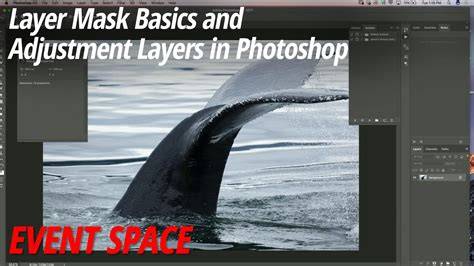
Layer masks are the most basic and versatile masking technique. They’re non-destructive, and you add them to the original image layer. The white areas reveal content, black areas hide, and grays partially reveal. You can edit the mask after creation, switch between painting white or black to reveal or hide parts, and fine-tune with density and feather for smooth transitions.
Clipping Mask: Shape-Driven Visibility
A clipping mask is created when you place a layer above another layer and choose Layer > Create Clipping Mask. The bottom layer acts as the masking shape, while the upper layers are clipped to that shape. This is ideal for filling text with an image, textures, or effects where you want the artwork to take the form of the mask below. You can use multiple layers in a clipping mask, and the bottom layer defines the visible boundaries for the entire group.
Masking Text with Clipping Mask
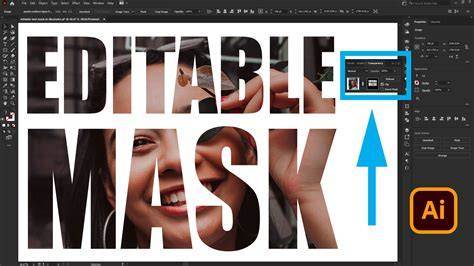
To create a clipping mask with text, first create a text layer and an image or texture layer beneath it. Then, select the image layer and choose Layer > Create Clipping Mask. The image or pattern will appear only within the letters of the text, providing a compelling typographic reveal.
Vector Mask: Precision and Scalability
Vector masks are created with vector paths (Pen Tool or Shape Tools) and are resolution-independent. They are ideal for precise shapes, logos, and text-based masks where you need clean, scalable edges that won’t degrade with resizing. A vector mask is particularly useful when you want to maintain crisp boundaries around complex shapes.
Selection Masks: Based on Selections
A selection mask uses an existing selection to define the visible region. This approach is useful when you want to isolate a specific object or region based on selection tools like Lasso, Quick Selection, or Magic Wand. The selected area is revealed, and the rest is hidden.
Mask All Objects: Automating Mask Creation
Mask All Objects is a feature that can create masks for multiple objects within a single layer. It’s helpful for isolating several people or items in a photo, though the process may take longer with complex images. After masks are generated, you can apply different adjustments to each isolated region.
Practical Step-by-Step Masking Guide
- Set up a new document and import your images, arranging layers to match your desired composition.
- Choose a masking approach: Layer Mask for general edits, Clipping Mask to confine content to a shape, Vector Mask for precise edges, or a Selection Mask for a quick isolation.
- To add a Layer Mask, select a layer and click the Add Layer Mask icon at the bottom of the Layers panel. Paint with white to reveal, black to hide, and gray to partially reveal.
- To create a Clipping Mask, place the masking layer below the content layer, select the top layer, and choose Layer > Create Clipping Mask. The content will conform to the shape of the bottom layer.
- To create a Vector Mask, select a layer and use the Pen Tool or Shape Tools to draw a path, then convert the path to a mask via Layer > Vector Mask > Current Path or add a shape layer with a vector mask.
- To create a Selection Mask, make a selection with any of the selection tools and click the Add Layer Mask button to reveal the selected area.
- Refine masks using properties like Density, Feather, and Edge Refinement in the Mask Properties panel. Invert or adjust borders as needed to achieve a natural blend.
- Copy or move masks between layers by dragging the mask thumbnail to another layer, and ensure you adjust its properties to fit the new context.
Masking Techniques Beyond the Basics
There are several advanced approaches worth mentioning for professionals and enthusiasts alike:
- Optics Mask ML and EZ Mask: These tools (often via plugin integrations) assist in creating masks with machine learning suggestions or automatic edge detection, speeding up workflows for complex subjects like hair or fur.
- Alpha Channel Masking: Using alpha channels to create highly precise selections for complex edges, suitable for fine details like hair strands.
- Channel Masking: A powerful technique for color-based selections that can help isolate particular tones or textures in an image.
- Quick Mask Mode: A fast, paint-based method to define selections that convert to precise masks when you exit Quick Mask mode.
Masking in E-commerce and Real-World Use
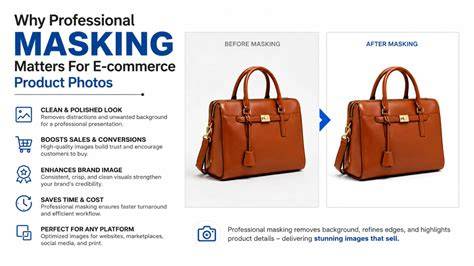
Masking is essential for product photography and branding. It enables you to remove backgrounds, isolate foreground subjects, and create consistent visuals across different settings. With masking, you can quickly replace backgrounds, apply targeted adjustments, and maintain a professional, cohesive look in your portfolio or storefront.
Tips for Better Mask Edges
- Use a Wacom or other graphics tablet for more precise control over masks.
- Utilize Quick Selection and Refine Edge/Select and Mask for delicate edges, especially around hair and fur.
- Always work non-destructively with adjustment layers and masks; save versions to preserve the original layers.
- Experiment with feathering and density to achieve natural transitions between masked and unmasked regions.
Photoshop Layer Masks for Beginners
Glossary: Quick Reference
- Layer Mask: Non-destructive visibility mask on a single layer.
- Clipping Mask: Mask created by using the bottom layer’s shape to clip contents above.
- Vector Mask: Mask based on vector paths for precise shapes.
- Selection Mask: Mask created from a user selection.
- Mask All Objects: Automatic masking of multiple objects within a layer.
- Alpha Channel: A grayscale channel used for advanced masking and transparency.