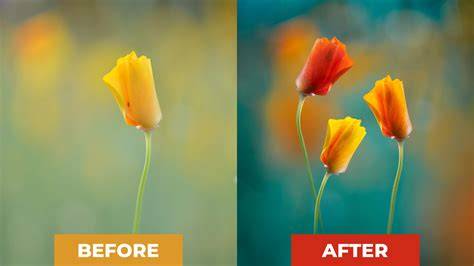
Adobe Photoshop has long been regarded as the industry standard for photo editing and digital art creation. With the advent of Photoshop on mobile, users now have access to a powerful suite of editing tools that enable both amateurs and professionals to produce stunning, polished images directly from their smartphones or tablets. This article explores the capabilities of Photoshop for editing pictures, from basic adjustments to advanced manipulations, demonstrating how to create impressive edited images with ease.
Photoshop on Mobile: A Versatile Tool for Creative Editing
Photoshop on mobile is an image editor app with a wide selection of free photo editing tools. Whether you are just getting started or already know Photoshop, it's easier than ever to transform a single photo or blend multiple images into a cohesive design. Its intuitive interface and advanced features allow users to both perform quick edits and execute more sophisticated transformations.
Key Features of Photoshop Mobile for Photo Editing
- Add new objects with AI, enhancing compositions effortlessly.
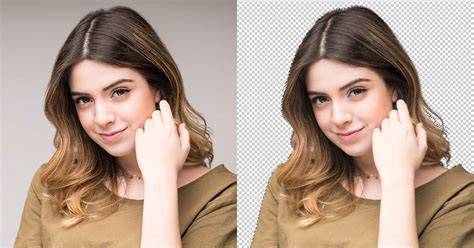
- Blur or completely remove backgrounds to focus on specific elements.
- Replace backgrounds and eliminate unwanted objects seamlessly.
- Refine and retouch images with targeted adjustments for professional-looking results.
- Combine multiple images to create high-quality compositions, collages, or album cover art.
- Develop unique digital art and passion projects leveraging various creative tools.
Advanced Background Editing Techniques
One of the most common editing needs is background manipulation. Photoshop on mobile simplifies this process significantly. To remove or replace backgrounds:
- Select the backgrounds with the Tap Select tool.
- Remove backgrounds or replace them with another image, or create AI-generated backgrounds using Generative Fill.
- Utilize Adobe Stock's extensive library of images, textures, filters, and patterns for background options.
- Adjust the background’s brightness, effects, or vibrancy to enhance the overall composition.
Removing Unwanted Objects and Distractions
Photoshop's tools make it simple to eliminate distractions from photos. To remove unwanted objects:
- Use the Spot Healing Brush to quickly brush out blemishes, spots, or minor imperfections.
- Remove larger objects from your images effortlessly with Generative Fill, which assists in content-aware editing.
Personalising Your Photos and Design Projects
Personalisation is at the heart of creative editing. With Photoshop mobile, you can:
- Create visually stunning and unique images by blending photos, graphics, and text, utilizing various effects.
- Combine your photos with Adobe Stock images to elevate your visuals.
- Retouch photos by selecting objects or subjects with the Tap Select tool for focused edits.
- Control how objects come together with layers, allowing for complex compositions.
- Add and remove content using simple text prompts with Generative Fill, jumpstarting your creativity.
- Adjust colors of specific elements, such as shirts or shoes, with adjustment layers and selection tools.
Premium Features for Precision and Control
Enhanced control and finer precision are available through Photoshop's premium plan. Some advanced features include:
- Automatic removal of entire objects by brushing over them with the Remove Tool.
- Seamless filling of selected areas with Content-Aware Fill, sampling content from other parts of the image.
- High-precision object selection, allowing quick isolation of people, vehicles, and other objects.
- 100 generative credits for adding, expanding, or removing objects and people.
- Advanced blend modes, enabling nuanced transparency and color effects.
- Additional export options in formats like PSD, TIFF, JPG, and PNG, suitable for print and compression needs.
How to Remove Background in Photoshop Mobile App
Step-by-Step Editing Workflow
The editing process begins with importing an image into Photoshop. Then, the following steps enhance the quality and composition:
- Import the photo into Photoshop.
- Ensure correct alignment by using the Straightening tool if the horizon is skewed.
- Crop the image to eliminate distracting elements or improve composition, making sure “Delete Cropped Pixels” is turned off for further adjustments.
- Duplicate the image via Image › Duplicate to create multiple layers for non-destructive edits.
Using Layers for Targeted and Nondestructive Edits
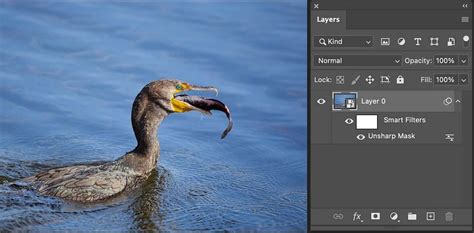
Layers and layer masks are essential for control over each adjustment. You can put each edit on its own layer, allowing for selective modifications and easy reversion if needed. Separating elements, such as the sky or foreground, enables specific adjustments like increasing brightness or adding a blur without affecting other parts.
Transforming Photos with Tools and Techniques
- The Spot Healing Brush helps mask blemishes or irregularities quickly.
- Paint with Brush tools to add or alter details, controlling color and tone meticulously.
- Use Adjustment Layers for tonal and color corrections, such as hue, contrast, vibrance, and saturation.
- The Clone Stamp tool covers up unwanted background elements or duplicated areas.
- Apply permanent effects carefully, knowing these can be undone when working on duplicated layers.
Integration and Versatility of Photoshop Edits
The images you transform can serve various purposes-from social media content to professional graphic design, stills in video projects, or animated elements. Photoshop’s seamless integration with other Creative Cloud applications like Lightroom, InDesign, and Premiere expands creative possibilities. Over time, Photoshop has become more than just a tool-it's a rite of passage for designers, photographers, and retouchers worldwide, where technical skill meets creative intent.
Showcasing Before-and-After Transformations
Professionals and enthusiasts alike leverage Photoshop’s capabilities to enhance photos purposefully. From subtle retouches to dramatic enhancements, each edit is guided by a trained eye aiming for a clear, meaningful improvement. The evolution of images through Photoshop illustrates how digital editing has revolutionized visual storytelling.