Photoshop’s Generative Fill, powered by Adobe Firefly and Sensei AI, introduces powerful image editing through simple prompts, but users occasionally find it grayed out or inaccessible after updates, on certain systems, or due to account or feature settings. This article compiles practical steps to diagnose and resolve common issues so you can regain access and continue productive work with Generative Fill.
Ensure you are on a compatible version and have the feature enabled
Step 1: Update to the latest Photoshop. The Generative Fill tool is available in Photoshop 2024 and beyond, so verify that you are not inadvertently using an older version. Update through Creative Cloud or the application’s update menu. If Generative Fill remains unavailable after an update, confirm you are not launching an older executable.
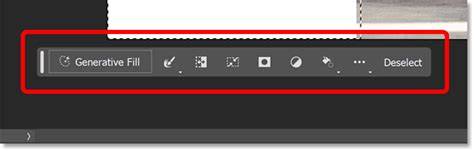
Step 2: Create a document and prepare a valid selection. Open a file or create a new one under File > New, then select a raster layer and draw a selection around pixels of interest with the lasso or selection tool. The Generative Fill option appears only when a valid selection is active and the Contextual Task Bar is visible.
Enable the Contextual Task Bar and test context requirements
The Contextual Task Bar is essential for Generative Fill to appear. Under the Windows menu, ensure Contextual Task Bar is enabled. This feature must be visible when you have a selection. If it is disabled, the Generative Fill option may stay grayed out even with a valid selection.
Test by selecting an area of your image, then look for the Generative Fill button on the Contextual Task Bar. If you still do not see it, proceed to the next troubleshooting steps.
Check account status and Creative Cloud sign-in
Generative Fill may require an active Creative Cloud sign-in and, in some cases, confirmation of certain account details. Ensure you are logged into the Creative Cloud desktop app and that Photoshop is linked to your Creative Cloud account. If needed, log out and back in to refresh credentials.
Additionally, some workflows suggested by certain reports indicate that users may need to share related account information with Adobe services (such as Behance) to unlock Generative Fill access. If your workflow involves Behance, consider whether related identity verifications or regional access limitations might apply. After adjusting sign-in status, quit Photoshop and relaunch to apply changes.
Review regional, age, and document type restrictions
Generative Fill may have regional availability constraints or age-verification requirements. Ensure you are within supported regions and that your account age verification is complete if prompted. Note that Generative Fill may not be available for certain document types (e.g., non-RGB 8/16-bit documents) or in restricted regions, depending on policy updates.
Also verify file type and mode. Generative Fill typically works with standard raster work in compatible color modes; converting to an unsupported mode can prevent access even when other conditions are met.
Try a fresh start: reset preferences and sign-in state
Reset Photoshop preferences to rule out corrupted settings. On Mac, hold Option + Command + Shift while launching Photoshop to reset preferences. After reset, sign back in and reopen a document with a selection to see if Generative Fill becomes available.
If the issue persists, verify that the Generative Fill feature is not inadvertently disabled in the application’s preferences or in any enterprise deployment policies. Consider performing a clean reinstall if other steps fail.
Investigate credits, licenses, and concurrent device sign-ins
Generative Fill usage may be governed by credits, licenses, and device sign-in limits. Ensure you have sufficient credits or quotas if your plan enforces usage limits, and confirm that you are not signed into Photoshop on more than the allowed number of computers (commonly two). If multiple devices are signed in, sign out from the extra devices to enable access.
After adjusting credits or sign-ins, restart Photoshop to ensure the changes take effect.
What to do if the problem persists
If Generative Fill remains unavailable after completing these steps, contact Adobe Support for a device- and account-specific assessment. Provide details about your operating system (macOS Ventura 13.3.1), Photoshop version (27.x or later), hardware, and steps you’ve already tried. Adobe Support can offer targeted guidance and confirm whether any known outages or recent patches affect your setup.
Resumo de funcionalidade e expectativas
Generative Fill enables image alterations by prompting the AI to generate content within a selected region, leveraging Firefly and Sensei technology. When available, it can fill, remove, or replace areas with AI-generated content, responding to natural-language prompts. The feature’s accessibility depends on correct version, active sign-in, selection, and contextual tool visibility, as well as regional and policy considerations.
Whether you are troubleshooting on macOS or Windows, following a structured approach-update, sign-in, enable contextual tools, verify selections, and check credits-greatly increases the likelihood of restoring Generative Fill access without losing your current edits or projects.
This Changes How Generative Fill Works in Photoshop
tags: #photoshop #generative #fill #not #available