Photoshop keeps changing the UI language to Finnish, regardless of attempts to force English. The Creative Cloud app is English, the default install language is English, Windows is set to English, and reinstalls have been performed multiple times. On first launch, Photoshop appears in English, but on subsequent launches Finnish is shown in the UI settings as an unavailable option, and the program reverts to Finnish. This article compiles practical steps to diagnose and resolve the language inconsistency.
Identify the scope and reproduce the issue
Start by confirming when the language switch occurs: after closing Photoshop and reopening, or after system restart. Check if the language persists across user accounts or only on a specific user profile, and verify whether Creative Cloud shortcuts or launchers influence the language at startup.
Check Creative Cloud and app language settings
Ensure Creative Cloud is set to English globally and within the environment where Photoshop is installed. Verify that the “App Language” in Creative Cloud is English and that no regional profiles override this setting for Photoshop on next launches.
Verify installation language and system locale
Confirm the installer language you selected during initial setup matches English. Double-check Windows regional settings and system locale to ensure English is consistently used across the user session and system-wide. In some cases, residual language packs or regional formats can influence the initial language detected by installers.
Reset Photoshop preferences and UI language cache
Close Photoshop completely. Reopen while holding the appropriate keys to bypass startup scripts or preferences, if applicable for your version. If you can access any English UI elements, reset preferences to default to clear any language-specific cache that could force Finnish on subsequent launches.
Inspect language-specific configuration files
Photoshop stores language and UI preferences in user profile directories. Look for language-related settings in the AppData or ProgramData folders associated with Adobe. Remove or reset these files to force Photoshop to regenerate defaults in English on next launch.
Check fonts and language packs
Some language packs or font substitutions can inadvertently affect UI rendering. Ensure Finnish language packs are not installed or selected by default. Remove any extraneous language packs and verify that the system language resources for English remain intact.
Test with a clean user profile
Create a new Windows user profile with English as the system language, install Photoshop there, and observe whether the language persists as English. If the issue does not occur in the new profile, the problem likely stems from a corrupted user-specific configuration or lock in the original profile.
Update and repair tools
Run updates for Creative Cloud, Photoshop, and any related plugins. Use the Creative Cloud app’s “Repair” or “Uninstall” with a clean re-install, ensuring no residual language data remains. If possible, perform a clean installation by removing all Adobe folders and registry entries related to Photoshop and Creative Cloud before reinstalling.
Environment considerations and known issues
Language behavior can be influenced by regional settings, fonts, and software conflicts. Some users report language reversion due to background services or scripts that run on startup. Ensure there are no third-party scripts or startup items altering language preferences for Adobe applications.
Practical sequence to apply the fix
- Set Creative Cloud App Language to English and ensure it is saved.
- Set Windows display language, formats, and keyboard to English (United States or your preferred variant).
- Uninstall Photoshop and Creative Cloud completely; remove residual Adobe folders.
- Reinstall Photoshop from a fresh installer downloaded in English; ensure the install language is English.
- Launch Photoshop once to confirm English UI; if it remains English, close it and reopen to verify persistence.
- If the issue returns, reset Photoshop preferences and delete language-related files in user profile directories before restarting.
- Test in a new Windows user profile with English system language to isolate profile-specific problems.
Additional steps for persistent issues
Consider temporarily disabling antivirus or firewall components that might interfere with Adobe setup services during startup, then re-enable after the test. If the problem continues, contact Adobe Support and provide a detailed log of the steps taken and the observed behavior across profiles and re-installs.
Table: What to check and expected outcomes
| Check | What to look for | Expected outcome |
|---|---|---|
| Creative Cloud App Language | English selected | Photoshop should launch in English |
| Windows Display Language | English | UI should default to English |
| Installer Language | English | Initial launch in English observed |
| Residual language files | Finnish language packs or caches | Removed to prevent reversion |
| New user profile | English environment | Language consistent with English |
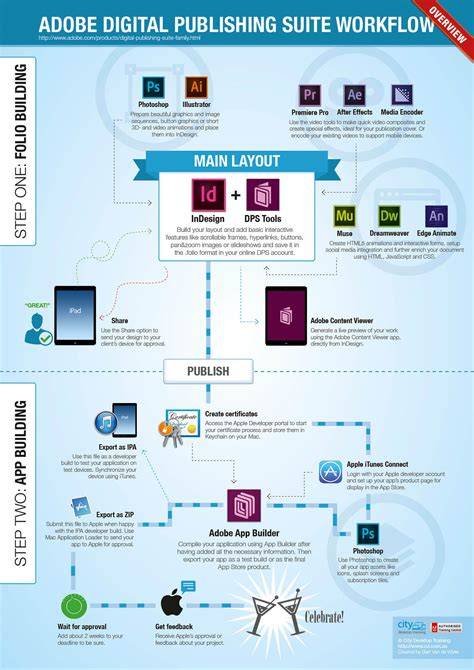
For visual aid, an infographic illustrating the sequence of checks and fixes can help users quickly follow the troubleshooting flow.
How To Change the Language in Adobe Photoshop 2025 into English - Quick & Easy Tutorial
A short walkthrough video showing how to verify Creative Cloud language, reinstall steps, and profile checks can enhance understanding for users facing this issue.
Notes on applying fixes safely
Always back up important settings and custom brushes or workspaces before performing uninstallations. Use official Adobe channels for downloads to avoid tampered installers and verify digital signatures where possible.