Canva vs Photoshop - which is better? In this comparison, I take an in-depth look at these two leading visual design tools, and help you pick the one that’s right for your business. I’ll start off with a quick verdict, and then move on to a deeper dive.
Quick verdict
If you’re creating professional graphic design work that will be printed or shown at high resolution, Photoshop is usually the better option. But if you need a multi-purpose design tool, the better choice is Canva. And it’s extremely easy to use, making it a very good option for non-professional designers.
Getting started with Canva and Photoshop
I’ll start my full comparison with a key question: what are Canva and Photoshop?
What are Canva and Photoshop?
Canva and Adobe Photoshop are graphic design tools that let you create visual materials for a wide variety of uses. Both platforms can be used for creating online and printed material; photo editing; making videos; and even web design.
There is a significant difference in the degree of technical editing that can be done within both tools. Canva is aimed at users with little to no design training or experience - consequently, it is extremely easy to use and comes with a very gentle learning curve. The tool provides a wide range of accessible features that help you create visual assets without too much fuss - templates, stock images and ultra-easy-to-use image editing tools. The downside is that the design tools provided are on the basic side, and the scope for advanced graphic design work within the tool is fairly limited.
By contrast, Photoshop is a professional design tool that has been specifically designed for complex image editing and ‘serious’ graphic design work. It gives you a wide range of image manipulation features that allow you to tweak and edit every imaginable setting, right down to the individual pixels of your designs. Unsurprisingly, this means that Adobe Photoshop is the much more technically powerful platform of the two, and its learning curve is significantly steeper than Canva’s - it can take months or even years to truly master the app.
Essentially, Canva is an easy-to-use multi-purpose design tool, while Photoshop - particularly when combined with some of its sibling apps in the Adobe ‘Creative Cloud’ suite - is probably best described as the ultimate image manipulation tool for visual professionals. That’s not to say that ‘more powerful’ equates to ‘better’ for your needs however - we’ll dig into the contexts in which both products work best shortly.
Canva and Photoshop: history and userbases
Photoshop was originally developed in Michigan way back in 1987, and it is now arguably the most well-known product of its parent company, Adobe. Adobe is one of the ten biggest software companies in the world, supported by a staff of over 30,000 people. Photoshop is just one of the 20+ apps available in Adobe’s flagship product suite - Adobe Creative Cloud - which includes other well-known tools such as Illustrator and After Effects. Creative Cloud has over 37 million paying users.
Canva, which was launched in 2013 by Australian technology entrepreneur Melanie Perkins, recently exceeded 265 million monthly active users in over 190 countries. In excess of 30 billion designs have been created with the tool and more than 5,000 staff members now work for the company.
How do Canva and Photoshop work?
Canva and Photoshop work in quite different ways. Canva is primarily designed to be used in a web browser. This means that most of the processing of your designs takes place in the cloud, and you don’t need a particularly powerful computer to use the tool. Downloadable Canva apps are available for Windows, Mac, Chromebook, iOS and Android devices. Canva now includes a limited offline mode, allowing you to work on designs you’ve made available offline in advance. However, many of its core features still require an Internet connection. Canva is a web app that you access via a browser.
By contrast, Photoshop is a desktop application that you download and install on your own computer. All processing is done locally, and you don’t need to be connected to the Internet to make the most of the application. A basic version of Photoshop for browsers - named ‘Photoshop for Web’ - is now generally available, but this is missing many of the more powerful image manipulation features of the desktop version. It’s important to note that for Photoshop to function properly, you’ll need a decent Mac, PC or iPad with a reasonable amount of RAM - ideally 16GB+. By contrast, you can use Canva on a fairly basic device - even a fairly ordinary Chromebook will do the job. Both tools are SaaS - you pay monthly or annually for access rather than owning a perpetual license.
Pricing: Canva vs Photoshop
Canva pricing includes four plans: Canva Free - $0 per month; Canva Pro - $18 per month; Canva Business - $25 per month per user; Canva Enterprise - Custom pricing. If you pay annually for Pro or Business, you get a discount. Key differences include seats, templates and media assets, AI-powered tools, brand kits, and storage. The free plan provides limited templates and stock media, but is highly usable.
Photoshop pricing varies by user type. Options include: Photography plan - $19.99 per month (includes Lightroom and 1TB cloud); Photoshop plan - $22.99 per month (includes additional apps); Creative Cloud All Apps - $69.99 per month; Teams plans from $37.99 per month per license. There is a 7-day free trial. For individuals focused on photography, the Photography plan is a good entry point; for full professional capability, the All Apps plan is typical.
Which is cheaper overall? Canva tends to be cheaper, especially for individuals and small teams. Canva offers a free version, whereas Photoshop requires a paid trial at minimum. For multiple users, Canva Business tends to be significantly cheaper than procuring Photoshop licenses for a team.
Interface and ease of use
The Canva interface is designed for speed and simplicity. You log in, choose a project type, and access a wealth of templates. The left-hand menu provides elements, photos, videos, text, animations, assets, and the important Elements tab for stock assets. The drag-and-drop editor is intuitive, with styling options at the top of the interface. Canva’s learning curve is shallow, and most users can produce a design within minutes. In contrast, Photoshop offers a much deeper set of options: a new document window with color mode, color profile, resolution, bit depth, and unit choices, followed by a canvas and a complex array of tools and panels. Workspaces can be customized, and panels are detachable. Photoshop’s learning curve is considerably steeper, but its interface is highly flexible and powerful for advanced users.
Overall, Canva wins on ease-of-use, especially for non-designers, while Photoshop offers deeper control and more powerful editing capabilities for professionals. A developer or editor who needs pixel-perfect manipulation will gravitate to Photoshop, whereas a marketer or social media manager may prefer Canva for fast, consistent output.
Key differences in capabilities
Canva excels at: quick, polished visuals; templates; collaboration; web-based access; social media and marketing materials; ease of use; bundled stock media; and straightforward export options. Photoshop excels at: advanced raster editing; pixel-level control; complex image manipulation; print-ready CMYK workflows; layers and masks; integration with the broader Adobe Creative Cloud suite; and bespoke design from scratch.
Canva can do: beautiful typography with some vector-like elements, photo editing via filters, background removal, editing vector graphics, and a strong library of templates and assets. Photoshop provides granular control over every pixel, supports professional printing workflows, and integrates with Illustrator, InDesign, and other tools, making it the go-to for intricate designs and high-end print materials.
Workflow integration: Photoshop integrates deeply with other Adobe tools, while Canva shines in web-based collaboration and quick publishing to social networks. For fast turnaround on social visuals and presentations, Canva is often the better choice; for high-end, print-ready, or extremely customized work, Photoshop remains superior.
Practical guidance: which should you choose?
For rapid content creation, especially for social media and lightweight marketing materials, Canva is usually the better option due to its ease of use, collaborative features, and abundant templates. For professional image manipulation, complex composites, or print-ready designs requiring precise color management and advanced editing, Photoshop is typically the superior tool.
Both tools can coexist in a creative ecosystem. If you must choose one, consider the nature of your projects, the required level of control, and your team’s workflow. If you frequently produce quick visuals and collaborate across a team, Canva may be the more efficient choice. If you regularly work with high-detail photo editing, large print formats, or require advanced masking and compositing, Photoshop is worth the investment.
Notes on training and hardware
Photoshop has a steep learning curve and benefits from a capable computer (ideally 16GB RAM or more, robust GPU, modern OS). Canva operates in the cloud and can run on modest hardware with a stable internet connection, making it accessible on lower-end devices or Chromebooks.
In terms of ongoing value, Canva’s pricing often provides a lower total cost for teams needing multiple licenses, whereas Photoshop’s licensing is more aligned with professionals who require the full Creative Cloud suite.
Additional perspectives
Canva’s one-click background remover, extensive asset library, and templates significantly speed up workflow for many users. Photoshop remains the standard bearer for pixel-level adjustment, complex composites, and high-precision output for print and professional media. The right choice depends on your role, project complexity, and desired level of control.
Ultimately, both tools can be part of a successful creative ecosystem. No matter which you use, investing in a robust design approval tool will ensure your final designs are flawless and approved efficiently. Smarter Proofing. Faster Approvals.
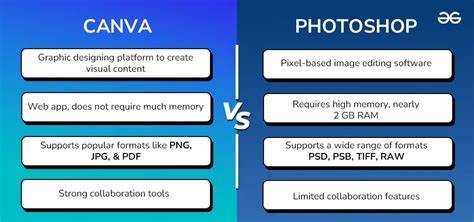
The biggest difference lies in complexity and control. Canva is ideal for creating fast, polished visuals like social media posts and presentations. For fast turnaround and ease of use, Canva is usually the better choice for social media. Canva excels at speeding up workflows and making designs quickly, especially for non-designers. Photoshop remains the premier tool for professional image manipulation and bespoke graphic design, though at a higher cost and learning curve.
In sum, Canva is the champion for rapid content creation and accessibility for everyday needs, while Photoshop serves as the professional standard for detailed image manipulation and custom designs. Both tools have their place in a modern design stack, and the best approach for most teams is to leverage the strengths of each as appropriate.
Data at a glance
| Aspect | Canva | Photoshop |
|---|---|---|
| Best for | Rapid content creation, templates, collaboration | Advanced image editing, pixel-level control |
| Accessibility | Web-based; works on modest hardware | Desktop; hardware-intensive |
| Learning curve | Shallow | Steep |
| Pricing focus | Low-cost, scalable for teams | |
| Output quality | Excellent for digital; print may require caution with some templates | |
| Recommended for | Marketing teams, social media, quick campaigns | Creative professionals, photographers, print-ready designs |