Adobe Audition can remove background noise with professional audio tools, but the right method depends on the noise. Use Noise Reduction when you can capture a noise print from a steady unwanted sound. Use Adaptive Noise Reduction when the background changes and you need the software to react over time. Audition is powerful for editors who already work inside Adobe tools. The key decision is not Adobe vs AI. Audition's classic Noise Reduction workflow is based on a noise print. The editor captures a sample of the unwanted sound, then uses that sample to reduce similar noise elsewhere in the file. It works poorly when the noise changes. A single noise print cannot fully describe keyboard clicks, traffic swells, wind bursts, background speech, or echo.
Adaptive Noise Reduction is designed for noise that changes over time. This can be useful when the background is not perfectly constant. A room tone may shift. A fan may ramp up. The tradeoff is monitoring. Adaptive processing still needs careful listening. If the settings are too strong, the voice can lose texture, sound smeared, or become unnatural. The goal is not maximum subtraction. Some noise is not a background layer. Clicks, pops, short crackles, and mouth sounds are short events. Audition includes restoration-style tools for audio repair, but the decision is the same as in any editor: if a noise happens once, cut or repair it directly. Do not use one heavy noise reduction pass to solve every problem. A click is not the same as hiss. Echo is not the same as hum.
Adobe Audition is an editor. Audition gives you detailed controls: noise prints, effects, previews, parameter changes, repair tools, and timeline or waveform editing. CleanAudio removes setup friction. Upload the file, let the hybrid model analyze the recording, preview the cleaned voice, and download the result if it is better. Do not capture speech as part of the noise print. Do not push reduction until the background is silent. Do not use broadband noise reduction for echo. Echo is reflected voice energy. Do not forget the original file. CleanAudio is faster when the recording is already understandable and you mainly want less distraction. The article explains the tools so you can understand the tradeoffs.
The product workflow is simpler: upload, AI analysis, preview, download. That does not remove the need to listen. Preview still matters. Yes. Audition includes noise reduction and restoration tools, including workflows based on a captured noise print and adaptive noise reduction [1][2]. It is better for detailed manual editing and professional restoration workflows. Audition can process room problems, but echo is harder than steady noise because it contains delayed voice energy. Noise print workflows become harder without a clean sample. Adobe Audition is the right tool when the file needs editor-level control. If you already work in Audition, use a noise print for stable noise and adaptive processing for changing noise.
One of the things that sets apart amateur video from professional video is audio. And one of the common problems you'll run into when editing videos is the presence of unwanted or unavoidable background noise. Background noise is any noise that's constant throughout your recording - the hiss of an AC unit or refrigerator, the hum from the power lines of your equipment or even a plane flying overhead. And while your video may sound okay despite that background hum, there are ways to fix this and make your video sound even better. Most editing programs these days have powerful tools that make it possible. I'm going to show you a simple way to do this with just a few steps and only a few minutes using Adobe Audition.
Are you ready to upgrade your ministry communications? Make a copy of your original clip. Open or install Adobe Audition. Import your media file. Highlight a short sample of room tone in your clip (at least a few seconds). Press Shift + P or go to Effects > Noise Reduction/Restoration > Capture Noise Print to capture that sample. Select the entire clip (CMD + A). Press CMD + Shift + P or go to Effects > Noise Reduction/Restoration > Noise Reduction (process) to open the Noise Reduction panel. Adjust Advanced - Spectral Decay Rate (2% to 10%): percentage processed when audio drops below the noise floor; increasing this gives you a reverb effect while decreasing this gives you a bubbly, less tinny sound. The asterisk next to your file name means it's not saved yet. So, press CMD + S or go to File > Save to save your work. Saving here will overwrite that file wherever it's located on your computer. Every audio file is unique, so these settings recommendations are here to help get you started. Feel free to play around with the noise reduction settings to find what works best for your project.
Watch this video to learn how to reduce unwanted noise and restore audio to produce quality audio content. You can resolve a wide range of audio issues by combining two powerful features. First, use Spectral Display to visually identify and select ranges of noise or individual artifacts. The real-time restoration effects above, which are available in both the Waveform and Multitrack editors, quickly address common audio problems. The Noise Reduction/Restoration > Noise Reduction effect effectively reduces background and broadband noise with minimal impact on signal quality. The proper amount of noise reduction depends upon the type of background noise and the acceptable loss in quality for the remaining signal. To achieve the best results with the Noise Reduction effect, apply it to audio with no DC offset. With a DC offset, this effect may introduce clicks in quiet passages.
Audition offers extensive controls for noise management, including Crying out details like frequency ranges, Low amplitude noise, and Noise prints. If the selected range is too short, Capture Noise Print is disabled. Reduce the FFT Size or select a longer noise range. If you can’t find a longer range, copy and paste the currently selected range to create one. Opens any noise print previously saved from Adobe Audition in FFT format. However, you can apply noise prints only to identical sample types. Because noise prints are so specific, a print for one type of noise won’t produce good results with other types. The blue control curve sets the amount of noise reduction in different frequency ranges. High shows the highest amplitude of detected noise at each frequency; Low shows the lowest amplitude. The three elements of the noise floor can overlap in the graph. For finer control over low frequencies, select Logarithmic. Displays the selected channel in the graph. Controls the percentage of noise reduction in the output signal. Determines the amplitude reduction of detected noise. Values between 6 and 30 dB work well. Spectral Decay Rate: Specifies the percentage of frequencies processed when audio falls below the noise floor. Fine‑tuning this percentage allows greater noise reduction with fewer artifacts. Values of 40% to 75% are most effective. Smoothing: Takes into account the variance of the noise signal in each frequency band. Bands that vary greatly when analyzed (such as white noise) will be smoothed differently than constant bands (like 60-Hz hum). Precision Factor: Controls changes in amplitude. Values of 5-10 work best, and odd numbers are ideal for symmetrical processing. With values of 3 or less, the Fast Fourier transform is performed in giant blocks, and between them, drops or spikes in volume can occur. Transition Width: Determines the amplitude range between noise and desirable audio. For example, a width of zero applies a sharp, noise gate to each frequency band. Alternatively, you can specify a range over which the audio fades to silence based on the input level. FFT Size: Determines how many individual frequency bands are analyzed. This option causes the most drastic changes in quality. The noise in each frequency band is treated separately, so with more bands, noise is removed with finer frequency detail. Good settings range from 4096 to 8192.
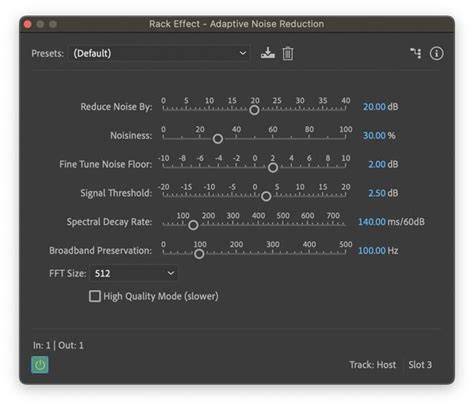
The Noise Reduction/Restoration > Adaptive Noise Reduction effect quickly removes variable broadband noise such as background sounds, rumble, and wind. Because this effect operates in real time, you can combine it with other effects in the Effects Rack and apply it in the Multitrack Editor. By contrast, the standard Noise Reduction effect is available only as an offline process in the Waveform Editor. For best results, apply Adaptive Noise Reduction to selections that begin with noise followed by desirable audio. This effect requires significant processing. Determines the level of noise reduction. Values between 6 and 30 dB work well. Determines how quickly noise processing drops by 60 decibels. Fine‑tuning this setting allows greater noise reduction with fewer artifacts. Retains desirable audio in specified frequency bands between found artifacts. A setting of 100 Hz, for example, ensures that no audio is removed 100 Hz above or below found artifacts. Determines how many individual frequency bands are analyzed. Choose a high setting to increase frequency resolution; choose a low setting to increase time resolution.
To quickly remove crackle and static from vinyl recordings, use the Noise Reduction/Restoration > Automatic Click Remover effect. This effect provides the same options as the DeClicker effect, which lets you choose which detected clicks to address. However, because the Automatic Click Remover operates in real time, you can combine it with other effects in the Effects Rack and apply it in the Multitrack Editor. Detects and fixes clicks with configurable sensitivity and thresholds. The DeClicker/Click Elimination tools offer options for FFT size, sample ranges, and multiple passes to improve results without hurting overall audio quality. The Noise Reduction/Restoration > DeHummer effect removes narrow frequency bands and their harmonics. The most common application addresses power line hum from lighting and electronics. Sets the root frequency of the hum. Sets the width of the root frequency and harmonics above. The Noise Reduction/Restoration > DeReverb effect estimates the reverberation profile and helps adjust the reverberation amount. The output gain serves as a make-up gain, allowing you to adjust the level of the output signal.
In practice, the best results come from using noise reduction in context: capture a clean noise print for steady background and apply adaptive processing for changing noise. Always listen critically and avoid over-processing, since excessive reduction can remove texture and introduce artifacts. The article’s workflow emphasizes not relying on a single heavy pass; instead, editors should address individual noise events when possible and balance attenuation with preserving the integrity of the desired signal.