Anchored objects attach page items such as images, text frames, or shapes to a specific location in text, ensuring they move with the content as it reflows. This keeps related content together even when text is edited, resized, or repositioned within the document.
The core concept
InDesign connects anchored objects to text using an anchor marker, a small symbol inserted at the exact point where the object is attached. This marker acts as the reference point. When the text moves to another page or column, the anchored object moves with it, maintaining its relationship with the content.
The anchor marker does not take up visible space in the text. You can position the anchored object inline with the text, above the line, or in a custom position relative to the text frame, page, or margins. Anchored objects can also inherit properties such as rotation and skew from their parent text frame, helping maintain visual consistency even when positioned outside the frame.
Position types
InDesign provides three positioning options for anchored objects, depending on how you want them to behave within the layout:
- Inline: Positions the object within the text flow, aligned to the baseline like a character. It moves with the text and is suitable for small graphics such as icons or symbols.
- Above Line: Places the object above the line containing the anchor marker, in its own space. You can control alignment relative to the text or page, making it useful for elements like pull quotes or small visuals.
- Custom: Allows precise placement relative to the text frame, column, page, or margins. This option is ideal for sidebars, callouts, or larger elements that require more flexible positioning.
Common uses for anchored objects
- Sidebars and callouts near related paragraphs
- Figure numbers and captions with their images
- Icons or symbols linked to specific words or concepts
- Pull quotes tied to nearby content
- Margin notes with supplementary information
- Product images aligned with descriptions
They are especially helpful in documents with frequent edits, where objects need to move automatically with the text.
Behavior with text frame properties
Anchored objects respond to changes in their parent text frames. When a text frame is rotated or skewed, anchored objects inherit those transformations, even if they are positioned outside the frame. You can still adjust rotation or skew for individual anchored objects without affecting the anchor relationship.
When a text frame is resized, inline and above-line objects adjust their position within the layout. Custom-positioned objects maintain their position relative to defined reference points, which may shift their placement on the page while remaining aligned with the anchor.
Working with type on a path
Inline and above-line anchored objects can be used with type on a path, allowing graphics to follow curved or custom text paths. Custom-positioned objects are not supported because positioning relationships are not defined for non-rectangular paths.
Relationship to traditional links
Anchored objects appear in the Links panel along with placed assets, but they are part of the document. Unlike traditional links, they don't reference external files and cannot be updated or replaced.
Practical setup and workflows
There are two main approaches to creating anchored objects:
- Start with the content: set your body copy text frame to serve as the lead ship, then create or place your first illustration or chart on the page. Group related caption or credit text with the illustration if needed.
- Start with the container: select the object or group, cut it, and paste just ahead of the text to which the anchor must be tethered. The anchored object can be positioned via the Anchored Object Options dialog.
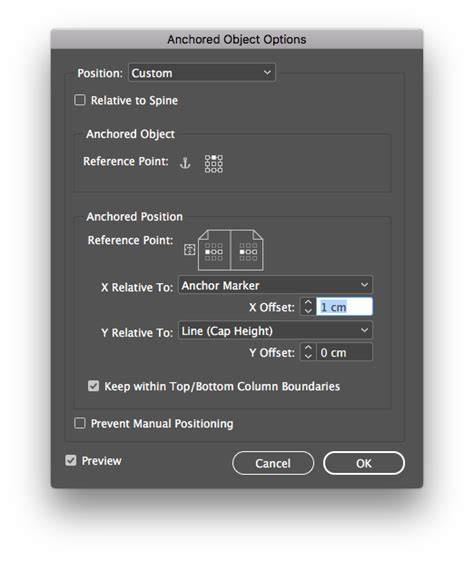
To insert or adjust an anchored object, you can use the Insert Anchored Object dialog and then fine-tune via the Anchored Object Options dialog. You can also create object styles from a representative anchored object to apply consistent settings to additional objects.
Keep in mind: the anchor marker is inside the text, so if you need a page, column, or other break ahead of the anchored object, apply the break to the text’s paragraph style. Alignment options include Left, Center, Right, Towards Spine, Away from Spine, and Text Alignment. The alignment can adapt to left- or right-reading pages in facing-page layouts.
Additional tips and terminology
The Anchored Position section controls the object’s position relative to the text, and the Anchor Marker marks the actual insertion point. Y Relative To offers options to align to the baseline, cap height, or top of the leading of the line. The Keep within Top/Bottom Column Boundaries option helps keep the object within the text column boundaries when needed.
If you need multiple objects with the same settings, you can create an object style from the first anchored object and apply it to others. For inserting new anchored objects, you can use Object > Anchored Object > Insert and then choose a template object style.
InDesign treats anchored objects as tethered to the story rather than anchored to a fixed page location. This allows for robust reflow behavior and flexible layout control, especially in documents that undergo frequent edits.
In summary, anchored objects in InDesign provide a reliable mechanism to keep illustrations, charts, captions, and callouts with their related text, adapting automatically to reflows, edits, and layout changes across pages and columns.