The --aspect or --ar parameter changes the aspect ratio of the image. That's the width-to-height ratio of an image. It's normally expressed as two numbers separated by a colon, such as 7:4 or 4:3. V5 introduces any aspect ratios. That means you can do crazy stuff like 100:1 (width is 100x longer than height).
Note: aspect ratio is not the same as resolution. An image can be 1000px × 1000px, or 1500px × 1500px, and the aspect ratio would still be 1:1. --ar 16:9 iPhone takes pictures and videos at a 16:9 aspect ratio. --ar 3:2 / --ar 7:4 are common for art prints.
The aspect ratio impacts the shape and composition of a generated image. Creating digital art isn’t just about the colors or the patterns, it’s also about the size and shape of the piece. This shape is called the aspect ratio, and it’s just the width and height of your picture. Getting the aspect ratio right is really crucial. It can change how your artwork appears in various places. Could be on social media, at an art show, or on a blog post.
Midjourney lets users set the aspect ratio of their images with the -ar command. Image Cropping. Sometimes parts of the image get cut off. Distortion. Images might look stretched or squished. Resolution Concerns. Low-resolution settings may not look good in larger aspect ratios. Platform Requirements. Content Nature. What you’re showing might look better in certain sizes. Don’t hesitate to play with weird aspect ratios, such as 21:9 or 1:3.
First, find Midjourney in the tools list for image making on the platform. Click on the gear icon (settings) located on the Midjourney tool button. In the settings, look for the resolution setting. Pick the resolution that you like best from the choices. Never forget - while it’s good to know the rules, sometimes the best pictures come from daring to do things differently. Start by working with the usual ratios. Once you’ve got the hang of it, feel free to play around with unusual dimensions.
Changing the aspect ratio in Midjourney, an AI-based image generation platform, allows users to specify the dimensions of the images they want to create, enabling more control over the output's shape and size. Midjourney uses specific parameters to control the aspect ratio of the generated images. The commands can be part of the image generation request. Combine the aspect ratio command with your image prompt. Send the command. If the output isn't quite what you expected, consider adjusting your prompt or aspect ratio command and send a new request.
Custom Aspect Ratios: Midjourney allows for custom aspect ratios not predefined by the system, including extreme ones. Changing the aspect ratio in Midjourney or similar platforms is a powerful way to tailor the output to specific needs or artistic visions.
To set the aspect ratio of an image you're creating in Midjourney, you'll need to add the "--ar" parameter to your prompt. The default aspect ratio for Midjourney images is 1:1. In other words, a square. To change the aspect ratio, add the parameter --ar followed by a space to your prompt and then enter your desired aspect ratio in width:height format. Here is an example: /imagine wizard in the mountains --v 4 --ar 2:3. This tells Midjourney to output an image with a 2:3 aspect ratio.
If you are new to Midjourney and/or would like a summary of the basics, please check out a Beginner's Guide to MidJourney. Below are the results of prompts across various aspect ratios and versions, illustrating how output can vary with version constraints and aspect choices. Note that Midjourney will pick the closest available aspect ratio to the one you requested. Commonly used non-square aspect ratios include: 2:3, 4:5, and 9:16.
Setting The Aspect Ratio in Midjourney: You can find the Midjourney Image Size adjustment panel when you click the Settings button at the right corner of the Imagine bar. The aspect ratio is NOT a "set-and-forget" parameter. You frequently need to adjust it to generate various sizes of artwork. This is especially true when aiming for specific placements like social media banners, blog visuals, or print layouts.
Remix mode offers a way to alter the aspect ratio of a generated image without cropping. If you want to modify the aspect ratio after generation, enable Remix in Settings, then re-roll or create variations with the --ar parameter appended to the prompt. The remix feature stretches the image rather than adding canvas space, so results can appear elongated compared to the original square image.
Aspect ratio ranges and limitations depend on the Midjourney version. For example, v1 allows up to 2:7 and 7:2, while v4 allows up to 1:2 and 2:1. The default remains 1:1 across versions. A square format is practical for many social media posts, album covers, and profile pictures, so starting at 1:1 is a good testing approach.
Useful guidelines: start with common ratios like 1:1, 4:3, 16:9, and 3:2 to learn composition quickly. Then explore unusual dimensions such as 21:9 or 1:3 to suit specific projects. Remember that aspect ratio is about framing and layout as much as it is about size, and crop or crop-free adjustments may be needed after generation.
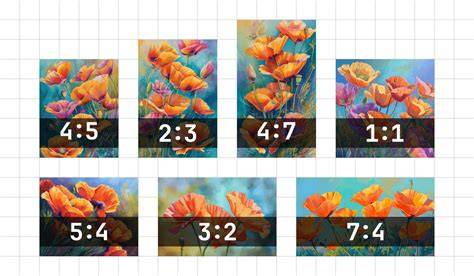
SFX Secrets: The Power of Aspect Ratios
Practical presets and tips for different uses
Common aspect ratios and their typical uses include 1:1 for social media, 4:3 for prints and classic displays, 16:9 for video and widescreen presentations, and 3:2 for a DSLR-like landscape feel. The 2:1 panoramic ratio is ideal for sweeping vistas. The 4:5 print-size matches 8x10 inch prints, offering a balance between composition and output size.
Ideogram’s interface shows a list of different aspect ratios, which can be confusing for new users. A practical approach is to start with the four essential aspect ratios you’ll actually use, then adapt based on the intended display platform. Pro tips: use 2:3 to emphasize necklines and attire in character portraits, or 3:2 for a classic landscape composition. If you’re unsure, begin with 1:1 to evaluate composition before committing to a broader dimension.
When upscaling, Midjourney can slightly alter the aspect ratio depending on the version and upscaler. If you need precise control, choose a matching ratio at the final stage and crop as needed to preserve the intended composition. Remember that the aspect ratio can shape how artwork appears across social media, galleries, or prints, affecting viewer perception and engagement.
In practice, the workflow often involves: starting with a familiar ratio, evaluating the result, then refining the prompt or aspect ratio, and finally applying any necessary crops or upscales to achieve the desired presentation. Changing the aspect ratio using the remix setting can help explore variations while maintaining a reference image, though it stretches rather than adds canvas space.
| Aspect Ratio | Typical Use | Notes |
|---|---|---|
| 1:1 | Social media, profile pictures | Default for many prompts; easy to evaluate composition |
| 16:9 | Video thumbnails, widescreen displays | Wider framing; good for landscape scenes |
| 3:2 | Landscape photography feel | Balanced horizontal composition |
| 2:3 | Character portraits with attire detail | Shows neck, shoulders, some attire |
| 4:5 | 8x10 prints | Print-friendly ratio |
| 2:1 | Panoramic vistas | Extra width for expansive scenes |
| 7:4 | Television/large displays | Wider than standard 4:3 |
Remember: the aspect ratio is a frame for your storytelling. It shapes how the viewer reads scale, depth, and focus. Don’t hesitate to experiment with extremes like 100:1 or 1:100 for conceptual visuals, then crop or adjust in post-processing to fit the final medium.
tags: #aspect #ratio #midjourney