InThis article distills practical methods for cropping and placing photos within Adobe InDesign, drawn from real-world workflows and step-by-step demonstrations. We will explore two primary approaches to cropping inside shapes, discuss when to paste into frames versus placing images, and highlight tips for working with text wrap and image sizing to achieve clean, professional layouts.
Two main methods to crop images inside shapes
The first method is the easy, visual approach: with nothing selected, place the image and then resize it to fit inside a shape, such as a circle. This approach lets you adjust the image separately from the frame and later use the Content Grabber to fine-tune positioning inside the shape.
The second method uses editing commands to clip the image directly into a shape: select the shape, copy or cut the image, and choose Paste Into to confine the image within the shape's boundaries. If the image is too large, you can adjust its scale after pasting, or undo and reattempt to ensure the composition remains balanced within the frame.
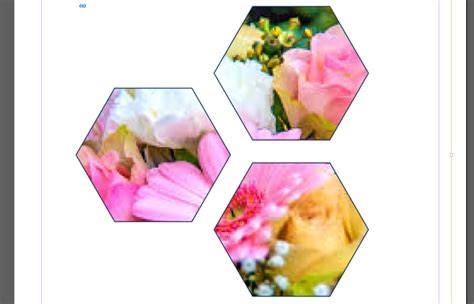
Another approach is to place the image with the shape already selected. In this scenario, the image is imported and pasted inside by default, but it can be unwieldy if the image is oversized for the spread. This method often requires zooming out and careful scaling to maintain the intended composition.
Practical tips for selecting and sizing
- When clipping inside a shape, ensure the image covers the entire shape to avoid gaps or unwanted edge visibility.
- Use the Content Grabber to reposition the visible area inside the shape after clipping.
- If the image exceeds the frame, consider resizing before or after clipping to maintain a clean edge.
Working with text and image integration
After you’ve positioned the image, you’ll want the text to flow around it cleanly. In the workflow shown, you adjust the text wrapping to create a harmonious balance between the photo and the surrounding copy. The goal is to keep the layout readable while ensuring the image remains a visual anchor within the design.
For additional flexibility, you can experiment with different text wrap options and align the image to support the overall composition of the page. The instructor encourages hands-on practice, saving files as you go, and comparing your results with the provided exercise files to identify discrepancies and refine techniques.

Using Adobe Stock and image selection
Beyond your own library, you can explore Adobe Stock for high-quality photos that fit your layout needs. The process involves selecting stock images, placing or clipping them into shapes, and then adjusting scale and position to achieve the desired visual impact within the document.
Workflow reminders for consistent results
- Save iterations frequently to compare progress against instructor examples.
- Keep a responsive layout by checking the image within the shape at multiple zoom levels.
- Document the steps you used so you can replicate or adjust the process on future projects.
Example project context: a simple company flyer
Starting with a simple company flyer, you’ll crop photos to match the shape elements used in the layout, then layer text and color blocks to reinforce branding. The practical exercises emphasize the balance between imagery and typography, and how precise cropping supports legibility and visual hierarchy.
How to Crop an Image in Adobe InDesign CC (Tutorial)
Table: quick reference for crop methods
| Method | Steps | Best for |
|---|---|---|
| Paste Into | Select shape → place image → Edit > Paste Into → adjust with Content Grabber | Precise clipping inside shapes |
| Place and Resize | Place image with shape selected or not → resize visually to cover shape | Fast composition, flexible positioning |
The course covers long-term projects such as brochures, newsletters, and annual reports, with a focus on professional font choices, color usage (including corporate colors), and image management to produce ready-to-share documents using InDesign.