Neural filters in Photoshop bring artificial intelligence and machine learning into the editing workflow, offering a library of effects that streamline tasks from skin smoothing to colorization and creative transformations. In the Neural Filters workspace, you’ll find a library of filters that use AI to simplify different workflows, from skin smoothing and depth blurring to colorizing black and white images.
What are Photoshop neural filters and how do they work?
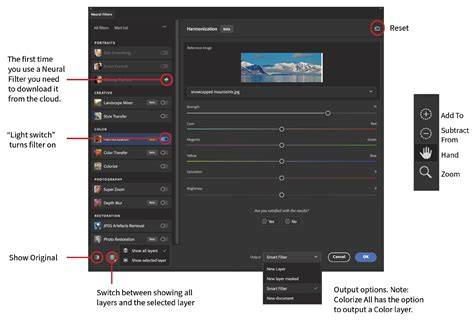
Adobe’s neural filters are AI-powered tools designed to automate complex edits that previously required manual masking, cloning, or extensive retouching. In the Neural Filters workspace, you’ll see a library of filters on the left and the selected filter panel on the right. Hover over each filter to preview its effects, and once downloaded, a filter becomes available every time you open the Neural Filters workspace. After enabling a filter, the right-hand panel becomes active for fine-tuning, and you can choose the neural filter output-current layer, new layer, or a separate document.
Neural filters use Adobe Sensei, the AI and machine-learning engine behind many cloud-based features. The promise of these filters is that they can reduce tedious workflows to a few clicks, though results vary by filter and image. The filters are organized into categories such as Portraits, Creative, Color, Photography, and Restoration, each serving different editing goals.
How to use Neural Filters in Photoshop
With a photo open in Photoshop, go to Filter > Neural Filters to enter the dedicated workspace. The library on the left lists available filters, and the selected filter’s options appear on the right. The first time you use a filter, you may need to click a cloud icon to download it. After download, you can output the result to the current layer, a new layer, a Smart Filter, or a new document. For non-destructive editing, Smart Filter output is highly recommended, as it allows you to tweak settings later by double-clicking the smart filter in the Layers panel.
You can preview results before applying, and you can provide feedback to Adobe using the smiley/sad face icons. If you want to revert a change, reset options in the Neural Filters workspace. Output choices include Current Layer, New Layer with Mask, Smart Filter (editable later), or New Document. When finished, click OK to apply the effect.
Top neural filters you can use now
- Colorize: Colorizes black-and-white images. For natural colors, set the profile to None or choose a preset profile, then fine-tune with sliders. You can output a Color layer to further refine colors by painting adjustments later.
- Landscape Mixer (beta): Combines elements from your image with a reference image, allowing changes to season and time of day. It can also mix your landscape with another image for dramatic composites. Output options include a new layer, current layer, or new document; as a beta feature, results may vary and performance can be slower.
- Harmonization: Matches color and lighting between layers. It’s particularly useful when placing a subject into a different scene. Note that using Harmonization as a Smart Filter may present some issues; output to a new layer is often more stable until a fix is released.
Portraits and skin editing
The Neural Filters include several portrait-oriented options. The Skin Smoothing filter uses two sliders-Blur and Smoothness-to soften skin while preserving natural texture. For best results, sample out larger blemishes with manual tools like Spot Healing or Healing Brush before applying Skin Smoothing. Smart Portrait offers advanced possibilities like adjusting expressions, age, and even subtle mouth and eye movements, but it can produce exaggerated results if used aggressively; a light touch is usually best.
Color and style adjustments
Color Transfer applies the color palette from a reference image to your photo, functioning similarly to a non-destructive LUT approach. Colorize remains a standout tool for quickly transforming monochrome imagery into color but can require fine-tuning due to limited real-time feedback. Color Transfer and Colorize can be used with a specific region of a reference image to guide color decisions, and Preserve Luminance helps maintain contrast when transferring colors.
The Style Transfer and Colorize tools highlight the broader creative potential of Neural Filters, enabling stylistic effects by applying the look of one image to another. Style Transfer may rely on cloud processing and can take longer depending on internet connection and image size. Style presets (Artist and Image Styles) provide quick starting points, which can then be refined with standard Photoshop adjustments.
Creative and advanced filters
The Creative category includes Landscape Mixer, which can relight and retexture scenes by merging two images, and Layer Harmony tools that help match color between layers for more convincing composites. The Color Transfer and Colorize filters offer powerful quick-win capabilities for color experimentation, while Depth Blur provides a more natural depth-of-field approximation by blurring areas in front of and behind the subject. Depth Blur supports focal point selection and optional hazing for emphasis, and can be refined with a texture or noise layer to maintain realism.
Photography and restoration tools
Photography filters include Super Zoom, which upscales images up to six times, with output options to preserve the original image. Depth Blur and other depth-based tools work best when the subject is on its own layer to avoid unintended bleed into background areas. The JPEG Artifacts Removal filter can reduce compression artifacts in low-quality JPEGs, with adjustable strength levels. For deep repairs, restoration filters aim to fix defects and improve image quality where possible, though results depend on image quality and the specific issue being addressed.
Practical tips for using Neural Filters
- Always consider duplicating the image or converting to a Smart Object before applying filters to preserve the original data. This approach makes it easier to adjust or revert edits later.
- Test filters with smaller, lower-stakes images first to gauge behavior and processing time, especially on older hardware. Some users report that beta filters can be slow or produce unpredictable results; patience and incremental adjustments help.
- Use the Preview button to simulate outcomes before committing, and use output as Smart Filter to keep edits non-destructive. If you encounter issues, output to a new layer instead of directly altering the current one.
- Keep Photoshop up to date; the Neural Filters library evolves with new features and improved stability. You’ll also want to verify system requirements because Neural Filters require significant processing power and cloud interaction for some operations.
Limitations and considerations
Neural filters rely on cloud processing for certain features, which means an internet connection is required for some tasks and results can depend on network speed. Some filters, particularly beta tools, may behave inconsistently across images or hardware configurations. It’s wise to approach results with a critical eye and consider manual blending or additional adjustments to ensure precision and natural outcomes.
Images and videos to illustrate Neural Filters
Photoshop's Neural Filters are dumb
Additional notes and recommendations
Filtering with AI is a growing field, and Neural Filters are a modernized evolution of the old Filter Gallery. While some effects are gimmicky, others deliver practical, high-impact results with minimal effort. The key is to balance automation with manual refinements to maintain control over final appearance and ensure realism.