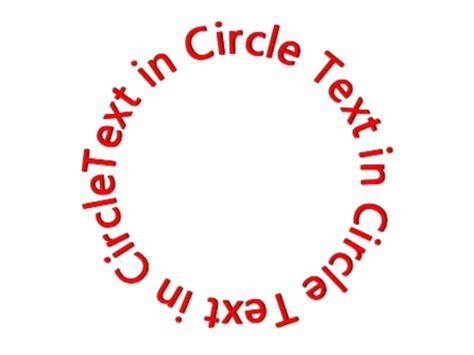
Many logo designers seek to place text along a circle or arc to create visually striking emblems, especially for space agencies or futuristic brands. Paint.NET, while free and capable, does not include circular text as a built‑in option. However, with plug-ins like CircleText and the dpy plugin pack, you can add powerful curved text features that rival paid software in a lightweight workflow.
Understanding the challenge and the plugin solution
Circular text is not an option included with Paint.NET. However, with plug-ins we can add extra options to the photo-editing software. To get started, open this page and click the Zip icon to save the CircleText plug-in. It saves as a Zip file that you can extract by right-clicking it and selecting Extract All. Extract the plug-in to Paint.NET’s Effects folder. Then open Paint.NET, select Effects > Text Formations and CircleText to open the window in the shot below. Now add some text to the text box at the bottom of the window. Below that you can select a font from the drop-down list. Drag the Font Size bar to the left and right to expand/reduce the font. Press the OK button to close the window and apply the text effect as below.
You should select the text to be at 360 degrees for a full circle. As such, drag the Angle of Arc bar on the CircleText window to the far right. To add a half circle of text to the image, as in the shot below, drag that bar to 180. You can adjust circle text’s position on the page by dragging the Center bars to the left and right. The top bar moves the text to the left or right of the page. Drag the bar below that to move the text up or down. So now you can add circular text to wrap around photos and images. CircleText is just one of the great plug-ins you can add to Paint.NET. You’ll find plenty more at the Paint.NET forum.
Practical workflow: creating circular text for a logo
One approach is to use Circle Text to generate a complete circle of text with a 360-degree arc, then adjust radius and center to fit your logo’s ring. The angle of arc and radius controls determine how tightly the letters bend and how much space exists between characters. If you want a neat arc that sits just inside a circular emblem, reduce the radius and experiment with a slightly less than full 360-degree arc. For a semi‑circular badge, set the angle to about 180 degrees and position the text accordingly using the center controls.
Another method is to use the Move Selected Pixels option to manually bend text if you’re aiming for ultra‑specific placements. While this can be time consuming for longer text, it remains a viable fallback when plug‑ins aren’t available or when you need fine control over individual letters. The Circle Text tool, however, streamlines this process and is especially useful for logos with rings or orbital motifs.
Additional plug-ins for diverse curved text effects
With the Move Selected Pixels option, you can add a bending effect to text by manually editing it letter by letter. However, the dpy plugin pack provides several handy tools: Circle Text, SpiralText and WaveText. Unzip the plug-in’s compressed folder and extract it to Paint.NET’s Effects folder (commonly C:\Program Files\paint.net\Effects). After restarting Paint.NET, you can access Circle Text, Spiral Text, and Wave Text under Effects > Text Formations. Circle Text offers a circle‑type bend, SpiralText adds a circular spiral, and WaveText creates sine‑wave-style curves for dynamic typographic treatment.
For Circle Text, you choose a font, enter your text, and preview it on the sheet. The Angle of Arc determines how curved the text is, the Radius sets the circle size, and the Angle of Start defines the starting point around the circle. The Center controls move the text along the X and Y axes to fine‑tune placement on the canvas. The WaveText tool introduces a sine‑like bend, with x and y pitch controls to define wave count and height. The SpiralText tool creates a spiral path that progressively tightens or relaxes the text around a circular path, with additional controls for spacing and size reduction.
Tips for logo design with circular and curved text
- Plan your ring size early. Decide the outer diameter of the circular text so it fits the badge without colliding with other elements.
- Choose legible fonts. When the text follows a curve, letter shapes and spacing become critical; select a clean sans or geometric font for readability at smaller sizes.
- Test contrast and color. Circular text often sits on a dark or gradient ring; ensure sufficient contrast for legibility in various sizes.
- Combine with simple logos. A circular text ring pairs well with a central emblem (e.g., a planet, rocket, or star), keeping the composition balanced.
- Experiment with arcs and starts. Use the Angle of Arc, Radius, and Angle of Start to craft precise arcs, from full circles to semicircles or partial rings that wrap around imagery.
Limitations and alternatives
Paint.NET remains a capable free tool, but its interface and plugin ecosystem may lag behind commercial packages for very complex typography workflows. If you frequently design logos with circular or extreme curves, consider lightweight paid options like Affinity Designer, which often run discounts and trials. For some users, Illustrator remains a preferred choice due to its native curved text capabilities; however, Paint.NET with CircleText and related plugins provides a robust, cost-effective path for many projects.
Different image editing applications have different ways of accomplishing this task. One of our favorite tools at TechJunkie is Paint.NET, a drawing program that rivals (at least in some area) programs like Photoshop but which is itself freeware. Text bending can be done with the plain-vanilla Paint.NET install, but it’s a lot of work. With the Move Selected Pixels option, you can add a bending effect to text by manually editing it letter by letter. As it happens, one of the most powerful features of Paint.NET is that it supports a variety of plug-ins to enhance the functionality of the program.
Practical example: applying CircleText to a space agency logo
For a fictional space agency logo, place a bold central emblem (rocket, planet, or star) and wrap the agency name around the circumference using Circle Text. Start with a full circle (360 degrees) and adjust the arc to 180 degrees for a half-ring that aligns with the top or bottom of the emblem. Move the text outward with Radius and tweak the starting angle to position the text precisely around the ring. If you need a crest-like look, combine Circle Text with a subtle outer glow or planet texture in the central area to create depth and a sense of space exploration.