Accidentally deleted the wrong files? Or maybe your drive got corrupted, and now you can’t access your data. No matter what happened, getting that data back is top priority. Fortunately, data recovery software is able to scan your drive and recover the data that was lost. Each solution in this list has been hand-tested by one of our data recovery experts using a rigorous, methodical testing process.
Disk Drill Data Recovery (Windows & macOS)
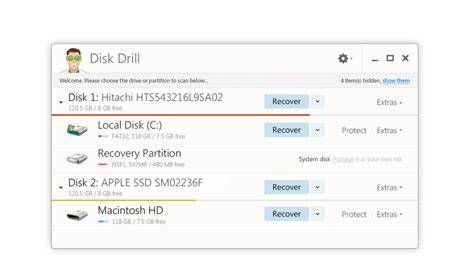
Disk Drill is known as both powerful and easy-to-use, packaging its complex recovery solutions in a simple, accessible user interface. Installing Disk Drill was super straightforward. The main window displays the recovery tool by default. We could easily navigate between disks and order them by different parameters. Other tools, like Byte-to-byte backup, S.M.A.R.T., and Advanced Camera Recovery, were easily accessible from the left sidebar. The interface itself was very clean and modern. The buttons were clearly labeled and properly spaced out. Disk Drill’s data recovery process, from source selection to recovery, is very streamlined. We were able to scan entire disks during our tests, which is super helpful in cases of severe data loss. One of the devices we tested with Disk Drill was a severely corrupted hard drive that was inaccessible by both macOS Finder and Windows Explorer. Not only did Disk Drill recover our files, but it was even able to restore the original folder structure. Browsing scan results was intuitive; users have access to a search tool, can filter and organize results by file type and other parameters, and preview data in the sidebar. And Disk Drill usefully categorizes results by “Deleted or lost”, “Existing”, and “Reconstructed”, covering multiple data loss scenarios. Our files that were missing from their original folder (in the scan) showed up in the “Reconstructed” section, which found them by their file signatures. Disk Drill recovered most of our missing data - more than other apps on this list - from a variety of devices (using various file systems), like HDDs, SSDs (with TRIM disabled), memory cards, and even mobile devices. Disk Drill offers free versions that are sufficient to test the software on both Windows and Mac. There are no feature restrictions during scanning, and you can preview recoverable files before purchasing a license. Some tools are also available completely free of charge. These include S.M.A.R.T. monitoring, which tracks your drive’s health and alerts you to potential issues, as well as the Clean Up module that helps free up storage space by identifying unnecessary files. For full recovery, Disk Drill offers either an annual PRO subscription ($89 per year) or a PRO Lifetime license ($149 one-time payment). Both options provide the same set of features, which is something we appreciate because some competing tools unlock their full functionality only with lifetime licenses. Disk Drill 6.1 was released in November 2025 for both macOS and Windows. The update improved backup and recovery reliability, added support for BitLocker-encrypted partitions in byte-to-byte backups, expanded file type recognition, and improved Advanced Camera Recovery accuracy. It also introduced support for NAS/Linux-based TrueNAS and included several stability and interface improvements. More recently, Disk Drill 6.2 was released in March 2026 for both platforms. Disk Drill is crowned the Best Overall data recovery software for this article. It’s equipped to overcome almost every data loss scenario that the average user encounters for a wide range of devices. While we wish it offered more free data recovery (many of its competitors offer 1 GB or more for both Mac and Windows), its price value is a big reason why we’ve included it as some of the best data recovery software for PC. When paired with its free backup and data protection features, you get better odds of avoiding data loss in the future, rather than always reacting to it after the fact. Learn more in our Disk Drill review.
R-Studio (Windows, macOS, Linux)
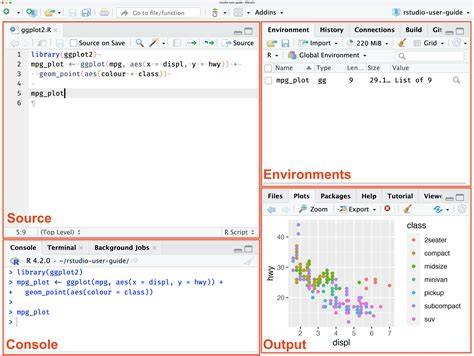
R-Studio is a technician’s tool created by R-Tools Technology, a software company based in Canada. R-Studio may be complicated, but installing it is simple. Users can download a standard installer wizard from the official site and R-Studio will be ready to go in a few clicks. Our first impression of R-Studio is “utilitarian.” It wasn’t made to look pretty - it gives you access to all of its tools compacted in a single window. This is GREAT if you know what you’re doing but the average user will have to digest the interface for a while. We were able to expand our tester drives and select their volumes and partitions easily, even if one of the drives we tested was “problematic” and refused to be mounted or displayed anything other than its label. Upon beginning the scan, various popups allowed us to set multiple scan parameters. This is useful if you want to be super precise but it’s a lot of hassle for an average user. Fortunately, R-Studio’s scan speed is quick - even compared to other apps. The results page is also highly utilitarian but visually helpful. It compiled our drive’s files in a list on the left panel and clicking on any of them displayed its preview on the right. When we selected a folder within the drive, all of its contents were displayed as thumbnails or icons - this made it easy to select multiple image and video files for recovery. However, because the data is split across different sections, switching between each screen to view your files quickly becomes tiresome. You can download R-Studio for any operating system for free. However, the free version only allows recovery of files smaller than 1024 KB. In practice, we consider this closer to a preview capability than real recovery, because most files exceed that size. The paid versions come in a wide range of options. Most licenses are permanent (lifetime) licenses, with the exception of the T80+ variant, which is essentially the R-Studio Technician edition that can be used for a limited period (starting from 80 days). At first glance, the licensing structure looks reasonable, but there are several limitations worth noting. Each license is valid for only one computer. This means that if you use both a Windows PC and a Mac, you will need to purchase two separate licenses. In addition, if something happens to your computer, the license cannot simply be transferred to a new machine-you may need to purchase another license. R-Studio released part 1 of version 9.5.191645/191648 for Windows in November 2025, adding support for ReFS 3.14 and Windows Storage Spaces in Windows 11 25H2, improving ReFS parsing, RAW image previews, localization, and overall stability, along with numerous bug fixes. R-Studio is an excellent tool for its price considering its power and comprehensive recovery features… But for users who are easily overwhelmed by new software (or if you don’t have the time for the learning curve - e.g. you need to restore critical data for work the next morning), apps like Disk Drill or EaseUS Data Recovery are much more suitable. We delve deeper into the software in our R-Studio review.
EaseUS Data Recovery Wizard (Windows & macOS)
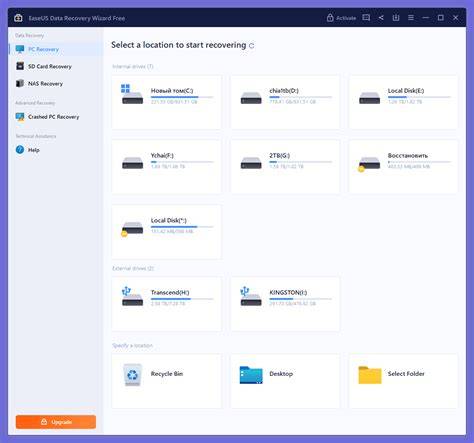
EaseUS Data Recovery Wizard is another recognizable name in the data recovery marketplace. Based in China, EaseUS has been around since 2003 and has a lot of apps under its belt. Like most of their software, EaseUS Data Recovery Wizard was built to be simple and user-friendly. Like most, it comes with a super simple one-step installer. The main window defaults to the data recovery window, which shows the volumes/partitions of all connected external storage drives. However, you need to click another button to display the disks themselves (and select them for scanning). Other devices (like SD cards) can be selected on the left sidebar as well as advanced features like Video Repair, Disk Backup, and portable recovery (this Pro feature comes with an in-app step-by-step, which was a nice touch). All-in-all, EaseUS Data Recovery Wizard’s design choices are clearly catered to novice users. The main window is very clean and uncluttered - on one hand, that makes it easy for users to navigate. On the other hand, users with more advanced knowledge will have to click around a bit more to find what they need. It’s also not as “snappy” as other apps, which can be slightly frustrating if you work fast. One thing worth mentioning is that the free version frequently promotes the paid upgrade. Until you purchase a Pro license, the app regularly displays purchase prompts and discount offers. As we previously mentioned, we could only see our drive’s volumes and partitions at first and had to switch to the disk menu to scan our drive. Like Disk Drill, we didn’t have to choose a specific scan to run - there’s only a single scan button. When the scan was underway, we could see all the data EaseUS had already recovered, neatly categorized into Pictures, Documents, Audio, etc. EaseUS was excellent at recovering most file types (even RAW photos and videos), but it struggled with more complex data loss scenarios like lost partitions and original folder structure recovery. It does, however, include a file repair module, which can attempt to fix any damaged files you recover. After the scan, EaseUS allows you to search and filter the scan results but you’ll need to purchase the pro version to fully preview files. EaseUS Data Recovery Wizard can be downloaded for free on both Windows and Mac. However, free recovery is limited to Windows, where the free version allows up to 2 GB of recovered data. On Mac, the free version only provides file previews. If you need full recovery, EaseUS offers several paid options, including monthly, yearly, and lifetime licenses. One interesting detail is that pricing differs between Windows and Mac versions, with the Mac version generally costing more. Another limitation is that each subscription covers only a single computer, so users with multiple machines will need to purchase additional licenses. EaseUS Data Recovery Wizard received another update in January 2026. Version 20.1.0 for Windows introduced recovery support for fragmented data scenarios (FAT32, exFAT, and RAW), added ZFS file system recovery, and improved bitmap handling for lost partitions. EaseUS Data Recovery Wizard was designed for the novice in mind and it’s sold as a simple and accessible recovery. While it’s not as comprehensive as the other apps on this list, it serves as a powerful tool that anyone can pick up and use. Read our EaseUS review for a more in-depth look.
Stellar Data Recovery Professional (Windows, Mac)
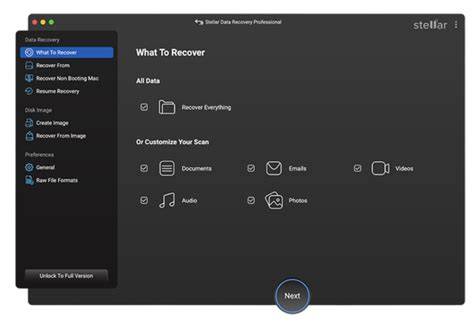
Stellar Data Recovery is a well-established disk recovery software developed by Stellar Information Technology Pvt. Like most of the apps on this list, Stellar Data Recovery was easy to install. You just need to download the installer from the site and follow the wizard. The source selection menu, unlike EaseUS’s, lets you choose whether you want to scan the entire disk or specific volumes. Its preview feature, while convenient, is fairly temperamental and doesn’t always show thumbnail previews. Most of its other features are hidden in menus, which helps keep the interface uncluttered. Aside from data recovery, a major feature that caught our eye was corrupted video recovery. It was very easy to start the scan overall, as you’re pretty much guided through it. However, if you want to make sure the app is using its full potential, you have to manually enable the Deep Scan, which is easily missed at the bottom of the source selection screen. Stellar recovered less data overall compared to the first 3 apps on this list. It also recognized fewer file types, but we were still able to successfully recover a lot of data - especially documents. And Stellar allows you to scan for a custom file type, which is a missing feature in many similar apps (although it’s a hassle to input a lot of file signatures manually). The found files list is where Stellar Data Recovery actually shines. Stellar Data Recovery can be downloaded for free on both Windows and Mac. However, free recovery is limited to the Windows version, where users can restore up to 1 GB of data without purchasing a license. On Mac, the free version only allows you to scan and preview recoverable files. If you need full recovery, Stellar offers several licensing tiers that differ in both features and subscription terms. While this variety gives users flexibility, we found the pricing relatively high compared to other tools on this list. Right at the start of 2025, Stellar Data Recovery Professional dropped a pretty big update for both OS versions, bringing them up to version 12 for Windows and 12.3 for Mac. Both OS versions saw improvements across features and performance.
Other notable mentions and free options
Beyond the main lineup, there are free data recovery tools that can help with photo recovery, especially for quick restorations. Free versions often provide basic recovery and preview capabilities, with some limitations like data caps or restricted file types. For example, PhotoRec (open-source) supports a vast range of file signatures and recovers data even from severely damaged storage, though it may require command-line usage or a GUI wrapper. R-Undelete and EaseUS Free deliver strong performance in some scenarios, while others like Pandora or PC Inspector may have limited support for newer file systems. When choosing a tool, assess recovery success rate, support for RAW formats, preview capabilities, and ease of use to match your needs.
What to consider when choosing photo recovery software
Key factors include recovery success rate across formats (JPEG, PNG, RAW formats such as CR2, NEF, ARW, etc.), ability to preserve folder structure, compatibility with NTFS, FAT32, exFAT, HFS+, APFS, and even RAID or NAS configurations, and the presence of a reliable preview feature to verify recovered data before paying. User interface matters for non-technical users, and licensing models (per-computer vs. family/multi-user) can influence long-term costs. Finally, consider whether you need additional features like video repair, RAW photo support, or byte-to-byte backups to prevent data loss in the future.
Data recovery workflow: practical outline
- Run a disk scan choosing the appropriate source (drive, partition, or memory card).
- Review results with previews, apply filters by file type, date, or size.
- Select files for recovery and choose a safe recovery destination (different drive).
- Verify recovered files, and use built-in tools (e.g., video repair, file repair) if needed.
Compatibility and best-use cases
Disk Drill excels across Windows and macOS with broad device support, including USB drives, SD cards, SSDs, HDDs, and NAS. R-Studio shines for professionals handling complex scenarios like lost partitions, RAID recovery, and cross-platform environments. EaseUS provides a beginner-friendly experience with solid overall recovery, while Stellar offers strong document recovery and a practical interface with optional deep scan. For technicians working with Linux or specialized systems, DMDE and related tools may offer advanced control and signature-based recovery options.
Practical table: quick comparison
| Software | Platforms | Strengths | Free tier? |
|---|---|---|---|
| Disk Drill | Windows, macOS | Strong recovery across file systems, RAW support, reconstruction | Yes (limited) |
| R-Studio | Windows, macOS, Linux | Powerful professional features, RAID/RAW support | Free preview; limited recovery |
| EaseUS Data Recovery Wizard | Windows, macOS | Beginner-friendly, strong file-type coverage | Free up to 2 GB (Windows) |
| Stellar Data Recovery | Windows, macOS | Document and photo focus, deep scan options | Free up to 1 GB (Windows) |
| DMDE | Windows, macOS, Linux | Advanced file-signature and backups | Limited free features |
Note: For critical data loss scenarios, professional data recovery services may still be the safest option.