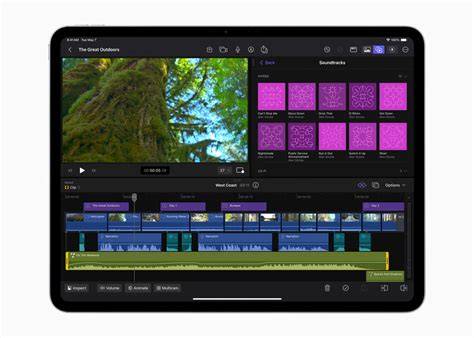
Editing Multicam on Final Cut Pro offers a powerful toolkit for syncing, cutting, and switching between multiple camera angles to produce slick, professional videos that grab attention in the Marketing Industry and beyond. This workflow is particularly transformative for YouTube content creators and vloggers who want dynamic, angle-rich storytelling without clutter.
The Big Deal About Multicam Editing
If you’ve got footage from several cameras, manually syncing clips sounds like a nightmare. That’s where multicam editing in Final Cut Pro comes in. It lines up multiple angles, lets you switch between them seamlessly, and helps create a polished final product. This technique is particularly useful for vlog editing workflows, allowing creators to easily switch between different camera angles and create more dynamic content.
How to Prep for a Multicam Video Shoot
Before you even start shooting, a little prep work can save you hours on set, and the editing room.
- Sync Your Cameras: Make sure all your cameras have the correct date, time, and time zone. This helps Final Cut Pro sync everything up later.
- Timecode or Sync Markers: If you’re using pro-level equipment, sync your cameras with a common timecode for all. If not, use a slate, camera flash, or a sharp noise to create a sync and level reference that you can easily match-frame with video in post.
- Capture Audio Everywhere: Record audio on every camera. Even if you only use one audio source in your final edit, having reference audio on all your angles will make syncing so much easier.
How To Transfer Multicam Footage into Final Cut Pro
Getting raw clips into Final Cut Pro is easy, but here’s a take on how to improve your workflow for multicam editing.
- Organize: Start by creating a Library, Event, and Project in Final Cut Pro. Keeping your files organized from the get-go will make the entire process smoother.
- Import: Use 'File > Import > Media' or hit Command + I to bring your footage into the project. Keep everything labeled and organized to avoid headaches later.
- Retag: Rename your clips in the Browser with clear labels. This makes it easier to identify different camera angles and footage when you start editing.
How to Make a Multicam Clip
Now that your raw footage is imported and organized, it’s time to set up your multicam clip.
- Select: Highlight the clips you want to include in your multicam edit.
- Create: Go to 'File > New > Multicam Clip', give it a name, and select the appropriate Event. Final Cut Pro will automatically create angles for each clip.
- Sync: Check the "Use Audio for Synchronization” option if your clips have audio tracks. Final Cut Pro will sync the clips based on their audio, saving time.
- Tweak: If the automatic sync isn’t perfect, you can manually adjust the alignment in the Angle Editor. Just drag the clips to match visual or audio cues.
Navigating the Angle Viewer and Editor
Angle Viewer: This tool lets you view all your angles at once and switch between them in real-time. You can access it by going to View > Angles or pressing Option + Command + 7.
Angle Editor: Double-click your multicam clip to open the Angle Editor. Here you can adjust the sync, rearrange angles, and even apply effects or color corrections to individual clips. Think filters, but created by you.
Fine-Tune Sync: Go over your footage more than once… Or twice. Then ensure everything is synced correctly. If anything looks off, use the Angle Editor to make precise adjustments.
Cutting and Switching
- Drag Clips: Drop your multicam clip from the Browser into the Timeline.
- Quickly Switch Angles: Use the Angle Viewer to switch between video and audio angles while playing back the clip. Click on the angle you want, and Final Cut Pro will create a cut at that point.
- Adjust Cuts: If you need to adjust a cut, just move it around in the Timeline, or switch to a different angle by clicking in the Angle Viewer.
How Gling Can Streamline Your Multicam Editing
Editing multicam footage in Final Cut Pro is cool, but AI-powered tools can take it to stratospheric levels. As an AI video editor for YouTube, Gling helps optimize your workflow by automatically removing bad takes, silences, and filler words-leaving you with an optimal prime product.
- Remove Bad Takes: Instantly refine your content by removing all bad takes and retakes, ensuring you present the best version of your work.
- Auto Remove Silences & Filler Words: Gling AI detects and cuts out silences and filler words like "um" and "uh," so you spend less time editing and more time creating.
- AI Text-Based Video Trimmer: Simply edit the transcript text, and the changes automatically reflect in your video.
Pro Tips for Multicam Efficiency
- Use Metadata Tags: Apply Camera Name and Camera Angle tags to your clips before creating your multicam clip to stay organized and switch angles smoothly.
- Optimized Media: If your project lags, go to 'Preferences > Playback' and enable "Create optimized media for multicam clips." This creates lower-res copies for smarter editing.
- Duplicate Before Major Edits: Before making significant changes, duplicate your multicam clip. Hit 'Edit > Duplicate Clip'. Don’t trust undo. It’s a trap!
Troubleshooting and Workflow Tweaks
Troubleshooting sync problems? No problem.
- Manual Sync: If Final Cut Pro’s automatic syncing isn’t cutting it, manually adjust the clips in the Angle Editor. Look for a sync point and align frames by zooming in for fine-tuned adjustments.
- Notes on Sync Methods: The automatic audio sync is powerful but may take longer. If you’ve recorded accurate timecode on every clip, you can create your multicam clip automatically without relying on audio sync.
- Match Media and Formats: To get the best performance, try to match media properties (codec, frame rate, resolution) across angles. If needed, transcode to proxies for smoother editing.
Step-by-Step Recap of the Multicam Workflow
The process for creating a multicam project is outlined below. The procedures are presented in rough chronological order, but you can rearrange the order to suit your workflow.
- Step 1: Shoot an event with multiple cameras and record appropriate sync information. Set the date, time, and time zone on your cameras; use timecode or a visible/audible sync cue if timecode is unavailable. Record audio on every camcorder to aid audio-based synchronization.
- Step 2: Import media into Final Cut Pro for a multicam edit. Organize and label clips during import.
- Step 3: Assign camera names and multicam angles via metadata tags to streamline later steps.
- Step 4: Create multicam clips by selecting clips, choosing New Multicam Clip, and configuring automatic or custom settings. Decide how angles are created and ordered, and choose a synchronization method.
- Step 5: Cut and switch between angles in the Angle Viewer as you play back the multicam clip.
- Step 6: Open the Angle Editor to adjust sync and angle order, or add/delete angles as needed.
Notes on Capabilities and Limits
Multicam clips can be made from diverse media sources (different formats, frame rates, and so on). There can be multiple clips in any given angle of a multicam clip. Final Cut Pro does not flatten multicam clips, allowing flexibility in post. The best practice is to ensure media match where possible for optimum performance.