Blending modes are a great way to digitally enhance your images and designs. There are several ways to use blend modes as a graphic designer (using design software) or as a web designer (using CSS or Divi). A blending mode is a mathematical equation that defines how pixels will blend together when two or more layers of pixels are combined. Although the algorithms behind blend modes are complex, they are quite easy to work with using design tools or photo editing software like Photoshop. With this kind of software, designers can blend layers (photos, colors, text) in creative ways for unique designs in a few clicks. You can blend any number of layer combinations. Blending modes combine a base layer with a blend layer to achieve different effects.
How blending modes work: core concepts
Each effect (or mode) uses a mathematical equation that combines red, green, and blue (RGB) or cyan, magenta, yellow, and black (CMYK) color codes with levels of dark and light to create multi-layered effects. For most blend modes, opacity is needed to bring out the blending effect. The base layer is the original color or image, and the blend layer applies directly to the base layer using a specific mode. There are 27+ blend modes in Photoshop. Some are used to adjust opacity, while others darken the appearance of photos and designs.
Opacity vs. fill: Note that there are eight special blending modes that work best when adjusting fill value (or percentage). In Photoshop, each blending mode is categorized by type (normal, subtractive, additive, contrast, comparative and composite). This category contains normal and dissolve blend modes. Normal is the default mode in Photoshop and requires adjustments to opacity for any noticeable difference. When 100% opacity is applied, the blend layer completely blocks the base layer.
Dissolve takes pixel colors from the base layer and paints over pixel colors in the blend layer to produce a pixelated result. Darkening categories add dark tones; the most commonly used mode is Darken, which selects the darkest pixels between base and blend. The Multiply family multiplies colors, producing a darker result; Color Burn increases contrast to darken base colors before blending. Blending with white colors doesn’t change the appearance of images at all. The Color Burn and related modes are part of the special eight that behave differently from standard darken/lighten operations.
Subtractive blending modes yield a lighter appearance by subtracting light tones when blending layers, while lighten categories emphasize lighter tones. Overlay blends multiple effects by combining the Screen and Multiply routines, often providing depth and texture. Hard Light combines brightness from the blend with the base layer, creating a strong, contrasted result. The Difference and Exclusion modes alter color by subtraction or inversion, each with distinct tonal outcomes. Hue, Saturation, Color, and Luminosity modify color properties in different ways while preserving brightness relationships in other channels.
Categories and their typical uses
Normal: the default; unchanged unless you adjust opacity. Darken: emphasizes darkest areas-Darken, Multiply, Color Burn. Lighten: emphasizes lightest areas-Lighten, Screen, Color Dodge. Subtractive (Lightening) modes brighten the base layer when the blend is lighter than 50% gray. Overlay, Soft Light, and Hard Light blend both darkening and lightening based on the base color. Difference and Exclusion invert or reduce contrast for creative color inversions. Hue, Saturation, Color, and Luminosity modes alter color properties while controlling brightness and tonal presence.
In practice, you choose a category based on the goal: darken shadows, brighten highlights, add contrast, or shift color characteristics. Overlay is one of the most versatile, while Screen is superb for recovering underexposed images or creating glows and soft highlights. Multiply is often used to deepen colors and add shadow without losing texture. Color Burn and Color Dodge increase contrast and vibrancy in targeted areas. 50% gray is a neutral reference point in several composite calculations, acting as a pivot for lightening or darkening depending on the mode.
Practical workflows in Photoshop
To apply a blending mode in Photoshop, open a photograph as the base layer, duplicate the layer, and choose a blend mode for the top layer. Then adjust the opacity to fine-tune the result. The Screen mode, for example, can brighten an image, while Multiply darkens. A popular workflow is to use Screen to recover highlights and Multiply to enrich shadows, sometimes combining both via layer masks to protect specific areas. The 8 special modes (Color Burn, Linear Burn, Color Dodge, Linear Dodge, Vivid Light, Linear Light, Hard Mix, and Difference) offer high-impact effects that may require careful balancing.
When working in web design, CSS provides two primary properties: background-blend-mode and mix-blend-mode. Background-blend-mode blends multiple backgrounds within a single element, while mix-blend-mode applies to the element’s content in relation to underlying content. Divi, a popular WordPress builder, includes 16 built-in blending modes for blending web elements (colors, backgrounds, images, and shapes), enabling designer-friendly, code-free composition.
Blending modes across tools: a quick tour
Photoshop remains the most widely used platform for blending modes and is complemented by Illustrator, Premiere Pro, After Effects, Corel products, and Figma, each offering its own set of blending capabilities. In Illustrator, blending modes can be applied to shapes and text, including when masking images inside editable text. In video editors like Premiere Pro and After Effects, blending modes are used to blend layers containing video and effects, enabling cinematic-grade composites. Figma provides a suite of blend options that empower UI/UX designers to create nuanced visuals within vector workflows.
Beyond simple experiments, blending modes enable practical outcomes: restoring underexposed photos with Screen, adding subtle color tints with Hue or Color, enriching shadows with Multiply, or creating cross-element glows with Overlay and Soft Light. High Pass combined with Overlay can sharpen images, while lens flare overlays can be integrated with blend operations for focal emphasis. In CSS-driven projects, blending modes empower dynamic, interactive visuals on hover or state changes without re-exporting assets.
Tips for effective use
- Start with a clear goal: are you darkening shadows, brightening highlights, or changing color relationships?
- Leverage opacity or fill values to modulate impact, especially for the special eight modes.
- Use layer masks to limit where blending occurs and preserve detail in critical areas.
- Combine modes across multiple layers non-destructively to explore variations quickly.
- In web design, test across devices to ensure the blended aesthetics translate well in different viewing contexts.
Example: Screen vs Multiply for photo enhancement
Screen lightens the base color by blending with a lighter layer, making underexposed areas brighter. Multiply darkens the base color by blending with a darker layer. When used together with level adjustments or masks, Screen can recover highlights while Multiply deepens shadows, yielding a more balanced image with preserved texture. In CSS, a similar approach can be achieved by combining background layers with appropriate blend modes to create rich, dynamic backgrounds.
Implementation notes for web developers
Background-blend-mode and mix-blend-mode in CSS enable designers to apply blending effects directly in the browser. For Divi users, built-in blending modes simplify applying these effects to backgrounds, text, and elements without writing CSS. When applying blending in web contexts, consider performance implications and ensure accessibility and legibility remain intact after blending adjustments.
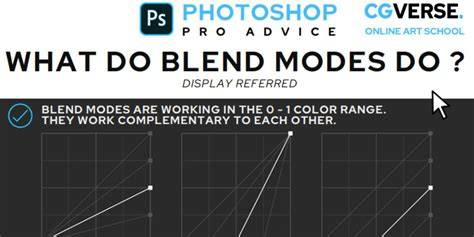
Multiply Blend Mode Explained in 1 Minute (Affinity, Photoshop, Procreate, Illustrator, Krita)
Blending modes are a powerful, flexible toolset that spans software ecosystems from desktop editors to web technologies. Mastery comes from experimenting with categories, combining modes thoughtfully, and applying non-destructive techniques that allow iterative exploration and creative exploration across projects.