Photoshop brushes are always in high demand, not only due the limited brushes that comes by default with Photoshop, but also because it saves a lot of time and they are very easy to use, manage and find. Subjects are endless, from a simple rounded wet brush to more sophisticated ones like stars and galaxies. The extra point for stars brushes is that you can (with just a little bit of work) also emulate snow, dust and even some noise, so these are especially useful for designers due the versatility. Using Star brushes not only will make your work easier, but it will also saves you a lot of time when you need to edit your night shot images, or even if you just want to add some sparkles to your designs.
What are Glitter and Sparkler PS Brushes?
Glitter PS Brushes are specialized tools for Photoshop that deposit small, shimmering particles across a canvas, creating festive or magical effects. Sparkler PS Brushes focus on brighter, elongated sparkles that resemble fireworks or handheld sparklers. Both types share common benefits: they speed up workflow, add optical interest, and offer consistent results across multiple projects. By combining them, designers can craft luminous night scenes, celebratory graphics, and eye-catching overlays with minimal manual detailing.
Why use Star Brushes in Photoshop?
Star brushes unlock a quick path to starry skies, twinkling accents, and celestial textures. They can be used to enhance night photography, add magical elements to fantasy scenes, or create decorative accents for posters and social graphics. The versatility includes emulating snow, dust, and subtle noise when layered with different opacities and blending modes, making them a valuable asset in any designer’s kit.
Practical tips for working with Glitter and Sparkler Brushes
Start with a high-resolution canvas to preserve detail when applying numerous brush strokes. Use light opacity to build up density gradually and avoid harsh, unnatural glitter marks. Experiment with blend modes such as Overlay, Screen, and Lighten to achieve different glow and color interactions. Group brush strokes into layers for non-destructive editing and easy color adjustments. Adjust brush size, spacing, scattering, and rotation to create a natural dispersion of glitter or sparkles across the scene.
Layering and color strategy
Choose colors that complement the background image. For a cool night scene, blues and purples with white highlights work well; for warmer designs, golds and pinks can create a romantic glow. Use a soft eraser or a mask to taper edges and blend sparkles into highlights without overpowering the main subjects.
Creating motion and depth
To simulate motion, duplicate glitter or sparkler layers and apply slight offsets or directional blur. This creates a sense of movement, as if stars are cascading or sparks are flying. Vary the sparkle sizes across the canvas to mimic depth, with larger, brighter glows in the foreground and smaller, subtler ones in the background.
Recommended usage scenarios
- Night photography retouching with starry overlays to enhance skies.
- Poster and banner designs needing decorative shine.
- Fantasy art and magical scene compositions.
- Event invitations and social graphics with festive sparkle.
When selecting brushes, consider the density and distribution you want. For a dense glitter field, choose brushes with higher scattering and size variability. For more controlled accents, pick round or star-shaped brushes with lower spacing and softer edges. Consistent color application can be achieved by using a solid color or a gentle gradient map on the brush layer, then adjusting the layer’s opacity to taste.
Table: Quick comparison of Glitter vs Sparkler Brushes
| Aspect | Glitter Brushes | Sparkler Brushes |
|---|---|---|
| Primary effect | Fine particles, diffuse glow | Bright, elongated sparks |
| Best use case | Soft shimmer on highlights | |
| Blending approach | Overlay/Soft Light | |
| Common colors | Whites, pale pastels | |
| Motion impression | Subtle twinkle |
These brushes are particularly effective for editing night shot images or adding sparkles to various designs. Huge Star Brush Collection for Photoshop can provide a wide array of options suitable for different projects, including free downloads and a mix of round, star, and galaxy-inspired shapes. Filling the Night with Stars is a concept that captures the utility of star brushes across photography and graphic design, allowing artists to craft luminous atmospheres with minimal effort.
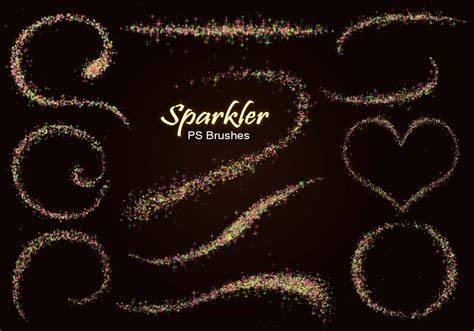
To maximize efficiency, keep a well-organized brush library and save preferred settings as presets. This allows you to rapidly apply consistent glows and sparkles across multiple assets in a project or across multiple projects, maintaining a cohesive visual language.
4 Ways to Paint Stars! Easy Acrylic Painting Ideas for Beginners
In summary, Glitter and Sparkler PS Brushes expand Photoshop’s creative toolkit, enabling designers to simulate star-filled skies, festive glints, and magical trails with practical, repeatable techniques. They are an essential resource for anyone dealing with night-time imagery, decorative design elements, or fantasy aesthetics.