Google Slides does not have a built-in curve text feature, but you can achieve curved text through a few practical workarounds. This guide compiles the most effective methods to bend text for titles, logos, or creative headings, making your slides more engaging without heavy tools.
1) Word Art to Create Curved Text
Word Art lets you add text with a bit more flexibility than regular text boxes. Input your text as Word Art and manually adjust its shape to mimic a curve. This method keeps your content editable and integrates smoothly with existing slide elements.
In Google Drawings you can design curved Word Art and import it into your slide, preserving vector-like quality when scaled. If you’re aiming for precise curves, this technique provides an approachable balance between editability and visual fidelity.
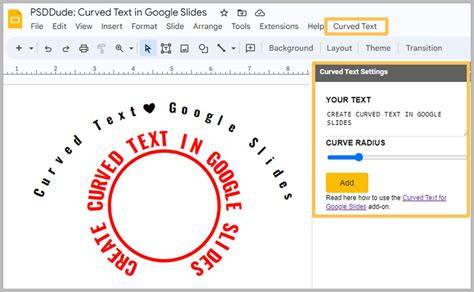
2) Use Curve Text Generators and Import as Images
Use online Curve Text Generators to create curved text, then insert the output as an image into your slide. This approach yields clean curves and consistent results across slides, though the text becomes non-editable as an image.
When choosing fonts for curved text generated externally, pick bold, sans-serif options (e.g., Arial, Roboto) for readability on curves. Export images at high resolution to avoid blurriness in Slideshow mode.
How to Curve Text in Illustrator — Fast & Easy (2025)
3) Design Curved Text in Google Drawings and Import
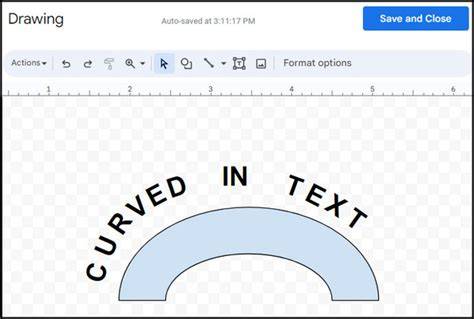
Google Drawings offers flexible text shaping capabilities. Design your curved text in Drawings, then insert or import the drawing into Google Slides. This method preserves more control over letter spacing and curvature than naively rotating single text boxes.
To optimize, create a curved text path in Drawings, align it with your slide’s composition, and export as PNG with transparent background if you need to blend it with the slide background.
4) Third-Party Add-ons for Easy Curving
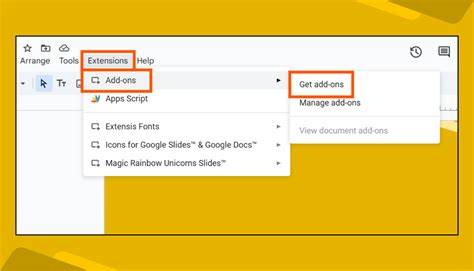
Add-ons like “Text Curver” can help bend text more easily inside Google Slides. These tools extend native capabilities, enabling smoother curves and often offering presets for common curved layouts. After generating the curved text, import or paste it into your slide as needed.
When using add-ons or external tools, ensure consistency with your theme (colors, fonts) to maintain a cohesive look across slides. If you edit the curved text later, you may need to re-run the process and re-import the updated asset.
5) Native Workarounds within Google Slides
While Google Slides lacks a direct curve text feature, you can approximate curved text by using multiple text boxes rotated to form a curve. Segment your phrase into words or small clusters, duplicate the text boxes, and rotate them by small angles (e.g., 5-10 degrees) to trace a circular or arc shape. Use alignment guides to keep baseline consistency and adjust kerning visually for readability.
Another native approach is to rotate a text box and position it along an invisible arc. This method works best for short headings and creates a handcrafted, organic feel that remains fully editable within Slides.
For longer phrases or more complex curves, combining several methods (text boxes plus occasional imported curved assets) often yields the best balance of editability and polish. If you need to reuse curved text across many slides, consider Automations or Apps Script to place letters along a path, though this can introduce manageability trade-offs since each letter may become its own object.
Practical tips
- Use bold, clean fonts for curved text to maintain legibility on a curve.
- Avoid overly long phrases on a single curve; break them into segments for better balance.
- Export external curved text as high-resolution PNGs with transparent backgrounds to blend with slides.
- Always check in Slideshow mode to ensure the curve reads well on the screen you’ll present from.
As you choose a method, consider your priority: native editability, precise curvature, or fastest turnaround. The precision method via PowerPoint vector import remains the gold standard for exact curves, while the native workarounds in Drawings or multi-box rotations offer the most convenient path within Google Slides itself. Third-party tools provide powerful shortcuts but require careful color and font matching to your theme.
Whether you’re designing a bold title, a logo-like heading, or decorative emphasis, bent text can elevate your slide aesthetics and captivate your audience when used thoughtfully and consistently.