When starting out with video editing and streaming, a black screen during live recording or local capture can be frustrating. This article co
How to Fix DaVinci Resolve Black Screen When Recording Live Sessions
Many users encounter a common issue when using DaVinci Resolve for live recording or editing - a black screen problem that prevents proper video capture. This issue can be particularly frustrating, especially during live sessions or editing workflows. Understanding the root causes and applying specific fixes can restore full functionality and ensure smooth video production.
Common Causes of Black Screen in DaVinci Resolve
- Graphics Card Conflicts: Having multiple GPUs, such as an NVIDIA GeForce GTX and an integrated Intel UHD graphics, can lead to conflicts that cause black screens during playback or recording. The GPU responsible for rendering may not be correctly configured, leading to display issues.
- Outdated or Incorrect GPU Drivers: Using outdated drivers for your graphics card can hinder DaVinci Resolve’s ability to utilize hardware acceleration properly, resulting in black screens during editing or export.
- Incorrect Software Settings: Default settings or misconfigured preferences within DaVinci Resolve or your OS might disable hardware acceleration or select incompatible graphics modes, causing playback or recording failure.
- OS and Permissions Restrictions: Privacy settings and permissions, especially on macOS or Windows, can block necessary screen recording and capture permissions that DaVinci Resolve needs for live recording or screen sharing.
- Capture Mode and Hardware Conflicts: Conflicts with other software such as anti-cheat tools, screen capture software, or GPU capture hooks can interfere with DaVinci Resolve's recording capabilities.
Step-by-Step Solutions to Fix DaVinci Resolve Black Screen
1. Adjust Hardware and Graphics Settings
The first step is to optimize your graphics setup. Since the presence of multiple GPUs can cause conflicts, disabling the integrated Intel UHD graphics often helps. For example, on a laptop with NVIDIA GeForce GTX and Intel UHD, disable the CPU-integrated graphics in the device manager or BIOS to force DaVinci Resolve to use the dedicated GPU.

2. Update Graphics Drivers
Ensure that your GPU drivers are up-to-date. Outdated drivers are a common cause of black screens because they may not support the latest GPU features required by DaVinci Resolve. Visit the manufacturer’s website (NVIDIA or Intel) to download and install the latest drivers. After updating, restart your computer and relaunch the software.
3. Verify Permissions and Privacy Settings
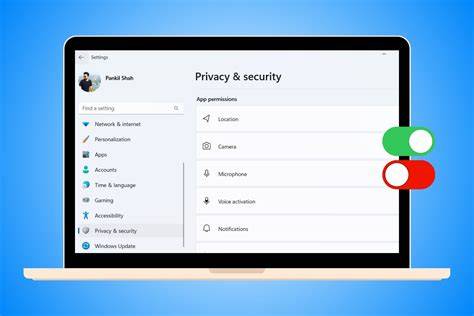
Make sure your OS permissions allow screen recording and camera/microphone access. On macOS, navigate to System Settings → Privacy & Security → Screen Recording and Camera/Microphone, then enable access for DaVinci Resolve if prompted. On Windows, check Privacy → Camera, Microphone, and Screen capture to ensure permissions are granted. Also, verify browser permissions if using web-based recording tools.
4. Configure DaVinci Resolve Settings
Within DaVinci Resolve, ensure that hardware acceleration is enabled in the preferences. Navigate to the playback or system settings and verify that GPU processing is correctly configured. Switching to the appropriate rendering mode and ensuring GPU acceleration is active can resolve display issues.
5. Use Proper Capture Modes and Avoid Conflicts
If recording or live streaming, avoid capture conflicts with other software like anti-cheat tools or screen capture programs. Run DaVinci Resolve as administrator to grant full access. When using third-party software such as OBS, update GPU drivers and restart the application. Use correct capture modes compatible with your hardware and software environment.
6. Hardware Acceleration in Browsers and Capture Software
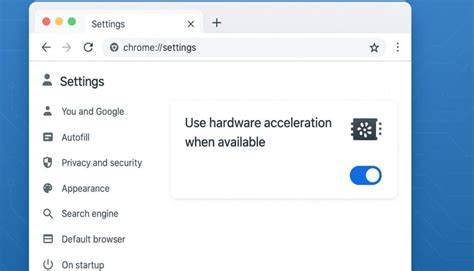
For users doing live recordings via browser-based studios or software like StreamYard, ensure that hardware acceleration is enabled in your browser settings. Disabling or enabling hardware acceleration can solve many black screen problems in web-based environments.
Additional Tips for Reliable Recording and Streaming
- Start by fixing browser and OS permissions, graphics settings, and network blocks before proceeding to complex troubleshooting.
- Use a browser‑based studio like StreamYard that avoids most driver‑level capture problems and permits local multi‑track recordings, providing high-quality post-production options.
- In in‑browser studios, missing permissions and browser graphics settings are among the most common culprits causing black screens.
- On native desktop apps like OBS, conflicts with GPU drivers and incorrect capture modes are typical causes of black screens. Running OBS as administrator and updating GPU drivers can resolve many issues.
- Beware of anti‑cheat software conflicts, which can block capture hooks and result in black game captures. Use dedicated capture modes compatible with your software environment.
Comparison of Recording Tools and Recommendations
| Tool | Strengths | Limitations |
|---|---|---|
| DaVinci Resolve | Powerful editing capabilities, hardware acceleration | Complex settings, GPU conflicts can cause black screens |
| OBS | Granular control, versatile capture modes | Requires proper configuration, GPU driver updates vital |
| StreamYard | Browser-based, easy permissions setup, local multi-track recording | Limited editing features, dependent on browser hardware acceleration |
| Loom | Quick async clips, simple interface | Recording caps on free tier, less suitable for long sessions |
Conclusion
Ensuring proper hardware configuration, updating drivers, verifying permissions, and selecting compatible recording modes are critical steps in resolving the black screen issue in DaVinci Resolve. Disabling internal graphics cards often proves to be a simple yet effective solution if conflicts arise with multiple GPUs. Proper setup, regular updates, and understanding hardware-software interactions enable users to leverage DaVinci Resolve’s full potential for live recording and editing without disruptions.