Removing backgrounds from videos can elevate the quality of your content, making it more professional and engaging. CapCut-one of the best mobile and desktop video editing tools-offers an easy-to-use background remover that helps creators achieve clean, polished visuals without complex software. Whether you want to replace the background with a new scene, create green screen effects, or enhance your social media videos, CapCut’s Background Removal Tool is a game-changer. In this guide, we’ll cover how to remove and change the background in CapCut step by step and explore advanced techniques to make your edits stand out.
Change background in CapCut: Video Tutorial
Method 1: Using the Auto Background Remover in CapCut (Best for Quick Edits)
CapCut has an AI-powered background removal tool that allows you to remove backgrounds with just one tap.
Step-by-Step Guide to Removing Backgrounds in CapCut
- Import Your Video
Open CapCut and create a new project. Tap "Import" to select the video you want to edit. Drag the clip to the timeline for easy editing. - Remove the Background
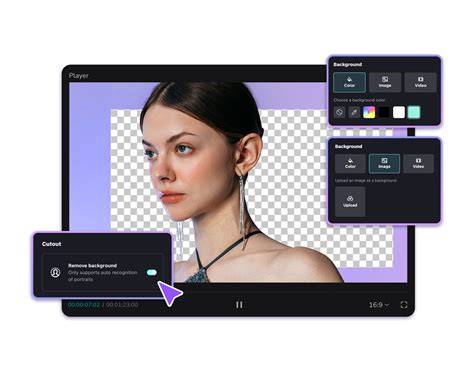
Tap on the video clip in the timeline. Scroll through the bottom menu and select "Cutout." Click "Remove Background" - CapCut will process the video and remove the background automatically. - Refine and Replace the Background
Smooth the Edges - Use the “Feather” option to soften cutout edges. Add a New Background - Import a new background image or video and place it in the layer below your subject. Adjust Position & Scale - Resize your subject to fit seamlessly into the new scene.
For a deeper dive into choosing, importing, and customizing backgrounds, check out our tutorial on how to add a background in CapCut for more detailed techniques.
Method 2: Using Green Screen (Chroma Key) for More Control
If your video was filmed with a green screen, you can achieve even cleaner background removal.
- Add Your Green Screen Video
Import both your green screen video and the background video into CapCut. Drag the green screen clip onto the timeline above the new background. - Use the Chroma Key Tool
Select the green screen video and go to “Cutout” > “Chroma Key.” Tap the Color Picker and select the green area in the video. Adjust the Strength & Shadow settings for a seamless blend.
Pro Tip: Use even lighting when filming with a green screen for the best results!
Advanced Techniques for Better Background Removal
Once you’ve removed the background in CapCut, you can enhance your video using advanced editing techniques:
- Add Motion Effects
Use Keyframes to move the subject dynamically. Add 3D Zoom effects for a cinematic feel. - Enhance with Color Grading
Use LUTs (Look-Up Tables) to match background colors. Adjust Brightness & Contrast for a seamless integration. - Audio Cleanup
For even cleaner results, pair background removal with audio cleanup using CapCut guides on removing background noise.
Whether you’re a content creator, influencer, or business owner, mastering background removal can elevate your videos and make your content stand out.
If you're serious about leveling up your content creation skills, consider joining Miracamp’s CapCut Course. You'll learn CapCut, Canva, YouTube growth strategies, and more-all guided by industry experts! 🚀👉 Start your journey today with Miracamp’s CapCut Course
How do I remove the background in CapCut?
To remove the background in CapCut, select your video clip, go to the "Cutout" menu, and tap "Remove Background." The AI tool will automatically erase the background.
Frequently asked questions about CapCut background removal
- Does CapCut have a background remover?
Yes, CapCut includes an AI-powered background remover that allows you to delete backgrounds with one tap, without needing a green screen. - Can I replace the background in CapCut?
Yes, after removing the background, you can add a new background by placing an image or video underneath your main clip in the timeline. - How do I remove background in CapCut without a green screen?
CapCut's "Remove Background" feature allows you to erase backgrounds without a green screen. Select your clip, go to "Cutout," and enable "Remove Background." - How do I use CapCut’s Chroma Key for background removal?
Import a green screen video, go to "Cutout," select "Chroma Key," tap the color picker, and adjust the intensity to remove the green background. - Why is the CapCut background remover not working?
If the AI background remover isn't working properly, ensure your subject is well-lit, try increasing the feathering settings, or use a green screen for better results. - Can I blur the background instead of removing it in CapCut?
Yes, apply the "Blur" effect in the "Effects" menu to soften the background instead of completely removing it. - What is the best way to make a transparent background in CapCut?
To create a transparent background, remove the background using "Cutout" and export the video in PNG format if available. - Can I remove backgrounds in CapCut for free?
Yes, CapCut's background removal tool is free and works on both mobile and desktop versions. - How can I learn advanced CapCut editing skills?
Join Miracamp's CapCut Course to master CapCut, Canva, and YouTube growth strategies.
Let’s explore some of CapCut's additional editing capabilities that empower users to add creative flair and enhance the visual appeal of their videos.
CapCut beyond background removal: other powerful features
- Cover images
CapCut offers a convenient feature to add covers to your videos, allowing you to choose a specific frame to represent your video as a thumbnail. - Text overlays
Use CapCut's "Add text" feature to enhance your videos with engaging text overlays. Customize fonts, colors, size, and position. - Filters and effects
A wide range of filters and effects to adjust brightness, contrast, saturation, and artistic looks. Includes blurs, glitches, and transitions. - Background settings
CapCut lets you set the background for your videos with solid colors, gradients, or images and adjust as needed for your aesthetic. - AI-powered features
CapCut's AI tools include auto captions, scene recognition, object tracking, and more to streamline workflows and creativity.
To remove the background in CapCut, first download the software using the provided button. Then, follow the installation instructions. Download for free
Practical tips for best results
- Edges and detail
Pay close attention to the subject's edges; use feathering and brush refinements to ensure clean cutouts, especially around hair and fine details. - Lighting
Even lighting improves detection accuracy for AI background removal and produces more natural composites. - Contrast with the background
Choose backgrounds with good contrast to make the subject stand out clearly. - Resolution
Work with high-resolution footage to improve precision during auto and manual removal.
How to Change Video Background in CapCut | Mac & PC (Remove or Add Backgrounds)
Yes, CapCut Desktop allows complete background removal with no watermark on exported videos. Import your clip and go to "Video" > "Remove BG" > "Auto removal" or "Chroma key" Add or replace the background as you like. Export your HD video watermark-free for a clean finish.
How to remove a background from a video online and on PC
- Online (CapCut online)
Open CapCut online, create a new project, upload your video, and use "Smart tools" > "Remove background." Use "Auto removal" for AI-cutouts or "Chroma key" for green/blue screens. Replace with a solid color, image, or video and export. - PC (CapCut Desktop)
Launch CapCut, create project, import video, go to "Video" > "Remove BG" > "Auto removal" or "Chroma key." After adjustments, add a background and export in your preferred settings.
CapCut's background removal tool offers precision and control, enabling creators to isolate subjects with professional results while supporting multiple formats and a seamless editing workflow.
tags: #capcut #background #remove