InDesign users often need to work with different color modes, especially when preparing documents for printing. The color mode options are accessible through the Swatches panel and Swatch Options, allowing you to switch between RGB and CMYK as needed.
Accessing Swatch Options
When you select an existing swatch or click Create New Swatch, a Swatch Options menu opens. In this menu, you’ll find the Color Mode pull-down with multiple choices, including CMYK and RGB.
To change the color mode, open the Swatch Options and look for the Color Mode control. It may appear at the top of the palette, but you might need to scroll up to reveal the full set of options. The option is still in the same place; scrolling is sometimes required to view all color modes.
Steps to Use CMYK in InDesign
- Open the Swatches panel from Window > Color > Swatches or Window > book > Swatches, depending on your workspace.
- Click on an existing swatch or choose New Swatch to open the Swatch Options dialog.
- In the Color Mode pull-down, select CMYK.
- Assign the desired CMYK values (C, M, Y, K) and click OK.
- Apply the swatch to your objects as needed, or create new CMYK swatches for future use.
Note that changing the color mode in a swatch affects how you define the color, but it does not automatically convert all existing RGB artwork to CMYK. You may need to convert or adjust artwork to CMYK to ensure accurate printing results.
Working with RGB vs CMYK
RGB is typically used for on-screen design and digital output, while CMYK is the standard for commercial printing. When preparing a document for print, many designers convert colors to CMYK to better predict print results and maintain color consistency across materials.
Practical Tips
- Always check your document’s color settings before sending to print: File > Document Setup or Color Settings may influence how colors render.
- Use few CMYK swatches to maintain color consistency and simplify proofing.
- Be aware of color profiles and printer-specific adjustments that can affect final output.
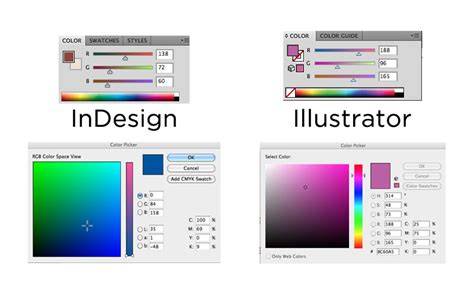
How to use the Color, Swatches, and Gradient Panel in Adobe™ InDesign™
In summary, you can change the color mode in InDesign via Swatch Options, using the Color Mode pull-down to switch between CMYK and RGB. If the option isn’t immediately visible, simply scroll within the Swatch Options dialog to reveal all available color modes.