Photoshop opens a world of digital editing possibilities, from basic adjustments to intricate composites. This guide distills core techniques that help you start editing photos, textures, shapes, and line drawings with confidence, using the fundamentals of layers, masking, and interactive tools.
Understanding layers and non-destructive editing
Layers are like clear sheets you can lay over background layers or images. Working in layers allows you to add and adjust different elements like portions of photos or text. You can add images, textures, colors, and text to one layer without affecting the content in the layers below it, so you can undo or adjust any moves you make that you’re not happy with.
Click the Create a New Layer button in the Layers panel or choose Layer › New › Layer from the top menu. Import the file.
Let’s say you’re creating a postcard from a perfect beach photo you captured. To add the photo, drag and drop a JPEG or PNG photo file from your desktop into your Photoshop project. Reposition and resize it. Click and drag the corners or edges of your photo to make it larger or smaller. Press Enter or Return. Photoshop will automatically turn the layer into a Smart Object layer.
Working with layer masks
A layer mask allows you to control what to hide and what to show on a layer. Let’s say you want to add someone who wasn’t there to your beach postcard photo. Set up the photo. Drag and drop a photo of the person (or pet) you want to add. Make your selection. Click the layer with your subject - the layer you want to mask - in the Layers panel. Select your subject. Click Select Subject in the options bar. Photoshop will automatically select the most prominent subjects in the image. Note that the layer mask thumbnail will appear next to the image thumbnail in the Layers panel. The selection will appear white against a black background.
Refine your selection. Use the Add or Subtract buttons to add or take away pixels from your selection. You can also click Refine Hair and Photoshop will automatically find and refine difficult hair selections.
Removing unwanted elements
One easy way to use Photoshop is to remove things like garbage bins, power lines, and photobombers from your pictures. Select the Spot Healing Brush tool. Click the Spot Healing Brush tool in the Tools panel or just press the J key. In the options bar, you can adjust the size and hardness of the brush edge (harder creates more clearly defined edges).
Adding creative elements and text
Pick your subject and add elements to enhance the scene. Pick your spot. Click on the image where you want to place the type. Edit. Highlight the text to make style changes. Paint a picture on your picture. Maybe you want to add a cartoon umbrella, or your beach photo looks a little too wonderful and you want to limit your viewers’ FOMO by drawing a shark in the water. Paint, draw, or play with shapes. To save a file, go to the File menu and select any of the Save commands: Save, Save As, or Save a Copy. You can save to cloud documents or save on your computer. You can also export your PSD to another file type, like JPEG, PNG, or PDF.
Neural Filters and intelligent edits
Neural Filters are smart filters that use the power of Adobe Sensei AI technology to make quick, automatic edits to images. To select a filter, click Choose Filter › Neural Filters from the top menu in Photoshop. Download the filter of your choice if it’s not already installed, then adjust its settings as you like.
Practical workflow tips
- Organize: keep related elements on separate layers and group them for easier management.
- Non-destructive edits: prefer adjustment layers and masks over pixel-level changes whenever possible.
- Smart Objects: convert imported images to Smart Objects to preserve quality during scaling.
- Shortcuts: learn essential shortcuts (e.g., J for Spot Healing Brush, V for Move, Ctrl/Cmd+T for Transform) to speed up edits.
Example workflow: creating a beach postcard
1) Import the beach photo as a Smart Object. 2) Add a second image (a person or shadow) as a new layer and mask it to blend naturally. 3) Remove distractions with the Spot Healing Brush. 4) Add text and a decorative element, adjusting blending modes and opacity. 5) Apply a Neural Filter for a subtle enhancement if desired. 6) Save or export the final composition as JPEG, PNG, or PDF.
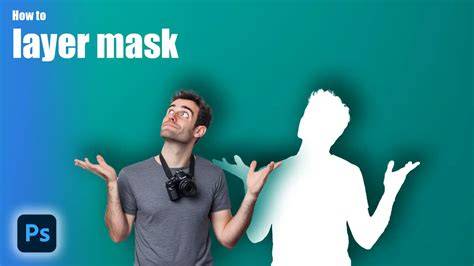
Photoshop LAYERS AND MASKS Tutorial for Beginners | Photoshop for Architecture Tutorial #1
Ultimately, mastering layers, masks, and selective editing unlocks a flexible, reversible workflow that supports confident artistic experimentation. By combining simple adjustments with intelligent filters, you can transform ordinary photographs into polished, creative images ready for sharing or printing.