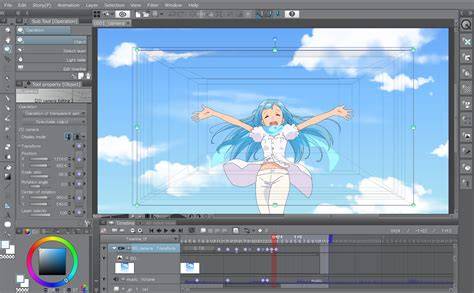
Clip Studio Paint can import WAV, MP3, and OGG audio into an animation timeline, but users often encounter situations where the audio appears as a blank layer, the waveform is visible, yet nothing plays. This guide compiles practical steps and common fixes drawn from community discussions and user experiences to help you diagnose and resolve audio playback issues in Clip Studio Paint.
Understanding the common symptoms
WAV and OGG formats import and create an audio layer on the timeline, but the audio may not be audible during playback. The waveform may or may not display, and sometimes the audio is audible only after certain actions or in specific conditions. Users report issues such as: the audio layer appearing blank, playback not producing sound, or audio working inconsistently across sessions or devices.
Real-time playback settings and bit-depth/format compatibility are frequently mentioned factors. Some users notice that audio plays only after enabling real-time playback or after updating to a specific WAV configuration. Others report variability between sessions, suggesting potential software quirks or configuration dependencies.
Preliminary checks you should perform
- Verify the file format compatibility: Clip Studio Paint supports WAV, MP3, and OGG formats. Ensure your file is one of these supported types.
- Check the timeline state: Ensure the timeline is enabled for audio playback and that the audio layer is properly created in the timeline with a valid import.
- Inspect the volume and mute states: Confirm that the overall project volume is not muted and that the specific audio track or tool property volume is not set to zero.
- Test a basic playback configuration: Try a simple WAV file with standard settings (uncompressed 16-bit WAV) to rule out file-specific issues.
- Confirm real-time playback setting: Many users report that enabling Play in Real Time in the Animation Settings resolves playback in the timeline.
Additionally, if the waveform does not appear, or if the waveform is present but silent, consider whether the issue could be related to a specific file or a broader software setting rather than the project alone.
Step-by-step fixes that have helped users
- Open the animation file and the timeline. Right-click the audio track in the timeline and choose Import Audio File, then select your file and confirm it appears on the timeline. Adjust the length with the corner handles as needed.
- Confirm the file is a 16-bit WAV file if you’re using WAV format, as some users find 16-bit WAV to be more reliably playable in the timeline.
- Enable Play in Real Time: Go to Settings of Animation and check PLAY IN REAL TIME to hear the audio during playback. This setting has been reported as a key factor in making audio audible in the timeline.
- If audio still doesn’t play, perform a full reinstall or a clean uninstall followed by a fresh install. Some users report better results after removing all related components before reinstalling.
- Test other audio formats (MP3, OGG) to determine whether the issue is format-specific. If one format consistently fails, try converting to WAV and re-importing.
- Check for software updates or official guidance from CELSYS support, especially if the issue appears across multiple sessions or projects. Community feedback often notes that problems may be resolved by updates or patches.
In several reports, users observed that audio playback began to work after performing a sequence of steps, sometimes seemingly random, such as restarting Clip Studio Paint or the computer, or re-importing the audio file after a fresh startup. While these anecdotal fixes are not guaranteed, they illustrate the variability of CSP’s audio subsystem and the importance of testing across sessions and files.
Practical workflow tips for reliable audio use
- Keep a small set of tested audio files (e.g., WAV 16-bit) known to work in CSP for testing timeline behavior after changes or updates.
- Always verify the timeline’s audio is not muted and that the correct audio layer is selected for playback.
- Use real-time playback consistently when previewing animations with sound to ensure alignment between audio and frames.
- Consider exporting a video with audio to verify that the audio is properly embedded, in case timeline playback remains silent.
Additional considerations mentioned by the community
Some users note occasional inconsistencies in CSP’s audio behavior, reporting that audio works on some sessions and not on others. In these cases, user feedback recommends ensuring the latest version of Clip Studio Paint is installed and performing a thorough cleanup if issues persist. Importantly, some discussions emphasize validating that the volume control within the Tool Property palette is not set to zero, which would explain silence despite otherwise correct settings.
Table: common formats and playback outcomes
| Format | Reliability | Notes |
|---|---|---|
| WAV 16-bit | High | Most recommended for CSP timeline playback |
| WAV 8-bit | Medium | May require additional checks; some issues reported |
| MP3 | Variable | Works for import; playback sometimes unreliable on timeline |
| OGG | Medium | Supported, but some users encounter silent playback |
If you follow the steps above and still do not hear audio on the timeline, the issue may be related to a bug or an account-specific setting. In such cases, consider reaching out to customer support with details about your file formats, CSP version, operating system, and a reproducible set of actions that lead to the silence.