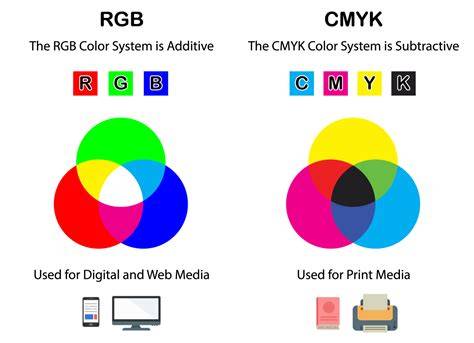
Having a basic understanding of color is the key to confidently creating documents for print or digital in InDesign. ‘RGB’ stands for Red, Green and Blue. Because RGB color is created via colored light, not colored ink, it is optimised for digital and web design, not print design. So, you should only be looking to use an RGB Color Mode when creating designs for digital publishing (e.g. eBooks) or for online use.
CMYK stands for Cyan, Magenta, Yellow and Key (which is Black). When you set colours in your InDesign document to CMYK color swatches, you create a Process Separation. What does this mean? This means that all the CMYK colours on your layout will be printed onto one plate during the printing process, in one single print run. Because CMYK color can be printed in one go, on a single print run, this keeps the printing process efficient and the cost of the print job low (depending on the print volume).
OK…so what’s a Spot Color? When you define a color in your InDesign document as a Spot Color, the color will be pulled onto a separate printing plate and the color will have to be printed during a separate print run. Pantone is an international color-matching system, that gives standardised colour pigments a unique number. Pantone colours are more complex than CMYK colors, and can be made up from a combination of 13, rather than only 4 (for CMYK), base pigments.
If you’re creating an InDesign layout that uses more than three colours you shouldn’t normally need to use any Spot Color, unless like we’ve just talked about, if you want to create a particularly special color effect with a Pantone, metallic or fluorescent. This is because the printer would have to perform a separate, additional print run for each Spot Color you apply to the document. This adds time and money to the print job. If you do want to use a Spot Color in your design and keep your printing costs down, the best thing to do is create a black and white document which just uses one single pop of color, which you can set as a Spot Color.
And the other key thing to remember is that you should never print in RGB color, unless you want some very unpredictable results. By choosing Print from the Intent drop-down menu, InDesign automatically sets the Color Mode of the new document to CMYK. As you work on your print documents you need to keep an eye out that you’re sticking to CMYK colours.
How to Make Sure You are Working with CMYK
When preparing a file for print, it is best to be sure you are using the CMYK color mode to get the best results. When possible, try to make sure you are designing with CMYK at the beginning of the design process. We have created a handy-dandy guide to show you how to make sure that you are working in the CMYK space. If you would like to bone up on your color chops, be sure to check out our guide to RGB vs CMYK!
Below are instructions and screenshots for navigating your way to using CMYK color for Adobe Illustrator, Adobe Photoshop, and Adobe InDesign. The images below come from a Mac, but if you are using Windows, the same steps apply.
Change Color Mode to CMYK in Adobe Illustrator: Click “File” at the upper left corner of the taskbar, and select “Document Color Mode” near the bottom of the menu. Next, simply select “CMYK Color”.
In Adobe Photoshop: Click “Image” near the upper left corner of the taskbar, and select “Color Mode”. Next, simply select “CMYK Color”.
In Adobe InDesign: Click “Window” near the right side of the taskbar, highlight “Color” on the dropdown menu, and then select “Color” in the next menu. Next, on the Color box that will appear, click the icon in the upper right corner of the box (with 4 horizontal lines) and select “CMYK”.
It is also worth noting that when you start a new document in InDesign you have the option of creating a document for print or web. When creating a new document, you will be prompted with the box you see below. If you select “Print” at the top of the screen as you see highlighted here, your document will automatically use the CMYK color mode. If you select “Web”, your document will use the RGB color mode.
There you have it!
Color Management and Working Across Platforms
InDesign doesn't have a single document color mode. The New Document and Document Setup dialogs have the intent option, which will convert the existing swatches and colors to the intended color space, but any document allows you to have a mix color spaces-CMYK, RGB, Lab, Mixed Ink. The initial color mode you get when you choose New Swatch from the Swatches panel depends on the current mode you have set in the Color panel.
The Color panel's initial application default setting can be set with no documents open. So here my New Swatch dialog is defaulting to Lab because my Colors panel is set to Lab. You can't set the default New Color Swatch to a Pantone book color, if the Color panel is set to a book Pantone color the New dialog will usually give you a Lab color, which is the color mode of Pantone's solid libraries. This is important when you plan colorwork across print and brand guidelines.
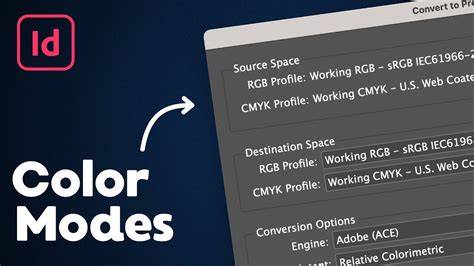
Color management during printing ensures your document colors remain as consistent as possible when output to different devices. You can convert document colors to match your printer's color space, proof colors for specific output conditions, or use PostScript color management for compatible devices. Use these procedures when printing color-managed documents to desktop printers, proofing devices, or PostScript output devices. Color management options let you override the document profile temporarily for a specific print job without changing the document itself.
When preparing a file for print, it is best to be sure you are using the CMYK color mode to get the best results. When possible, try to make sure you are designing with CMYK at the beginning of the design process. We have created a handy-dandy guide to show you how to make sure that you are working in the CMYK space. If you would like to bone up on your color chops, be sure to check out our guide to RGB vs CMYK!
How to Get Brighter Prints for Your Print on Demand Products - RGB vs CMYK
There you have it!