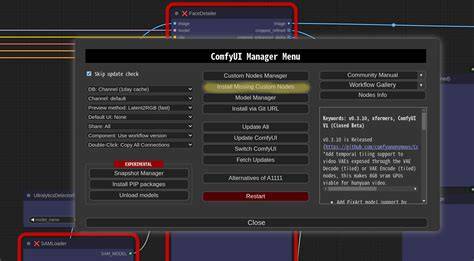
ComfyUI is a powerful graphical workflow tool for Stable Diffusion that features a rich and diverse node system, enabling creators to build complex AI image generation pipelines. However, this diversity also brings a common issue: when opening workflows shared by others, you’ll often encounter “Red Box Errors,” indicating that your ComfyUI environment is missing specific nodes required by the workflow. Manually finding, downloading, and installing these missing nodes can be time-consuming and tedious, especially for beginners. Fortunately, ComfyUI has a robust plugin system, with ComfyUI Manager serving as a core plugin that helps you easily manage and install necessary nodes and models. This article will explain in detail how to use ComfyUI Manager to quickly resolve missing node issues in workflows, making your creative process much smoother.
What is ComfyUI Manager and why it matters
ComfyUI Manager is one of the first components you should add after installing ComfyUI - it’s absolutely essential.
It acts as a central hub for discovering, installing, updating, and removing nodes and models required by various workflows. By consolidating node management into a single interface, Manager reduces friction and helps you avoid manual search across multiple sources.
Key capabilities of ComfyUI Manager
- Automatic detection of missing nodes when opening a workflow
- One-click installation of required nodes and associated models
- Version control to ensure compatibility with your current ComfyUI build
- Integration with a curated repository of community-developed nodes
- Easy updates and clean uninstallation to keep your environment tidy
Step-by-step: fixing red box errors with ComfyUI Manager
- Open the workflow that presents red box errors. The UI will typically highlight missing nodes or display a warning panel.
- Launch ComfyUI Manager from the main interface. If you don’t see it, ensure the plugin is enabled in your settings and restart ComfyUI.
- Use the Manager’s “Missing Nodes” or equivalent diagnostic feature. This will enumerate the exact nodes your workflow requires but cannot find locally.
- Review the suggested installations. Manager will present compatible node packages and versions that satisfy the workflow’s dependencies.
- Click to install the recommended nodes and, if prompted, any specific models. Wait for the installation to complete and verify there are no conflicts.
- Reload or reopen the workflow. The red box errors should disappear if all required nodes are now present and correctly wired.
Tips for smooth installations
- Prioritize installing the minimum set of nodes needed by the workflow to reduce bloat and potential conflicts.
- Keep ComfyUI and Manager updated to access the latest compatibility fixes and new nodes.
- When a workflow requires a model, ensure you have sufficient disk space and the model version matches the workflow’s expectations.
- If a node fails to install, check the Node’s compatibility notes within Manager and consider trying a different, compatible version.
Managing versions and compatibility
Compatibility is essential in a modular system like ComfyUI. Manager helps by presenting version recommendations and ensuring that installed nodes align with your current ComfyUI build. If a workflow targets a newer node version than your installed one, you may encounter errors even after installation. In such cases, consider updating ComfyUI or searching for a compatible node set within Manager.
Best practices for a stable workflow environment
- Maintain a lean core by installing only needed nodes for active projects.
- Create a small baseline workflow with frequently used nodes to test Manager’s behavior after updates.
- Regularly back up your node configuration and custom pipelines to recover quickly from any misconfigurations.
- Leverage the community forums or documentation accompanying Manager for notes on known compatibility issues.
When to manually intervene
There are scenarios where Manager might not fully resolve missing dependencies, such as highly customized forks or workflows built with niche nodes. In these cases, you may need to manually locate and install specific node packs or models from trusted sources. Always verify compatibility and provenance before adding third-party components.
A practical checklist
- Confirm the exact nodes reported as missing by the workflow.
- Open ComfyUI Manager and locate the corresponding node packs or models.
- Install, verify, and test incrementally by reloading the workflow after each step.
- Document any persistent issues and consult community resources for guidance on compatible alternatives.
Extensions: using Manager with large pipelines
For more complex workflows that rely on a large set of nodes, Manager’s batch install and version management features become especially valuable. Batch installs can speed up setup for new projects, while version pins help prevent unintentional breakages when upstream updates are released.
Visualizing dependencies
When dealing with long pipelines, it can be helpful to map node dependencies to ensure you haven’t missed any required components. Manager’s interface often provides insight into how nodes connect within a given workflow, aiding in troubleshooting and optimization.
Example workflow scenarios
In typical cases, you might receive red box errors due to missing normalization nodes, custom samplers, or specialized control nodes. By following the steps outlined above and leveraging ComfyUI Manager’s diagnostic capabilities, you can rapidly restore full functionality and proceed with pipeline experimentation.
Table: common missing node types and corresponding fixes
| Missing Node Type | Recommended Action | Notes |
|---|---|---|
| Normalization nodes | Install normalization pack via Manager | Check version compatibility with Stable Diffusion model |
| Custom sampler nodes | Install sampler pack; ensure GPU compatibility | Some samplers require specific CUDA versions |
| Control/logic nodes | Install control node pack from trusted source | Avoid unstable forks |
| Model-specific nodes | Install required models first, then dependent nodes | Model size can be large |