Copying and pasting color effects in Premiere Pro is a great way to save time and ensure consistency when editing multiple clips. There are two main methods for copying and pasting color effects: using Lumetri Color and using the Match Color tool. In this guide, we’ll explore these approaches and practical tips to optimize multi-clip grading.
Using Lumetri Color
Lumetri Color is a powerful color correction tool that is built into Premiere Pro. To copy and paste color effects using Lumetri Color, follow these steps:
- Apply Lumetri Color to the clip with the color effects you want to copy.
- Open the Effects panel and find the Lumetri Color effect.
- Drag and drop the Lumetri Color effect onto the clip you want to paste the color effects to.
- Right-click the Lumetri Color effect in the Effects Control panel and choose “Copy.”
- Right-click in the Effects Control panel and choose “Paste Attributes.”
The color effects from the first clip will be pasted to the second clip.
Using the Match Color Tool
The Match Color tool is a semi-automatic way to copy and paste color effects. To use the Match Color tool, follow these steps:
- Select the clip with the color effects you want to copy and the clip you want to paste the color effects to.
- Right-click the selected clips and choose “Color” > “Match Color.”
- In the Match Color window, you can select the reference frame from the reference clip and adjust the tolerance and contrast settings.
- Click the “Apply” button to apply the color effects from the reference clip to the destination clip.
The color effects from the first clip will be applied to the second clip, but you may need to make some adjustments in the Lumetri Color panel for the destination clip.
Additional Tips
- When copying and pasting color effects, make sure the clips have similar lighting conditions and camera settings for optimal results.
- You can use adjustment layers to apply color effects to multiple clips simultaneously.
- Save color correction presets to quickly apply consistent color grading to multiple clips.
- Utilize the Lumetri Scopes to visually evaluate and refine color correction settings.
Workflows for Multi-Clip Grading
Premiere Pro offers several workflows to apply color grading across many clips efficiently. Each method has its best use case depending on your project scale and editing style.
Method 1: Use Adjustment Layers (Most Efficient)
The most popular method to apply color grading across several clips is with adjustment layers. Steps:
- Go to the Project Panel → click the New Item icon → choose Adjustment Layer.
- Drag the adjustment layer above your video clips on the timeline.
- Extend the adjustment layer to cover all clips you want graded.
- Apply your color corrections or LUTs to the adjustment layer. Any clip underneath inherits the same color grade automatically.
When to use it: Large sequences with many clips; projects where you want the flexibility to disable or tweak the entire grade at once.
Method 2: Copy and Paste Color Grading
If you already graded one clip, you can quickly apply those same settings to others.
- Select the graded clip.
- Press Ctrl/Cmd + C to copy.
- Highlight the target clips → right-click → Paste Attributes.
- Check Lumetri Color in the pop-up window and hit OK.
Pro Tip: Use this method when clips share similar lighting conditions.
Method 3: Apply Color to Master Clips
Master Clip effects let you apply grading directly to a source clip in the Project Panel.
- Select the clip in the Project Panel (not the timeline).
- Go to Effects Controls → apply Lumetri Color.
- Every instance of that clip in your sequence will now have the same grade.
Best for: Multi-cam shoots or repeated B-roll shots.
Method 4: Use Presets or LUTs
If you use the same grading style often, create a preset: Grade one clip using Lumetri Color. Right-click Lumetri → Save Preset. Apply this preset to multiple clips or entire bins. Alternatively, apply LUTs to an adjustment layer for consistency across projects.
Additional notes: You can pair LUT-based grading with adjustment layers for broad consistency, and you can refine with HSL secondary adjustments as needed.
Tips for Better Multi-Clip Grading
- Organize your timeline by stacking similar clips together before applying grading.
- Combine methods: use master clips for global grading + adjustment layers for creative looks.
- Fine-tune individually after global grading by refining exposure or white balance on specific clips.
- Use scopes: rely on the Lumetri Scopes to keep grading consistent across shots.
When refining individual clips, adjusting masks can be crucial for precise localized grading. For more advanced masking accuracy, you can explore masking techniques to control color corrections with professional precision.
Common Mistakes to Avoid
- Overgrading with adjustment layers: small per-clip tweaks may still be necessary.
- Forgetting color space conversions: double-check footage shot in LOG or HDR before grading.
- Ignoring export preview: grading can look different outside Premiere.
- Masks shifting unintentionally when keyframing: ensure the mask stays stable for consistent grading.
Lumetri Color Panel and Scopes
The Lumetri Color Panel houses all color tools. Basic Correction handles input LUTs, white balance, saturation, exposure, contrast, highlights, shadows, whites, and blacks. The Creative tab adds LUTs, faded film, vibrance, and tone controls. Curves provide RGB, Hue, Luma, and saturation adjustments. HSL Secondary allows targeted color edits, while Vignette adds a subtle focus effect. The Lumetri Scopes (Waveform, Parade, Vectorscope, Histogram) help verify exposure and color accuracy across clips. Using scopes is essential to maintain consistency across a sequence, especially when sharing the same grade across many shots.
Color grading in Premiere Pro often begins with a simple color correction and progresses to more creative grading. It is generally best to perform all color changes on an adjustment layer so the original footage remains intact, and to rely on scopes for accuracy across devices and displays.
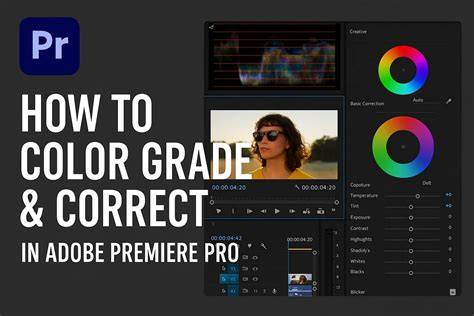
In practice, you might apply color corrections with Lumetri on a base clip, then refine with Match Color or copy-paste methods to other clips. This combination helps maintain a cohesive look while accommodating differences in lighting or camera settings across takes.
Practical Notes and Quick FAQs
- How do I apply color grading to all clips in Premiere Pro? Use an adjustment layer above your timeline. All clips beneath it will automatically inherit the same grading.
- Can I copy color grading from one clip to others? Yes. Select the graded clip, copy it, then paste attributes onto multiple clips and check Lumetri Color.
- What’s the difference between adjustment layers and master clips? Adjustment layers affect timeline clips, while master clips apply grading directly to source footage, impacting all instances of that clip.
- Can I use LUTs on multiple clips at once? Yes, using LUTs on an adjustment layer or by copying LUT-based settings can provide consistent looks across clips.
Color is not only a fundamental part of how we see the world but how we see film and video as well. Different colors can convey a certain feeling or draw attention to specific points on the screen. The Lumetri Color Panel and its scopes empower editors to shape that perception with precision across a timeline of footage.