What if you could make every image you generate conform to a certain style or person? This is exactly what using a LoRA model with Flux AI in ComfyUI does. In this guide, we'll explore how Flux can help you build stronger, more efficient models with ease. Whether you're new to LoRAs or already familiar, you'll discover helpful tips and tricks to make your LoRA models shine. So, are you ready to see some magic in action? Let's dive in!
One-Time ComfyUI Setup
💡Download the workflow and drag & drop it into your ComfyUI window, whether locally or on ThinkDiffusion. If you're using ThinkDiffusion, it's necessary to use at minimum the Turbo 24gb machine, but we do recommend the Ultra 48gb machine.
Custom Node: If there are red nodes in the workflow, it means that the workflow lacks the certain required nodes. Install the custom nodes in order for the workflow to work. Go to ComfyUI Manager > Click Install Missing Custom Nodes. Check the list below if there's a list of custom nodes that needs to be installed and click the install.
Models: Download the recommended models (see list below) using the ComfyUI manager and go to Install models or Model manager (depending on your version). Refresh or restart the machine after the files have downloaded. Go to ComfyUI Manager > Click Install Models/Model Manager. When you find the exact model that you're looking for, click install and make sure to press refresh when you are finished.
💡If you plan to install a flux1-dev-fp8.safetensors using the Comfy manager, choose the Kijai version. It may take longer to be installed because of its 12GB file size.
Datasets Setup
Dataset Collection (images to train on). The key to a great style LoRA is a great dataset. A dataset is your collection of reference images. Some qualities to look for: High resolution images, ideally 1024x1024 or greater. Images with no blur, compression artifacts or noise. Consistent images that represent the style well. Correct ratio with a 1:1 ratio is required. It can resize multiple images to any specific dimension and crop images if necessary.
ThinkDiffusion Directory Path Input: Using your collected images for the dataset (about 10-20 images is a good starting point), upload it to …comfyui/datasets/<new FOLDER of LORA>. If there’s no datasets folder, create it manually and create a new folder of LoRA inside of it. The collected images that will be used as an Image Dataset. Copy the File Path. Paste the copied File Path to the TrainDatasetAdd node in ComfyUI and place it into the first text box. The second box is for trigger word.
Output: Go to …/comfyui/outputs directory. Create a new LoRA folder within the outputs folder, this folder is where your generated LoRA will be saved. Copy the File Path of your created LoRA folder. Go to Init Flux LoRA Traning node in ComfyUI. Paste the copied File Path into the output_dir widget.
Write the Training Prompts: Write 4 prompts that each use the trigger word in them. Each prompt can describe a different scene that you would like to see along with your model. Separate each prompt by a vertical bar symbol.
Tips for Effective Flux LoRA Training
- network_dim is strength of the model in displaying the concepts trained within or the size of trained features, while network_alpha controls how many of the features will appear in the model.
- Recommended values:
- logo and objects: network_dim [10-15], network_alpha 10-2
- character: network_dim [16-32], network_alpha 20-3
- style: network_dim [32-50], network_alpha 2-0
- Recommended quantity:
- logo and objects - 10 images at 2000 training steps
- character - 10-20 images at 2000 training steps
- LoRA Type - Style LoRA
- Trigger Word - danmumford art
- Base Model - dev-fp8
- Training settings include learning_rate ~0.0004, optimizer (Adafactor recommended), max_grad_norm 1, and a constant lr_scheduler. The number of training steps and dataset size will affect results.
Training Process and Validation
The ComfyUI Flux Trainer wraps Kohya’s training scripts with a tailored UI. The Flux LoRA Training workflow lets you train LoRA and full models within a consistent Python environment, enabling comparisons across settings and easy iteration. The process is typically divided into dataset setup, initialization, and training phases, with validation to monitor progress.
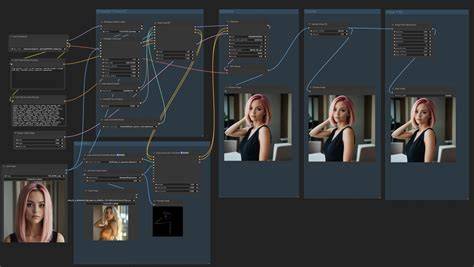
The training process commonly comprises: - Preparing your dataset with high-quality, varied images. - Configuring TrainDatasetAdd with image_dir, class_tokens, and batch settings. - Selecting models (transformer, VAE, CLIP_L, T5) via FluxTrainModelSelect. - Setting optimizer, learning rate, and max_train_steps in InitFluxLoRATraining. - Running the training loop (Train_01, then Train_02, etc.) and saving checkpoints with FluxTrainSave. - Validation through FluxTrainValidate and monitoring loss with VisualizeLoss.
Note: For more streamlined usage, you can run ComfyUI online via cloud-based setups like ComfyAI.run, or use ThinkDiffusion for in-browser execution when hardware is a constraint.
Using and Managing Trained Flux LoRAs
After training, your LoRA will appear in pinokio/api/fluxgym.git/outputs with potentially multiple safetensors versions. The base file is named after your trigger (e.g., scottmann1.safetensors). If results are overcooked, try a less trained LoRA version. Place your LoRA in ComfyUI/models/loras/Flux/ and load it with the Power LoRA Loader, ensuring the LoRA keywords activate correctly in prompts.
When mixing multiple LoRAs, you may need to adjust strength settings and keywords to prevent conflicts. Some LoRAs can interfere with each other, especially when combining different styles or subjects. Always validate outputs and adjust prompts accordingly to achieve the desired balance.
Train Your Own LoRA with AI Toolkit: Image, Video, Music
Key Concepts: How LoRA and Flux Work in ComfyUI
A LoRA (Low Rank Adaptation) refines the diffusion model by training on a task-specific dataset. It acts as a plug-in or filter, modifying the diffusion process according to its training. With Flux LoRA Training, you can fine-tune Flux models on your own data and reuse the same backbone models for both training and inference, enabling efficient experimentation and customization.
Example Workflow Overview
The Flux UI workflow combines: - TrainDatasetGeneralConfig to manage data augmentation options. - TrainDatasetAdd to specify datasets, image_dir, and class tokens. - FluxTrainModelSelect and OptimizerConfig for model and optimization settings. - InitFluxLoRATraining to define output, network dimensions, learning rate, and training steps. - Train_01 through Train_04 to run staged training, with validation and loss visualization throughout.
Example practical setup might include: - Dataset: 10-20 high-quality influencer images with varied poses. - Trigger word: a chosen token like "ScottMann1". - Base model: dev-fp8. - Training steps: 250 per stage (Train_01 and Train_02), with checkpoints saved periodically.